
How patient profiles work
Updated Last verified against the product
In short
A patient profile in Velarya is one record per patient for your whole practice, opened from Clients in the dashboard. It gathers their visits, spend, contact details, notes, tags, clinical records, membership and wallet on tabs, and each role sees the parts its grants allow. In your app, patients see their own details and choose how you reach them.
- Who can do this
- Every built-in role opens profiles (Client personal info at view). Clinical, Photos and Files need their own grants, and Admins and Location Managers change a patient's name and date of birth
- Applies to
- Your whole practice, every location
- Plans
- Basic, Scale, Branded and Connected
- Time
- 4 minute read
What is a patient profile?
A patient profile in Velarya is the one record your practice keeps for each patient, shared by every location. Everyone on your team who opens it sees the same patient, and the patient’s wallet credit, points and membership are the same wherever they visit.
Profiles live in Clients in the left sidebar. A profile is created when your team adds the patient, or when the patient signs up in your app or books on your web booking page, as Add a patient shows.
The top of every profile shows the patient’s name, Book Appointment and More actions, and a row of figures:
- Total Spent: the patient’s paid sales, for staff with Transactions / orders at view.
- Visits and No-Shows: appointments they attended and appointments marked as no-shows.
- Wallet and Rewards: their wallet credit and points, for staff with Wallet, points & credits at view. At adjust, the Adjust link beside each changes the balance, as Adjust a patient’s points or wallet credit explains.
A Service Provider’s Visits and No-Shows cover their own appointments with the patient, and staff who work at some of your locations see the figures for those locations. When the patient has a scheduling alert or a medical alert, an Alerts banner under the header shows it to everyone who opens the profile. Book Appointment opens Transactions > New Transaction with the patient already chosen.
What is on each tab?
A Velarya profile splits the patient’s record into tabs. Overview, History and Memberships & Wallet open for everyone who opens the profile, with some parts behind their own grants, while Clinical, Photos and Files need grants of their own. Admins see every part.
| Tab | What it holds | Who sees it |
|---|---|---|
| Overview | Appointments, the Client Note, Contact and Tags | Everyone who opens profiles |
| History | A timeline of the patient’s appointments, sales, membership payments and wallet activity, filtered by All, Appointments, Memberships and Comments, and your team’s comments | Everyone. Sales and membership payments need Transactions / orders at view, wallet activity needs Wallet, points & credits at view, comments need Client notes at view, and posting one needs edit. A Service Provider sees their own appointments |
| Clinical | The patient’s Medical Record, with medical alerts and history, their charts and visit notes | Clinical details (sex at birth, meds, allergies) at view: Admins, Location Managers and Service Providers. Charts and visit notes also need Clinical charts & forms at view |
| Photos | Before, after and other clinical photos, with Compare | Clinical details (sex at birth, meds, allergies) and Clinical charts & forms at view: Admins, Location Managers and Service Providers |
| Files | Signed consents, IDs and outside records | Client documents & photos at view: every built-in role |
| Memberships & Wallet | Available Services, the patient’s vouchers, Club Membership with its Membership perks, and saved cards in Stored Methods | Everyone. Club Membership needs Member lifecycle (pause/resume/cancel/change-tier) at view (Admins, Location Managers and Front Desk), Available Services and vouchers need Wallet, points & credits at view, and Stored Methods needs Cards on file at view |
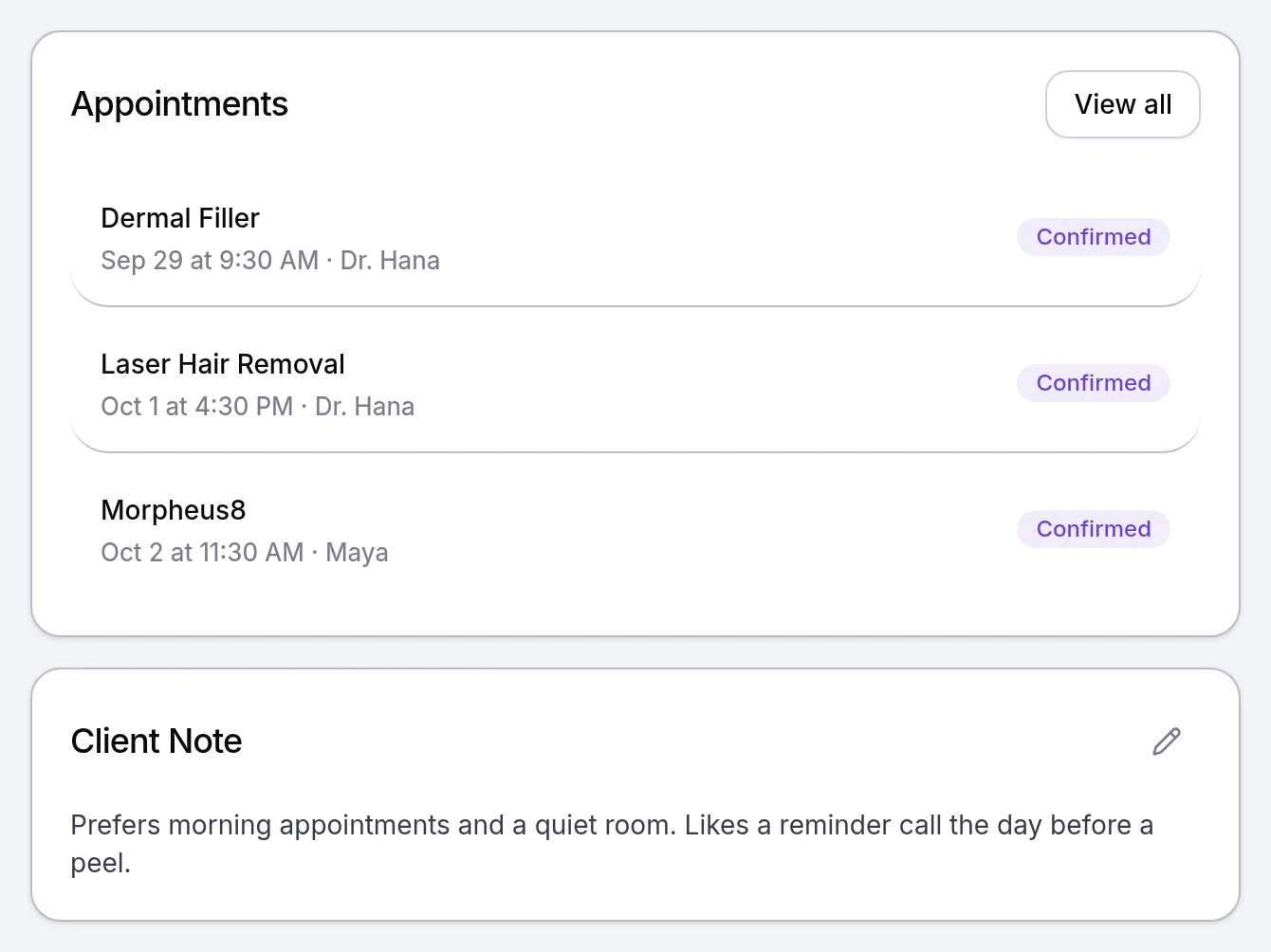
The Overview tab opens first. Appointments lists up to three visits, the next ones first and then the most recent. With more than three, View all opens the patient’s sales in Transactions. The Client Note holds one standing note your team keeps about the patient. Contact shows their email, phone number, birthday and the date they joined, with a dot for each of Email, SMS and Push that turns green when that channel is on. Tags holds your practice’s labels for them.
Add notes, tags and alerts to a patient covers the Client Note, comments and tags, Record a patient’s medical history and files the Clinical and Files tabs, and Chart a visit: notes, charts and photos charts, visit notes and the Photos tab. How forms and charts work explains the forms and charts listed on the Clinical tab.
What do the statuses mean?
Every patient in Velarya carries one status badge, shown in the Status column of the Clients list. A membership sets Member, and your team sets Inactive and Archived.
| Badge | What it means | How it changes |
|---|---|---|
| Active, with Member under it | The patient holds a membership that is active, trialing, past due or pending | Velarya sets it from the membership, as soon as a plan is assigned or joined and until the membership ends |
| Active, with New Client under it | The patient holds no membership. Every patient you add, and every patient who signs up, starts here | A membership turns it into Member |
| Inactive | The patient can’t sign in to your practice in the patient app or book until the account is enabled again. Their records stay as they are | More actions > Disable account, or Deactivate on the Clients list. Enable account or Activate reverses it |
| Archived | The patient is off your active list and no longer reaches your practice in the patient app. Every record stays on file | More actions > Archive client. Restore Client, in the patient’s row menu on the Clients list or on their profile, brings them back, and they reconnect the next time they sign in |
Member always comes from a membership: your team never sets it by hand. A member who is inactive or archived shows Inactive or Archived. A patient who deletes their account in your app stays on the list as “Deleted User”, shown as Deleted, with their name and contact details removed. Update, archive or delete a patient walks through each change.
Who can change a patient’s details?
Velarya splits a patient’s details between your team and the patient, and a Front Desk role changes contact details but not the name.
| Detail | Who changes it | Where |
|---|---|---|
| First and last name, date of birth | Admins and Location Managers | More actions > Edit client details, which opens Edit Patient Profile |
| Email address and phone number | Admins, Location Managers and Front Desk (Client personal info at edit) | Edit Patient Profile, also opened by the pencil on Contact |
| Email, text and push notifications | The same staff, and the patient | Communication Preferences in Edit Patient Profile, and Communication preferences in the app |
| Tags | The same staff | The Tags card on Overview |
| The patient’s own email address | The patient, confirmed with a code sent to the new address | Profile & Settings > My information in the app |
| A date of birth, when none is recorded | The patient, once | My information in the app |
Anyone else who changes a name or date of birth sees “Only an Admin or Location Manager can change a client’s name or date of birth.” Your team’s edits change your practice’s profile, never how the patient signs in to the patient app: the patient changes their own sign-in email in the app, with a code sent to the new address. Manage patients’ text consent and opt-outs covers a patient who replied STOP.
What do patients see?
Patients see their own details and choices in your app, never your team’s notes about them.
- My information, under Profile & Settings, shows their name, phone number, email address and date of birth. They change their email there, confirmed with a code, and add a date of birth once. After that the app says “Your clinic can update your date of birth for you.”
- Communication preferences holds I want to receive emails, I want to receive SMS messages and I want to receive app push notifications. Their choices show as the Email, SMS and Push dots on Contact.
- My clinics, in the Velarya app, lists every practice they belong to under one sign-in. Each practice keeps its own bookings, memberships and rewards for them.
The Client Note, comments, tags, alerts, charts, photos and files stay with your team: the patient app shows none of them.
Where to find a patient’s profile
Every profile in Velarya opens from the Clients list.
- Select Clients in the left sidebar.
- Type the patient’s name, email or phone number in Search clients…, or filter the list as Find, filter and export your patients shows.
- Select the patient’s row. Their profile opens on Overview.
- Select More actions. Staff with Client personal info at edit see Edit client details, Send notification, Set scheduling alert, Disable account and Archive client, and Admins also see Delete client. Staff with HIPAA audit trail viewer see Access history, every recorded access to the patient’s record.

How patient privacy works explains each grant that decides what a role sees on the profile.
Frequently asked questions
Was this guide helpful?
Last verified