
How forms and charts work
Updated Last verified against the product
In short
In Velarya, a form is what a patient fills from a secure link, such as an intake questionnaire or a signed photo consent, and a chart is the treatment record your staff fill at the visit. Both come from templates you build in Forms & Charts, and every record keeps the version it started on.
- Who can do this
- Templates: Admins (Form & chart template builder at manage). A patient's forms and charts: Clinical charts & forms, at view for Location Managers and at edit for Admins and Service Providers
- Applies to
- Your whole practice, every location
- Plans
- Scale, Branded and Connected
- Time
- 4 minute read
What are forms and charts?
Forms and charts in Velarya are the two kinds of clinical record you build from templates. A form is filled by the patient, on their own phone or computer, from a link Velarya sends them before their visit: an intake questionnaire, a photo consent, any agreement they sign. A chart is filled by your staff during or after the visit: a SOAP note, or a treatment record with the products, lot numbers and injection sites used.
| Form | Chart | |
|---|---|---|
| Filled by | The patient, from a secure link | Staff with Clinical charts & forms at edit |
| Starts | When a matching appointment is booked, as the template’s delivery settings say | When a provider selects Start chart on a visit or on the patient’s profile |
| Signature | When the form has a Signature field: drawn or typed on the patient’s link and recorded as the patient’s | Recorded for the staff member who completes it, and for the reviewer when the template needs sign-off |
| Starters | New Client Intake, Photo Consent | SOAP Note, Basic Treatment Record, Advanced Treatment Record |
| Patients see it | Yes, from their link | Never |
Both kinds live on the patient’s one profile, next to their medical history, so the patient’s Clinical tab shows the signed consent and the intake answers in the same place as the charts. Answers are encrypted, and every view, save and signature is recorded, as How patient privacy works explains.
How do templates, versions and records fit together?
A template in Velarya is the blueprint an Admin builds once in Forms & Charts: its questions, and settings for when it is used. Each record a patient or provider fills is made from it. A template is always in one of three states.
| Template state | What it means |
|---|---|
| Draft | Being built. Nothing is sent or offered from it yet. |
| Published | Live. Forms go out with matching bookings, and charts appear in Start chart. |
| Disabled | Switched off. No new forms go out and it leaves Start chart. Records already made stay, a patient can still finish a form already sent, and Enable in the row menu makes it Published again. |
Publishing takes a snapshot of the template as a new version. Every form or chart keeps the version it was started on, so a record that was signed can never be changed by a later edit to the template: “Existing submissions keep their pinned version.” Edit the template, publish again, and new records use the new version. Changes on the Settings tab, such as delivery, apply as soon as they are saved, including to forms not yet finished. Require sign-off and Copy from previous follow the published version, so a chart keeps the sign-off rule of the version it started on.
What do the statuses mean?
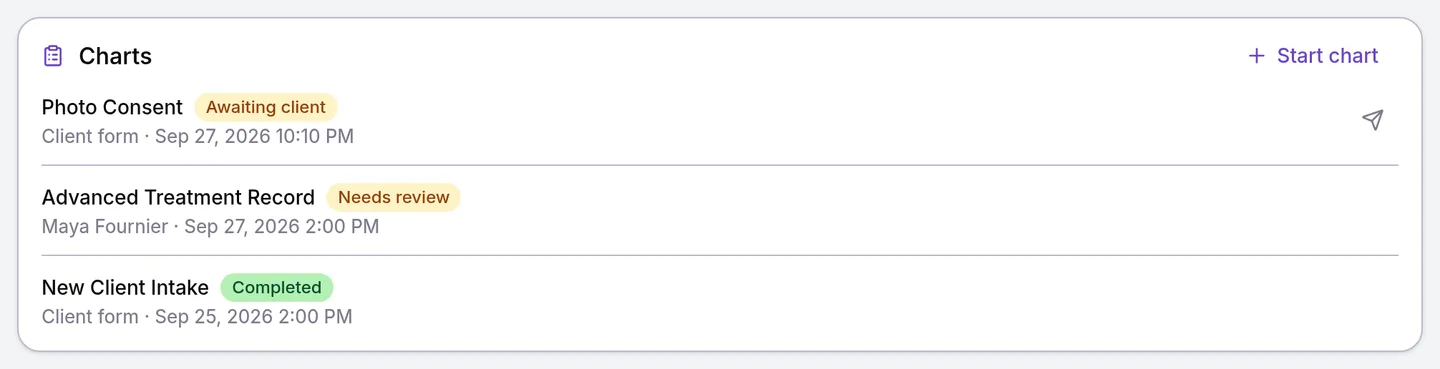
Each form and chart shows a status wherever it is listed: the Charts card on the patient’s Clinical tab, the sale’s Clinical tab and the appointment panel.
| Status | What it means |
|---|---|
| In progress | A chart a provider has started and not completed. Answers save as they type. |
| Awaiting client | A form sent to the patient that they have not submitted yet. |
| Needs review | A chart completed on a template that needs sign-off, waiting for a reviewer. It is locked. |
| Changes requested | A reviewer sent the chart back with a comment. The provider edits it and selects Resubmit. |
| Completed | Final: a form the patient submitted, or a chart completed or approved. It is locked. |
| Expired | A form set to One time that has passed its Expires after (months). The patient is asked to fill a fresh copy with their next matching booking. |
How do sign-off and amendments work?
Sign-off in Velarya is a second signature on a chart, for practices where a medical director or senior provider approves each treatment record. An Admin turns on Require sign-off on the chart template and publishes it, and from then on a chart started on it goes to Needs review when completed, instead of Completed.
- Finding charts to review. On Transactions, the Needs chart review view, or the Chart review filter set to Needs review, lists the sales with a chart waiting for sign-off. The chart opens from the sale’s Clinical tab.
- Approving. A reviewer with Approve & sign off charts, which Admins hold by default, selects Approve and sign, adds an optional comment and signs. The chart becomes Completed: “Chart approved and signed”.
- Sending it back. Request changes needs a Comment saying what to fix. The chart moves to Changes requested until the provider edits it and selects Resubmit.
- Skipping review. Roles with Submit without reviewer approval, which Admins hold by default, complete sign-off charts straight to Completed, and Velarya records that the review was skipped.
- Correcting a completed chart. Amend creates a new editable copy linked to the original, with its signature left blank. The original stays unchanged, and both stay on the patient’s profile.
Every signature, whether a patient’s, a provider’s or a reviewer’s, is stored with who signed, when, a fingerprint of the answers at that moment, and the IP address and browser used. A chart copied from an earlier one, and an amendment, start with the signature blank, so each record is signed by the person who completes it. The provider’s side of charting is in Chart a visit: notes, charts and photos.
What do patients see?
Patients see their forms and never a chart. A patient booked for a visit gets an email headed “Forms to complete before your visit” with a Complete your forms link, and a text with the link if they have agreed to texts. The link opens a page with your practice’s logo and name that greets them by first name, saves every answer as they go and ends with Submit form. A signature field lets them draw with a finger or type their full name.
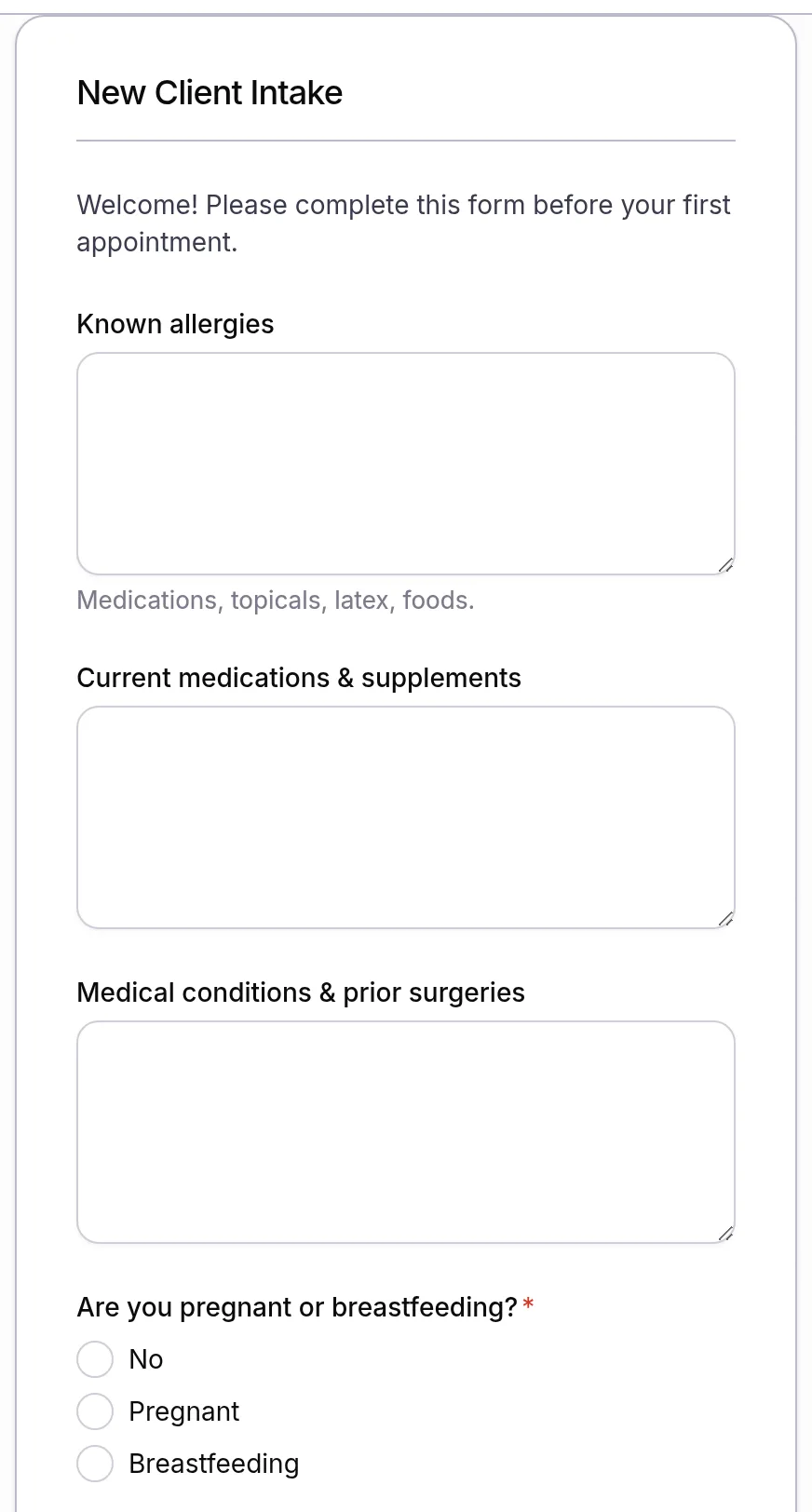
Once they submit, the page reads “We have received your form”, the link stops working and the form shows Completed to your team. How forms are sent, and how to send one again, is in Send intake and consent forms to patients.
What you can change
Each template has a Settings tab. Forms and charts share the first two settings, and the rest belong to one type.
| Setting | Type | Default | What it does |
|---|---|---|---|
| Services | Both | All services | Which booked services send a form, or offer a chart in Start chart: Specific services or Specific categories |
| Locations | Both | All locations | Which locations’ bookings send a form, or offer a chart |
| Collect | Form | Every appointment | A new copy for every appointment, or One time per patient |
| Expires after (months) | Form | Never | Asks for a One time form again after 1 to 120 months |
| Send with confirmation | Form | Off | Sends the form as soon as the appointment is booked |
| Send with reminder | Form | Off | Sends it with every appointment reminder |
| Send same day | Form | Off | Sends it with the appointment reminders that go out on the day of the visit |
| Require sign-off | Chart | Off, on for Advanced Treatment Record | Completed charts wait for a reviewer before they are final |
| Copy from previous | Chart | Off, on for the three chart starters | Offers to copy answers from the patient’s last completed chart of this template. Signatures are never copied |
A new form has every Delivery switch off, so it reaches patients once at least one is on. Building the questions themselves is covered step by step in Create a form or chart template.
Where to find forms and charts
Templates live in Organization settings > Forms & Charts, under Client Experience. The page lists every template with its Type, Status and Last edited date, and New template starts a new one.
A patient’s own forms and charts are on their profile:
- Select Clients in the left sidebar and select the patient.
- Select the Clinical tab. The Charts card lists every form and chart, newest first, with “Client form” or the name of the staff member who started it, and the date, under each.
- Select one to read it, or to carry on filling a chart that is In progress.
One visit’s forms and charts are in the Forms & Charts block of its appointment panel on the Calendar and Front Desk, where Chart opens the sale’s Clinical tab. Allergies, medications and medical alerts sit on the patient’s Clinical tab too, as Record a patient’s medical history and files shows.
Frequently asked questions
Was this guide helpful?
Last verified