
Chart a visit: notes, charts and photos
Updated Last verified against the product
In short
In Velarya, you chart a visit on its Clinical tab: select Start chart, pick a published chart template, fill it in and select Complete. A chart that needs sign-off goes to a reviewer, who approves and signs it. Visit notes, products with lot numbers and clinical photos sit beside the chart, and Amend corrects a completed one.
- Who can do this
- Charts, visit notes and photos: Clinical charts & forms at edit (Admins and Service Providers; Location Managers view them). Sign-off: Approve & sign off charts (Admins)
- Applies to
- Your whole practice, every location
- Plans
- Scale, Branded and Connected
- Time
- 5 minutes
Before you begin
- A published chart template: Create a form or chart template.
- The visit is booked for the patient with a service: Book an appointment for a patient.
Open the visit’s Clinical tab
The visit’s Clinical tab in Velarya holds everything clinical about one treatment: its charts, its visit notes and its photos. It lives on the visit’s sale.
- Open the appointment on Calendar or Front Desk. The appointment panel lists the visit’s forms and charts under Forms & Charts, each with its status.
- Select Chart. The visit’s sale opens on its Clinical tab.
- When one sale covers several appointments, select the visit at the top of the tab.
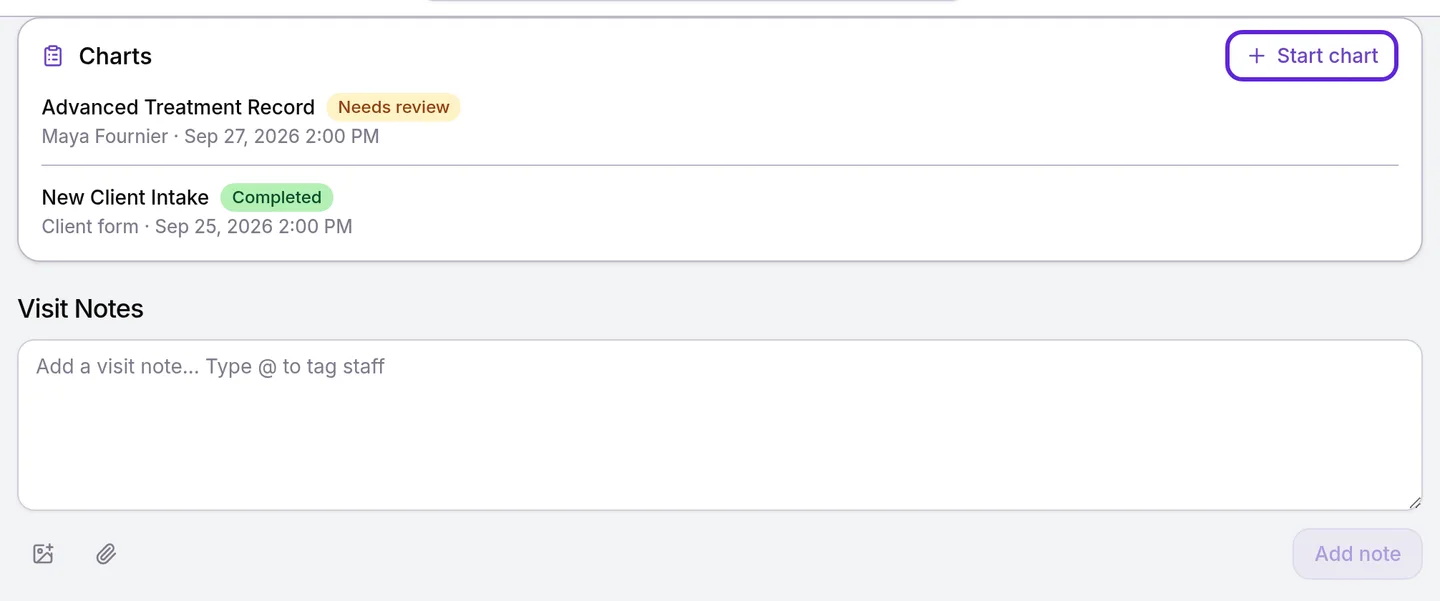
You can also reach the tab from Transactions: open the sale and select Clinical. The patient’s own Clinical tab lists their charts and visit notes from all their visits, newest first.
Start and complete a chart
A chart in Velarya is a record your team fills in from a published chart template, such as a treatment record or a SOAP note. Completing it locks it.
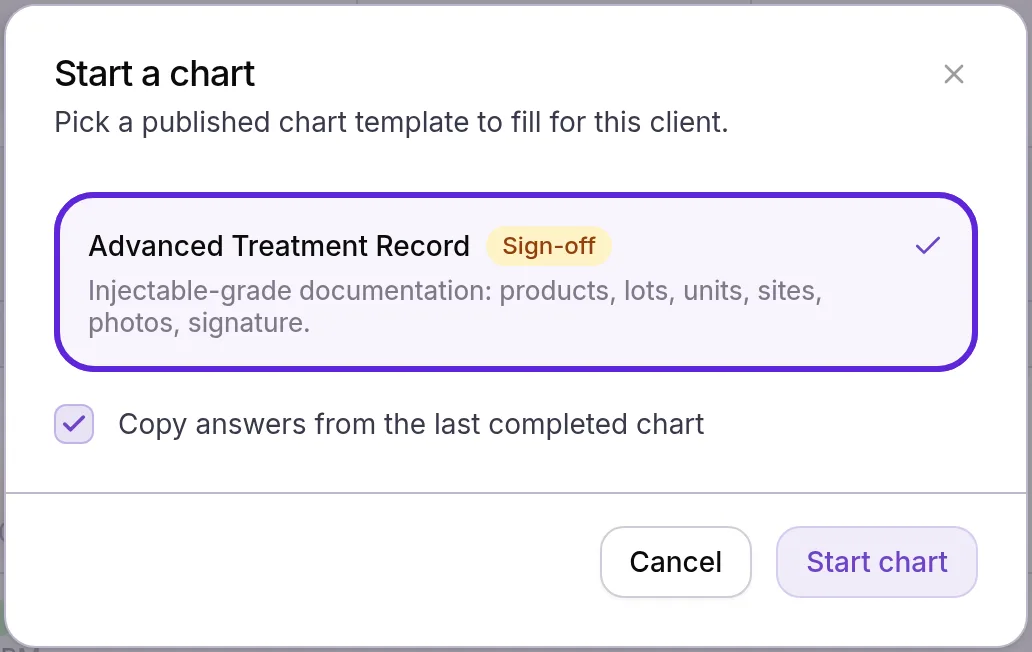
- Select Start chart in the Charts card. Start a chart opens with the published chart templates to choose from, and Sign-off marks those whose charts need a reviewer.
- Select a template. If it copies earlier answers, Copy answers from the last completed chart appears, ticked. Untick it to start blank. Signatures are never copied: every chart asks for a new one.
- Select Start chart. The chart opens with the patient’s allergies, medications, conditions and sex at birth filled in wherever the template asks for them.
- Fill in the chart. It saves as you type, and “Saving…” then “Saved” shows beside the title.
- Select Complete, then Complete in “Complete this chart?”. “Chart completed” appears, or “Chart submitted for review” when the template needs sign-off.
Completing a chart, including submitting it for review, copies its connected answers into the patient’s record: allergies, medications, conditions and sex at birth into the medical history, and any connected name, email, phone, date of birth or address onto the profile. A blank answer changes nothing. Every chart, from the moment it starts, is listed with its status on the patient’s Clinical tab and, when it belongs to a booked visit, in that visit’s Forms & Charts block.
Record products and lot numbers
When a chart template includes a Product Usage component, a Product Usage card sits below the chart. Each entry records a product given at the visit. Organization settings > Lot Recall, open to staff with Clinical charts & forms, finds every patient across the practice who received a lot, with their contact details. It matches the whole lot number, so type it exactly as printed.
- Choose the product in Product, or choose + New product, type its name and select Create.
- Enter the Quantity and choose the Unit: units, ml, mg or syringes.
- Type the Lot #, pick the Expiry date and add the Site, such as Glabella.
- Select Add product usage. “Product usage recorded” appears, and the entry lists the amount, lot, expiry and site.
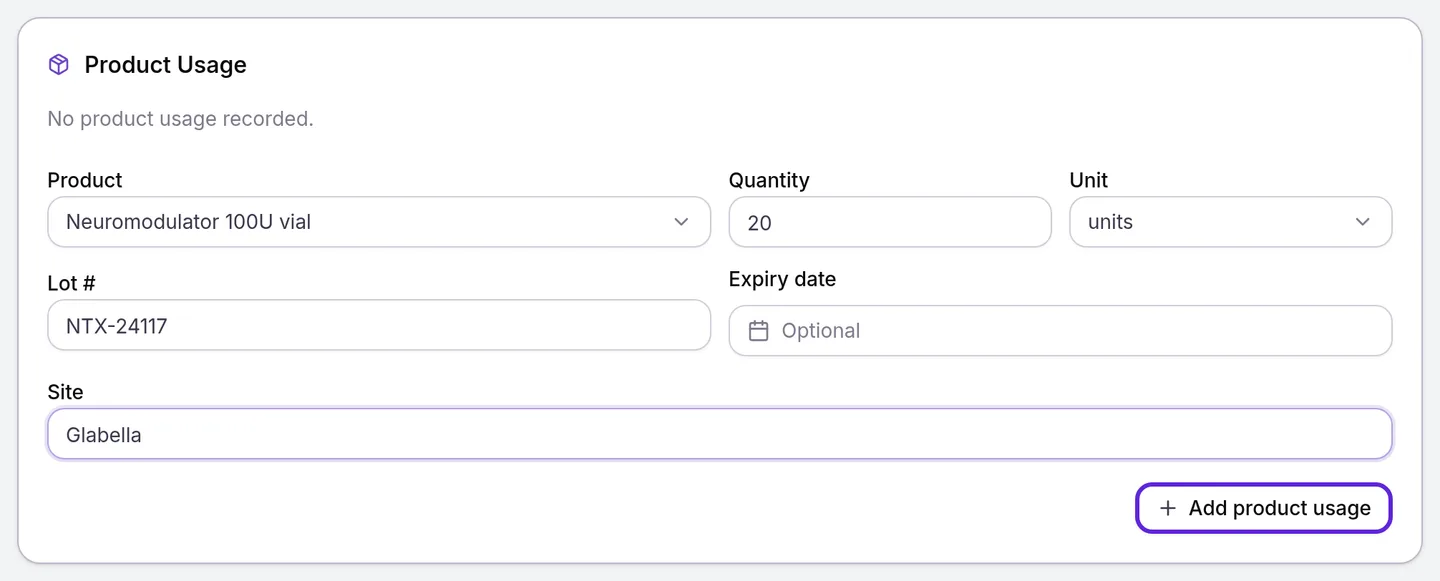
Record each product and site as its own entry. To remove one, select the bin beside it and confirm with Delete. Entries lock with the chart when it is completed.
How does sign-off work?
Sign-off in Velarya is a reviewer’s approval of a chart. A chart whose template has Require sign-off moves to Needs review when completed, and a reviewer with Approve & sign off charts approves it or returns it.
- In Transactions, select the search box and choose Chart review under Add filter, then Needs review. Sales with a chart waiting show Needs review in the Chart review column.
- Open the sale, select Clinical and select the chart. It reads “Submitted for review by” the author, with the time. A chart started from a patient’s Clinical tab belongs to no sale: it shows Needs review in the Charts card there, and you open it from that card.
- Check the chart, then select Approve and sign.
- Add a Comment (optional), sign under Signature with Draw or Type, and select Approve and sign. “Chart approved and signed” appears, and the chart is Completed.
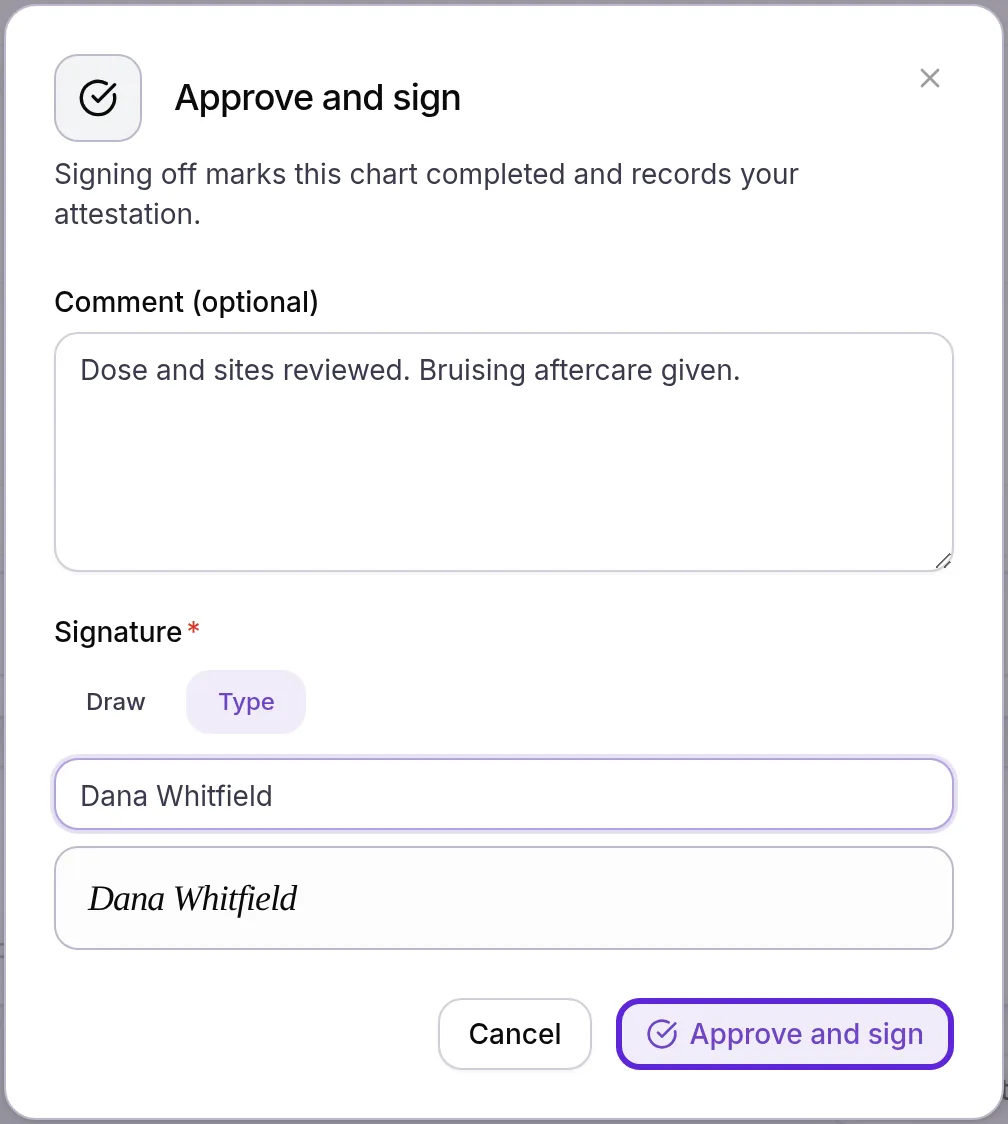
To return a chart, select Request changes, explain what to fix in Comment and select Request changes. The author sees Changes requested with your comment, edits the chart and selects Resubmit, which sends it back for review.
Staff who hold Submit without reviewer approval, which Admins hold by default, complete a sign-off chart straight to Completed. Velarya records in the audit log that the review was skipped.
Correct a completed chart
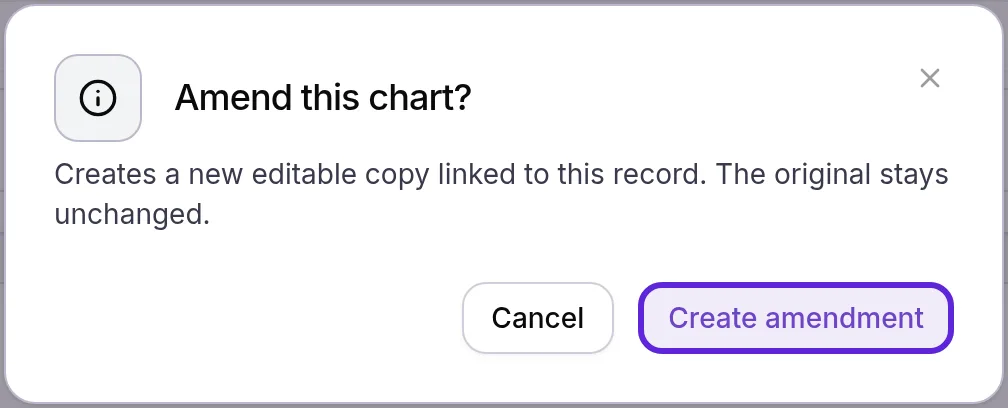
A completed chart in Velarya stays exactly as it was signed. To correct it, you amend it: Velarya makes a new, editable copy linked to the original.
- Open the completed chart and select Amend.
- Select Create amendment in “Amend this chart?”. “Amendment created” appears, and the copy opens with the same answers and product entries, so you correct only what changed. Its signature fields start blank.
- Make the correction, sign where the chart asks and select Complete. A template that needs sign-off sends the amendment for review too.
The amendment reads “Amendment of an earlier record. View the original chart.”, with a link to the original, which keeps its answers and signatures.
Add visit notes
Visit notes in Velarya are dated entries about a treatment, each stamped with its author, such as how the patient responded or what to check next time. They sit under Visit Notes on the visit’s Clinical tab, and below Charts on the patient’s Clinical tab.
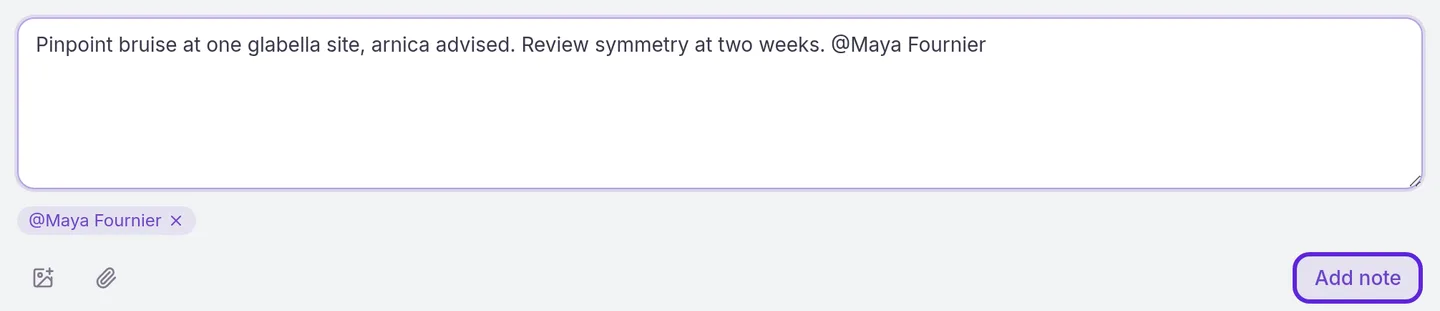
- On the visit’s Clinical tab, type in Add a visit note… Type @ to tag staff. A note holds up to 10,000 characters.
- To bring in a colleague, type @ and pick their name. You can mention up to 20 people. Each gets a mention in their Notifications bell that names you but not the patient, and selecting it opens the visit.
- To attach files, select the image button for a photo or the paperclip for a PDF or image document, up to 10 of each.
- Select Add note. The note appears under today’s date with your name and the time.
On the patient’s Clinical tab, the composer adds No linked appointment: choose a visit there to link the note to it. To change or remove your own note, point at it and select the pencil or the bin. Deleting asks “Delete note”, and a changed note shows (edited).
Add and compare clinical photos
Clinical photos in Velarya belong to the patient, and those uploaded on a visit also belong to that visit. Your team uses them for before-and-after records and injection maps.
- On the visit’s Clinical tab, select Upload Photos under Visit Photos and choose one or more images: JPEG, PNG, WebP or HEIC, up to 5 MB each. “Photo uploaded” appears for each.
- Open the patient’s profile and select Photos. Every clinical photo is here, newest first, with the filters All, Before, After and Other.
- Select a photo and set its type to Before, After or Other in the menu at the top left. A photo counts as Other until you set it.
- To annotate it, select Mark up, draw with the pin, pencil, shape, arrow or X tools in red, blue, green or yellow, and select Save markup. The markup is a layer over the photo, and the original is kept unchanged.
- To compare, select Compare. Before / After puts two photos side by side: choose a side, pick a photo from the row below, add a Pair title (optional) and select Save pair.

Upload Photos on the Photos tab adds photos that belong to the patient but no visit. Deleting a pair under Saved pairs keeps both photos.
How does charting behave?
Velarya treats charts, notes and photos as part of the patient’s clinical record: locked once complete, visible only to the clinical team, and logged.
| Situation | What Velarya does |
|---|---|
| A chart is in progress | Staff with Clinical charts & forms at edit who can reach the visit fill it; providers fill charts on their own appointments. When two people save at once, the later save is refused with “This chart was changed in another session. Reloading the latest version.”, and that person’s latest changes are replaced by the saved chart. |
| A chart is completed or waiting for review | Locked, with its products and photos. A completed chart is corrected with Amend; a chart waiting for review goes back to its author when a reviewer selects Request changes. |
| The template changes after a chart starts | The chart keeps the version it started on, including whether it needs sign-off. Edits to a template shape only new charts. |
| A chart is completed or signed off | Velarya records the signer, the time, their browser and IP address, and a fingerprint of the chart’s answers at that moment. Each signature is captured anew; none is copied from another chart. |
| A provider opens a patient | Service Providers, and other staff set up as providers, open the charts, visit notes and photos of their own appointments with the patient, and those not linked to any visit. |
| Someone opens or changes a chart, note or photo | It appears in the patient’s Access history, with who and when. Chart answers and visit notes are encrypted. |
| A patient is deleted | Their charts, visit notes and photos are erased with the profile. Archiving the patient keeps them. |
Who holds each permission by default is in How patient privacy works. Allergies and medical alerts belong to the patient’s medical record, covered in Record a patient’s medical history and files.
If something goes wrong
“No clinical service on this transaction.” The sale has no service on it, and charts attach to services. Add the service to the sale, or start the chart from the patient’s Clinical tab.
“No client on this transaction.” The sale has no patient. Add the patient to the sale, then open Clinical again.
The Clinical tab shows “Clinical records restricted”. Your role does not hold Clinical charts & forms at view, which Front Desk does not hold by default. Ask an Admin for a role that includes it, as How patient privacy works describes.
Start chart, Add note or Upload Photos is missing. Your role holds Clinical charts & forms at view, which reads charts but does not write them. Location Managers hold view by default. An Admin can give you a custom role with edit.
“No published chart templates available.” Your practice has no published chart template yet. An Admin publishes one in Organization settings > Forms & Charts, as Create a form or chart template shows.
“2 required fields missing” when you select Complete. Required questions are still blank. Fill them in and select Complete again.
“This chart is no longer editable.” A colleague completed the chart while you had it open. Open it again, and use Amend if it needs a correction.
Approve and sign is missing on a chart that needs review. The chart reads “Submitted for review. A reviewer with sign-off permission must approve this chart.” Only staff with Approve & sign off charts, Admins by default, sign off charts.
There is no paperclip in the note box. Attaching documents saves them to the patient’s files, which takes Client documents & photos at add, held by Admins and Location Managers by default.
A document is refused when you attach it. The message gives the reason: the file is over 5 MB, or is not a PDF or a JPEG, PNG, WebP or HEIC image. Save it in one of those formats under 5 MB and attach it again.
“Photo is attached to a clinical note and cannot be deleted”, or “Failed to delete” on a visit’s Clinical tab. The photo is part of a visit note, so it stays with that note in the record.
Frequently asked questions
Was this guide helpful?
Last verified