
Book an appointment for a patient
Updated Last verified against the product
In short
To book an appointment for a patient in Velarya, open Calendar and select New Appointment, or click a free time in a provider's column. Choose the patient, services, provider, date and start time, then select Book appointment. Several services book back to back, and a schedule clash shows a warning you can save past.
- Who can do this
- Admins, Location Managers and Front Desk: Calendar & appointments set to Manage. Blocking time for a provider also takes Staff schedules & time-off (others) set to Manage.
- Applies to
- Each location separately
- Plans
- Basic, Scale, Branded and Connected
- Time
- 2 minutes
Before you begin
- The service is on your menu with its variations set: Create a service patients can book.
- The provider holds the Service Provider role at this location and has working hours: Set your hours and staff schedules.
Book an appointment from the Calendar
You book a patient in Velarya from the Calendar, in the New appointment drawer. The drawer checks the time against the schedule, creates the visit and its sale together, and shows the visit on the Calendar at once and on the Front Desk on the day.
- Select Calendar in the left sidebar. It opens on today; in Day view each provider has a column.
- Select New Appointment at the top right. Or click a free time in a provider’s column and choose New appointment: the drawer then starts with that provider, date and time.
- Under Client, search by name, phone or email and select the patient. Their membership, credit and points show under the name.
- Under Services, select Add service, select the service, choose its Variation when the picker asks for one, and select Done. The pencil on a service reopens its options.
- Under Provider, pick who treats the patient. A provider marked Not assigned to this service can still be picked: Velarya warns before saving, and Save anyway books them.
- Set the Date and Start time. Velarya fills Duration (minutes) with the service’s full length, hands-off and finishing time included; change it to book a longer or shorter visit.
- Add a note under Notes if your team needs one. It stays visible to staff only.
- Select Book appointment. A message confirms the appointment is booked and its transaction created, and the visit shows on the Calendar in the provider’s column.
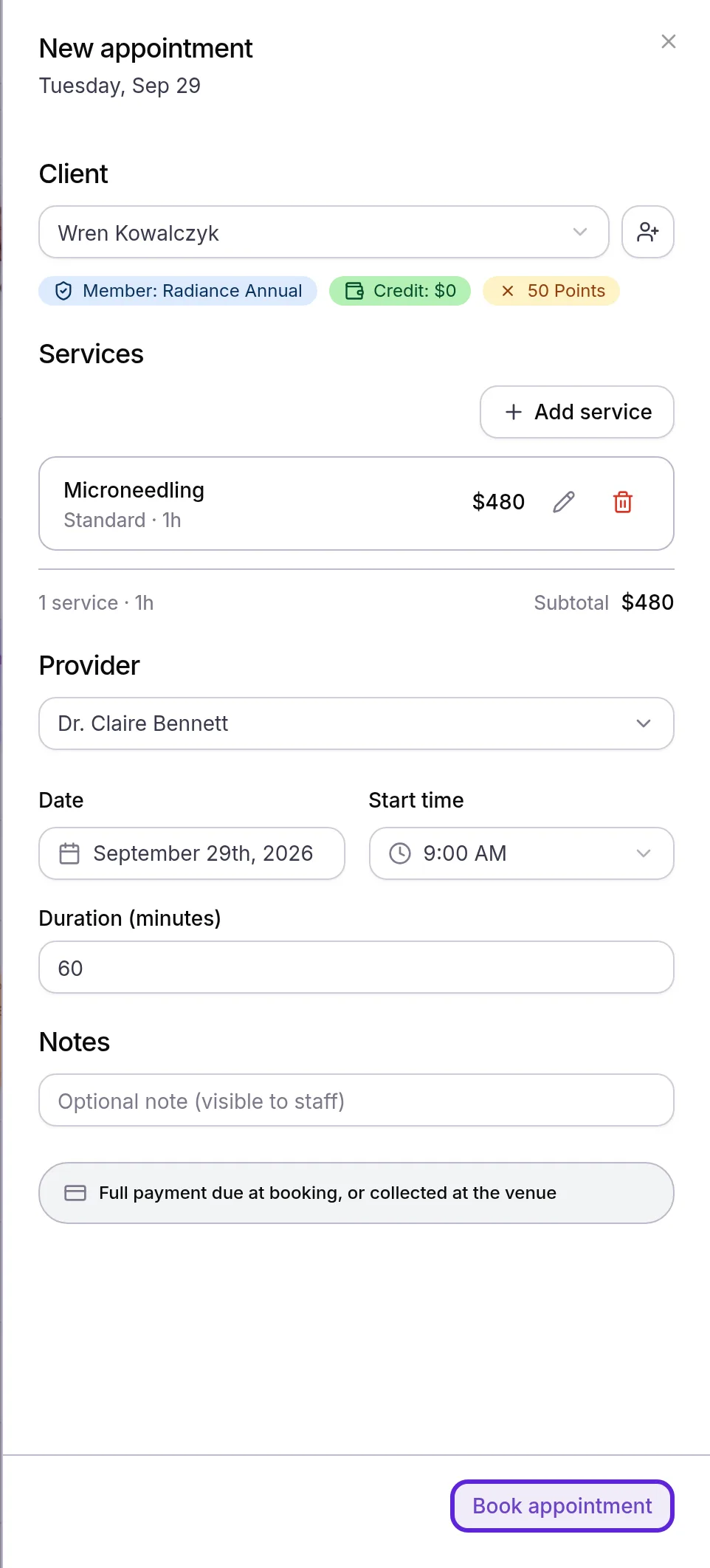
A payment notice sits under Notes once you add a service. It repeats what your booking policy asks for these services: “Full payment due at booking”, a line starting “Deposit due at booking” with the amount, or “Full payment due at booking, or collected at the venue”. Velarya saves the visit unpaid either way and keeps it on the Calendar until you take payment at checkout, as Take payment at checkout shows. Set up deposits and cancellation fees covers the policy itself.
When the policy takes a deposit or needs a card on file at booking, a checkbox whose label starts “Card on file required” and says to check it to override appears under the notice. Select it to book a patient who has no card on file yet, for example over the phone. A patient booked this way has no deposit recorded, and the full price is collected at checkout.
Book several services in one visit
A visit in Velarya can hold several services with one provider. Velarya books them back to back in the order you added them: each service starts when the one before it ends, after any transition time the service has.
- In New appointment, select Add service and select every service the patient wants, choosing each one’s Variation. The picker counts them, for example “2 selected”.
- Select Done. Each service appears as its own line with its price, and the button becomes Book appointment · 2 services.
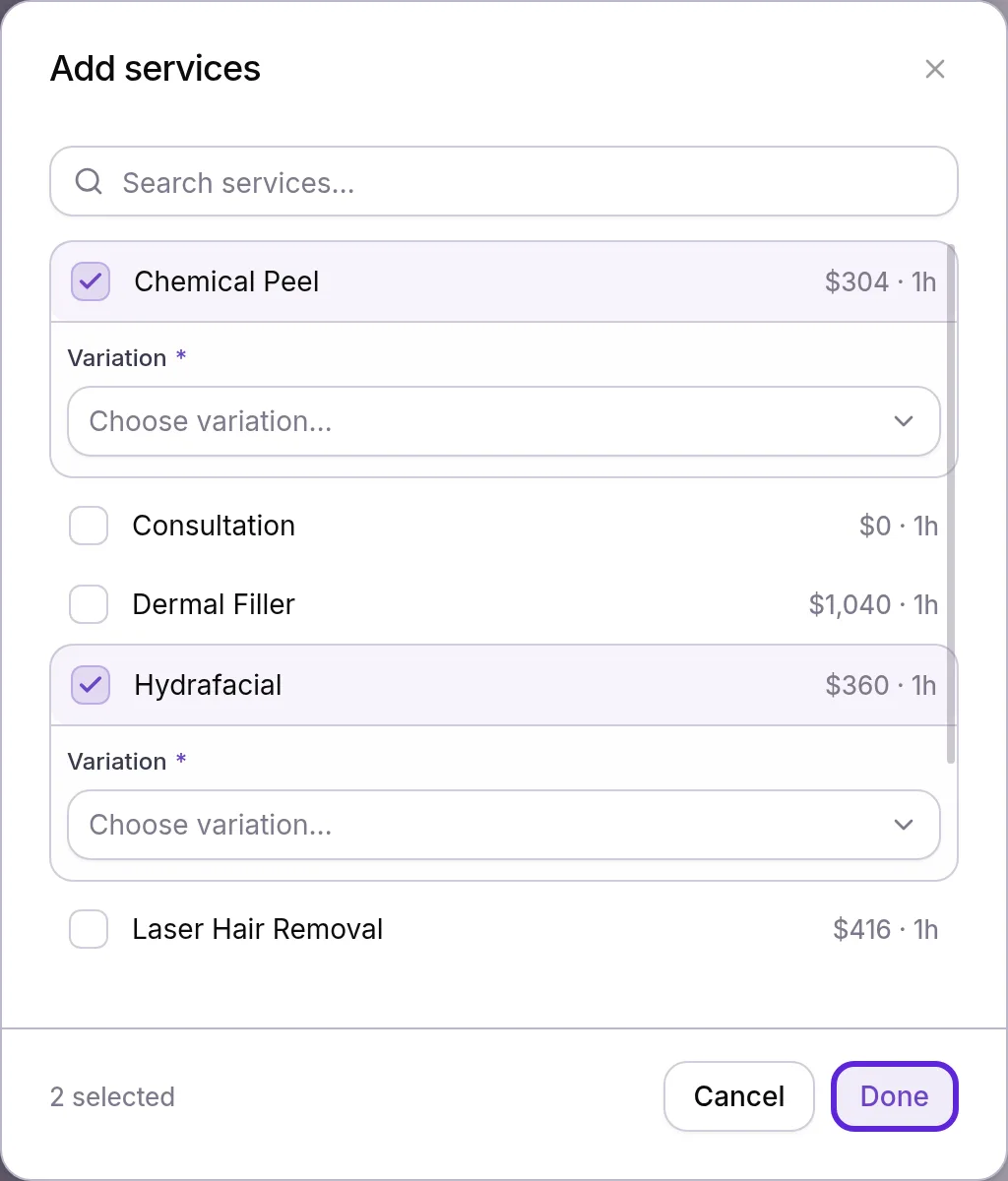
- Choose the provider, date and start time for the first service, then select Book appointment. On the Calendar, each part of the visit shows “+1” after its service name, and the parts move together when you drag one.
What happens when the time clashes with the schedule?
Velarya warns staff about a clash and lets them decide. Before anything is saved, This conflicts with the schedule lists each problem it found, such as “Maya Fournier already has a booking at 9:00 AM.” Velarya checks the provider’s bookings, time blocks and working hours, whether they are assigned to the service, the patient’s other visits and the rooms or devices the service needs.
- Read each line in the warning.
- Select Save anyway to book the visit as it is, or Go back to change the time or provider. Going back saves nothing.
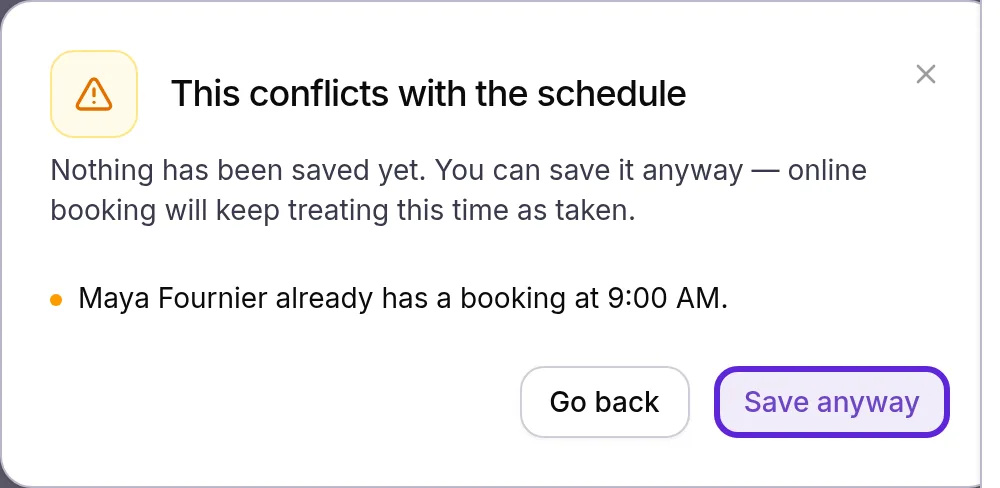
A time you save anyway stays taken for online booking, so patients are never offered it in the app or on your web booking page. Admins find every override in Organization settings > Audit Log under Appointment Conflict Override, with who saved it and when. The same warning appears when you move a visit onto a busy time or give it to a provider outside the service’s provider list. To move or resize a visit, drag it on the Calendar, as Cancel or reschedule an appointment shows.
Block time on the Calendar
A time block marks a provider’s time as taken for lunch, training or maintenance. Patients are never offered that time online, and they never see the reason.
- In Day view, select the provider’s name at the top of their column and choose Block time. Or click a free time in their column and choose Block slot.
- Set the Start time and Duration (min).
- To repeat it, choose Daily or Weekly under Repeat and set Occurrences, up to 26.
- Type a Reason (staff-only), such as “Team training”.
- Select Block time. “Time blocked” appears, and the Calendar shows the time as Blocked with the reason.
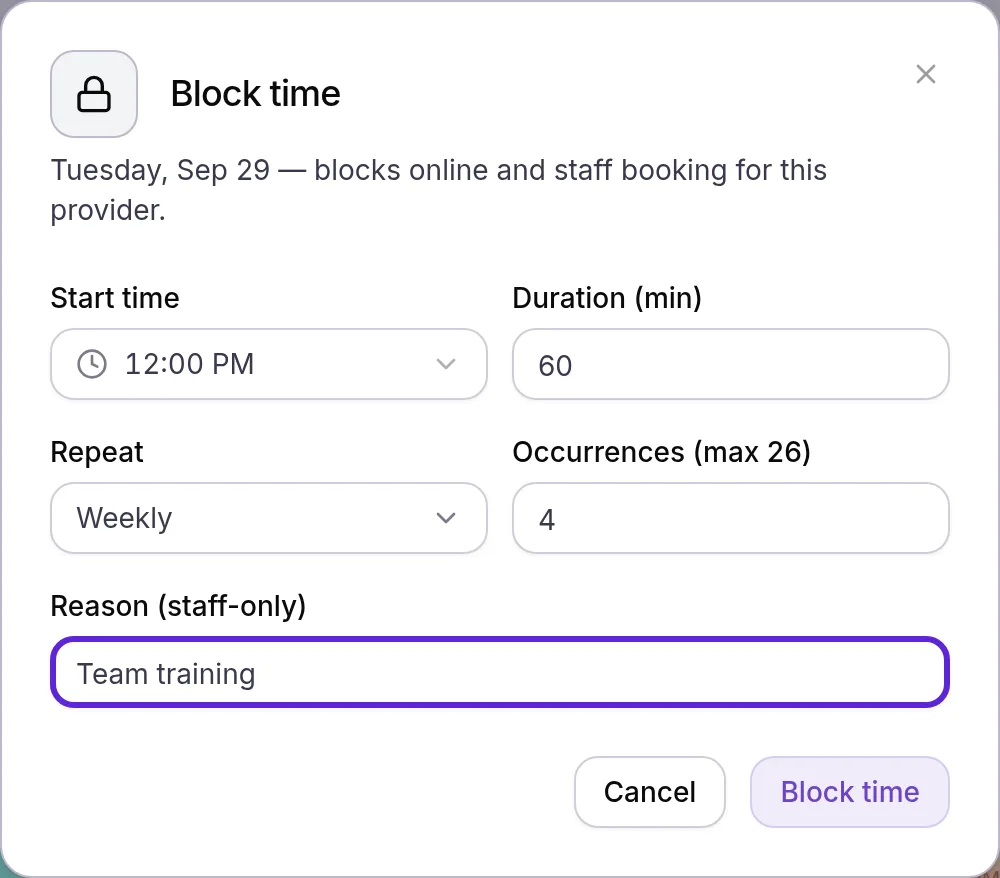
To remove a block, click it and select Remove block in Remove this time block?. The time is bookable again. Each repeat is its own block, so you can free one date and keep the rest.
What do patients see?
A visit your team books shows in the patient app under Upcoming on the Calendar tab, with its services and time. Velarya sends the patient a booking confirmation when you book, and every reminder in Set up appointment reminders. If your practice sends intake or consent forms, the patient gets a link to each one at booking or with their reminders, as Send intake and consent forms to patients shows. The provider gets a New front desk booking notice. The times the app and your web booking page offer are free times, so blocked time and time kept by a warning override never appear there. How online booking works covers what patients see when they book themselves.
How does booking from the Calendar behave?
Velarya checks every Calendar booking against the schedule and your booking policy, and warns rather than blocks when a time clashes.
| Situation | What Velarya does |
|---|---|
| The provider, the patient or a room or device the service needs is already booked | Warns with This conflicts with the schedule and books only after Save anyway |
| The time is outside operating hours, on a closure, inside Minimum advance notice or past Latest booking ahead | Books the visit and shows a notice, such as “Selected time is outside this location’s operating hours.” |
| The start time has already passed | Shows “This date and time have already passed” and keeps Book appointment unavailable |
| The provider is tagged Not assigned to this service | Warns with This conflicts with the schedule and books after Save anyway |
| The time is inside a provider’s time block or outside their working hours | Warns with This conflicts with the schedule and books only after Save anyway |
| The visit has several services | Books them back to back with one provider, each for its full length |
| The booking policy asks for payment at booking | Saves the visit unpaid and keeps it on the Calendar until checkout |
| The policy needs a card on file and the patient has none | Asks you to add a card, or to select the “Card on file required” box and book without one |
Admins, Location Managers and Front Desk book and move visits. Blocking time for a provider takes Staff schedules & time-off (others) at manage, which Admins and Location Managers hold.
If something goes wrong
New Appointment is grayed out, or clicking the Calendar does nothing. Your role holds Calendar & appointments at view, as Service Providers do. Ask an Admin to give you a role that holds it at manage, such as Front Desk, or a custom role with that permission.
“No service providers assigned at this location” under Provider. Nobody holds the Service Provider role at the location you are working in. Give a team member that role at this location in their staff profile, then set their working hours as Set your hours and staff schedules shows.
“1 service needs its options configured” under Book appointment. A service still needs its Variation or a required option. Select the pencil on the service, choose the option, then select Book appointment again.
“This client has no card on file.” Your policy takes a deposit or needs a card at booking. Add a card on the patient’s profile, or select the “Card on file required” box in the drawer to book without one.
A red “Not saved” message in the drawer. You selected Go back on a clash warning, so nothing changed. Pick another time or provider, or book again and select Save anyway.
Frequently asked questions
Was this guide helpful?
Last verified