
Set up appointment reminders
Updated Last verified against the product
In short
Velarya reminds patients of each appointment by push notification, text and email, 24 and 2 hours before by default. Turn on Appointment Reminders in Organization settings > Notification Templates, set timings under Reminder Delivery Schedule, and select Save. Booking Confirmations emails each patient when a booking is made, by them or by your team.
- Who can do this
- Admins and roles with Notification templates set to Edit
- Applies to
- Your whole practice, every location
- Plans
- Basic, Scale, Branded and Connected
- Time
- 5 minutes
Before you begin
- Your appointments are booked in Velarya, by patients online or by your team on the Calendar: Book an appointment for a patient.
Turn on appointment reminders
Appointment reminders are messages Velarya sends each patient before their visit, at the times you choose. You turn them on in Notification Templates, and they apply to every location in your practice.
- Open the menu at the bottom of the left sidebar and select Organization settings.
- Under Client Experience, select Notification Templates.
- Turn on Appointment Reminders in the Client Communication card. The switch saves as soon as you select it.

- Turn on Booking Confirmations too, so each patient gets a confirmation email as soon as the booking is made, by them or by your team. This switch also saves at once.
Both switches start on for a new practice, and reminders go out 24 hours and 2 hours before each appointment until you change the schedule.
Choose when reminders go out
The Reminder Delivery Schedule lists each timing as a chip, such as 24 Hours Before. Velarya sends one reminder per timing, counted back from the start of the appointment.
- Select Add Frequency and pick a timing: 1, 2, 4, 12, 24, 48 or 72 hours before. The new chip joins the list, longest first.

- For any other number of hours, select Add Frequency > Custom…, enter a whole number in Hours Prior to Start, and select Add Schedule.
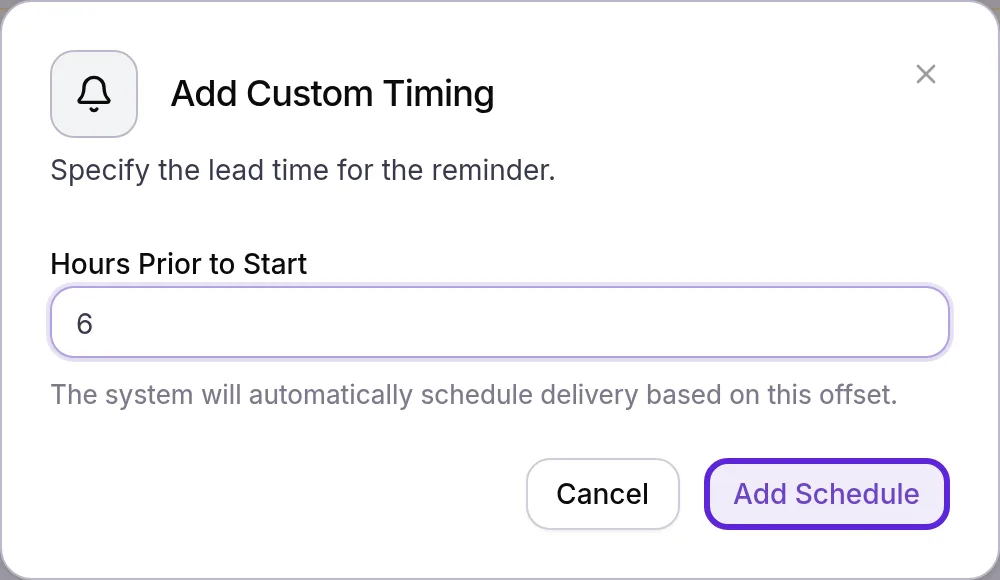
- To drop a timing, select the trash icon on its chip.
- Select Save in the Unsaved changes bar at the top of the page. The bar closes, and reminders from then on follow the new schedule.

The default schedule, 24 Hours Before and 2 Hours Before, gives patients a day to reschedule and a same-day nudge.
What do patients see?
Velarya sends each appointment reminder on every channel the patient has turned on, and checks their choices at the moment it sends. Push notifications and texts give the day and time and keep the treatment private, so nothing personal shows on a lock screen.
| Channel | Who gets it | What it says |
|---|---|---|
| Push notification | Patients with the patient app and push turned on | Appointment reminder: “You have an appointment Tuesday at 2:30 PM PDT.” Tapping it opens the appointment in the app. |
| Text | Patients with SMS turned on and a phone number on file | A short text with the day and time, ending “Reminder: you have an appointment Tuesday at 2:30 PM PDT. Details are in your email or the app.” |
| Patients with email turned on and an email address on file | Your practice’s name at the top, a subject such as “Reminder: your appointment tomorrow”, then “Hi [first name],” and “This is a reminder about your appointment at [practice] on Tuesday, October 6, 2026 · 2:30 PM PDT.” It ends “See you soon!” and is signed by your practice’s team. | |
| The app’s Notifications list | Patients with a patient app account | The email’s subject and message |
A reminder sent 2 hours or less before the visit counts the hours left in its subject, such as “Reminder: your appointment in 2 hours”. When the patient has forms to fill in for the visit, the email and the reminder in the app’s Notifications list carry a link to them: forms set to Send with reminder in Forms & Charts go with every reminder, and forms set to Send same day go with reminders sent on the day of the visit. Choose those switches on each form template, as Send intake and consent forms to patients shows.
Booking Confirmations emails the patient “Your booking is confirmed” with the date, time and location, and a View in the app button. Patients with the app see it in Notifications too. When a booking moves, Velarya emails “Your booking has moved” with the old and new times, unless your team clears Notify client about the new time; a cancelled booking gets “Your booking has been cancelled”. To see or change a patient’s channels, follow Loyalty notifications patients receive.
How do appointment reminders behave?
Velarya checks for due reminders every minute and sends each timing once.
| Situation | What Velarya does |
|---|---|
| Your schedule holds 24 and 2 Hours Before | Sends two reminders for each appointment: one 24 hours before and one 2 hours before |
| A patient books inside a timing’s window, such as 3 hours before the visit | Skips that timing and keeps the shorter ones: this patient gets only the 2-hour reminder |
| A booking waits for the patient’s online payment | Counts the window from the moment payment confirms the booking |
| The appointment is cancelled, marked as a no-show, completed or checked out | Sends no further reminders for it |
| You add a timing | Sends it for appointments whose reminder moment is still ahead; appointments already inside it keep their other reminders |
| The patient turned a channel off | Sends on the channels still on, and always adds it to the app’s Notifications list for app users |
Reminders give the time in the time zone of the location where the appointment is booked. To move or cancel a visit, see Cancel or reschedule an appointment.
If something goes wrong
A patient didn’t get a text reminder. Texts go only to patients with SMS turned on and a phone number on their profile. SMS starts off for every patient until they agree to texts, in the app or through your team, and a patient who replies STOP is opted out. Open the patient in Clients and check that SMS shows in green on the Contact card.
A patient got the 2-hour reminder but not the 24-hour one. They booked less than 24 hours before the visit, so that window had already started. Velarya skips a reminder the patient would get at the same moment they booked, and still sends the shorter ones.
No reminders went out at all. Check that Appointment Reminders is on, that the appointment has a patient on it and is not cancelled, and that the patient has at least one channel on. Reminders also need the patient’s email address, phone number or app account. A patient who books less than 2 hours before the visit (inside your shortest timing) gets no reminder for it; their booking confirmation covers them.
The schedule went back to what it was. Changes to the Reminder Delivery Schedule take effect only when you select Save in the Unsaved changes bar. Discard drops them.
“Couldn’t save reminder schedule”. The schedule was not saved; the rest of the message gives the reason or says “Please try again.” Select Save again; if it keeps failing, reload the page and redo the change.
Notification Templates isn’t in my Organization settings menu. The page needs the Notification templates permission at edit. Ask an Admin to update your role.
Frequently asked questions
Was this guide helpful?
Last verified
What changed
- : What do patients see? now says the reminder email carries your practice's name at the top.