
Set your hours and staff schedules
Updated Last verified against the product
In short
In Velarya, patients can book a time only when the location is open and a provider who performs the service is working. Set weekly Operating hours and closures in Manage > General Info, then each provider's working hours, time off and services in their profile under Staff & Schedules.
- Who can do this
- Admins and Location Managers: Location details, hours, holidays at Edit for location hours; Staff directory at Edit, Staff schedules & time-off (others) at Manage and Provider service assignment for providers; Approve staff time-off requests for requests
- Applies to
- Each location separately
- Plans
- Basic, Scale, Branded and Connected
- Time
- 10 minutes
Before you begin
- The location exists in Organization settings > Locations, and your providers are assigned to it.
- Your services are in the Service Catalog: Create a service patients can book.
Set your location’s operating hours
Operating hours in Velarya are the outer limit for online booking at a location: patients are offered times only inside them, for any provider. You set them per location, as rows of days and times.
- Select Manage in the sidebar. Location Settings opens on General Info for your current location.
- Under Location information, check the Time zone. Use org default follows your organization’s time zone.
- Scroll to Operating hours. Each row is a set of days, Every day, Mon - Fri, Sat - Sun or a single day, with a start and an end time.
- Choose the days for the first row and set its times. The time lists move in 15-minute steps.
- Select Add hours for each extra window, and set its start and end times. A new row copies the days of the row above it and runs from 9:00 AM to 5:00 PM until you change it. Two rows on the same days with a gap between them, such as 8:00 AM to 12:00 PM and 1:00 PM to 8:00 PM, close the location for lunch.
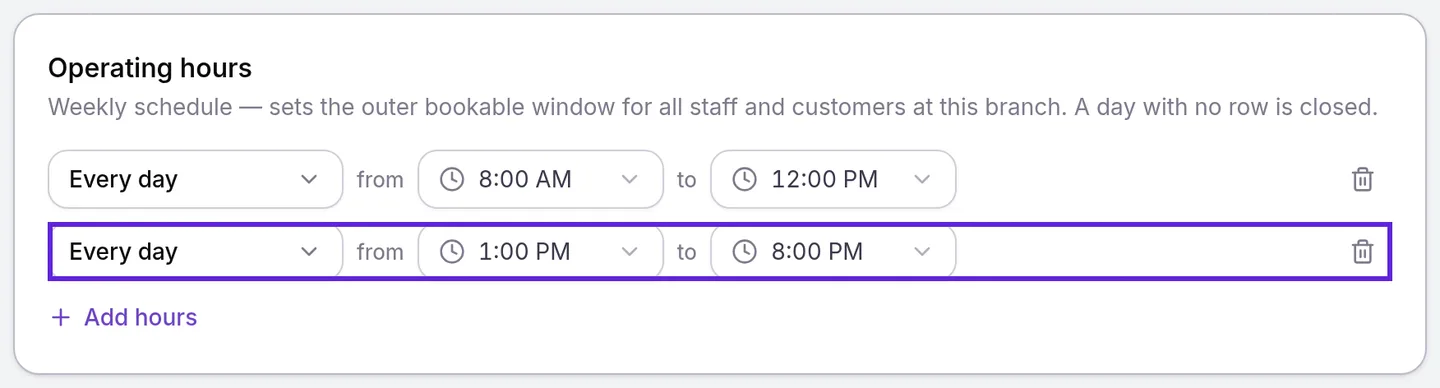
- Select Save in the Unsaved changes bar at the top of the page. The bar closes, and new bookings follow the new hours.
A day that no row covers is closed. A location always keeps at least one row, so the trash icon on the last row is unavailable.
Close for a holiday or change one day’s hours
Closures & availability overrides, on the same page, change a single date without touching the weekly hours.
- Under Closures & availability overrides, select Add exception.
- Choose an Exception type: Full-day closure for one date, Public holiday (annual) for a holiday from the Holiday list that you close for every year, or Hours override to set different hours for that day.
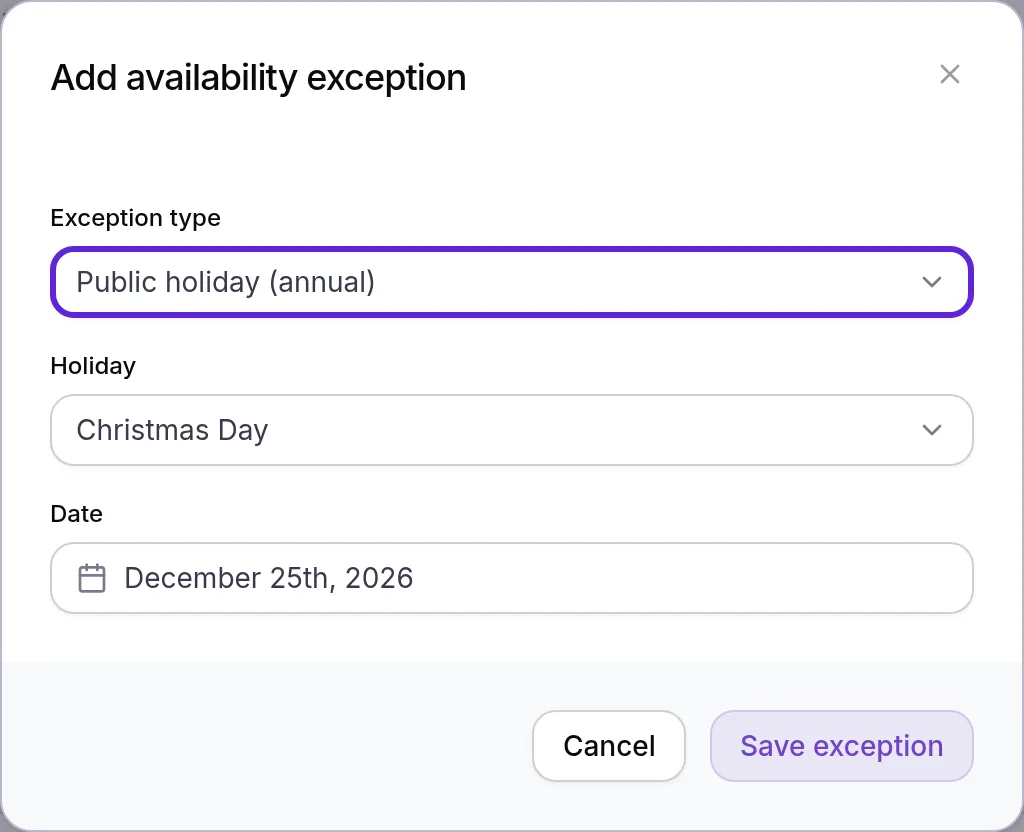
- For a holiday, choose it under Holiday. Velarya fills in the date as you change the holiday, so check the Date below it. For anything else, pick the Date.
- For a closure or an hours override, add a Reason (optional), such as “Staff training”.
- For an Hours override, set the Available hours for that day. They are that date’s hours at the location.
- Select Save exception. The exception is listed in the card with its date, and an annual holiday shows “(annual)” after its date.
To undo an exception, select the trash icon next to it and Remove. The location goes back to its weekly hours on that date.
Set a provider’s working hours and time off
A provider’s working hours in Velarya decide when patients can book them at a location, inside the location’s operating hours. A new provider starts on Mon - Fri from 8:00 AM to 5:00 PM at each location they are assigned to, until you change it.
- In Location Settings, select Staff & Schedules.
- Select the provider’s row. Their profile opens.
- Select the Schedule tab.
- Set their rows the same way as the location’s hours, and select Add hours for a second window on the same days, such as the afternoon after lunch.

- Select Save. “Schedule saved” appears.
- To block a day off or a few hours, enter From and Until under Time off, with a Reason (optional).
- Select Add Time Off. “Time-off added” appears, and the entry is listed below the form. Patients cannot book the provider from its start to its end.
To block a few hours from the day view, select the provider’s name on the Calendar and choose Block time, as Book an appointment for a patient shows.
A provider with no rows at a location is not bookable there. Their Schedule tab says so, starting with “No working hours set”.
Choose which services each provider performs
Velarya offers a provider to patients only for the services assigned to them at that location, on the Services tab of the same profile.
- In the provider’s profile, select the Services tab.
- Select Browse, select each service they perform at this location, then select Done.
- To give this provider their own length or price for a service, type minutes in Duration or an amount in Price under it. Leave both empty to use the service’s own.
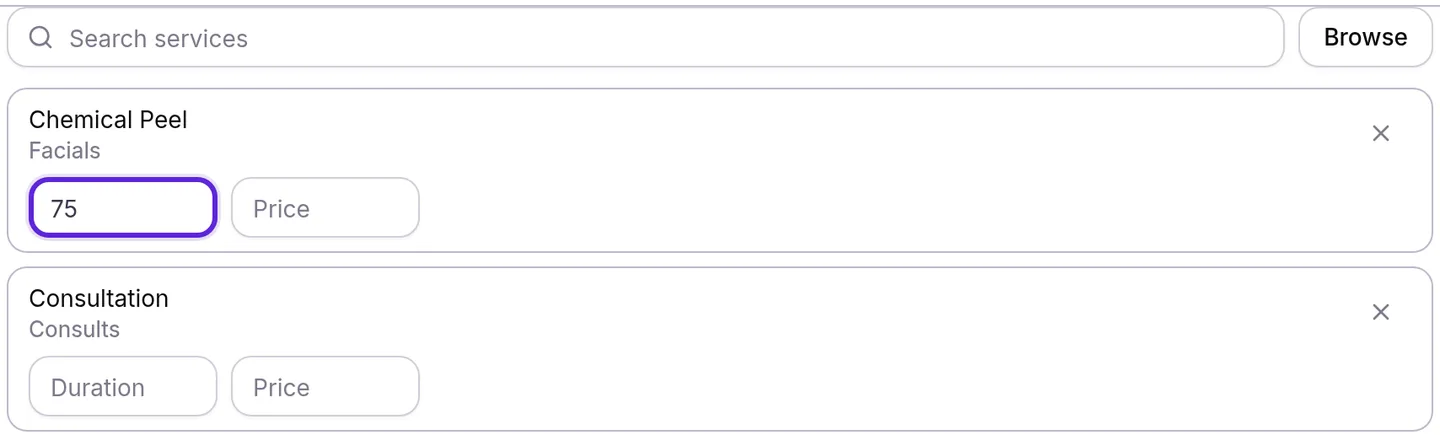
- Select Save. “Services saved” appears.
A provider’s Duration applies to every variation of the service they perform. You can also choose who performs a service from the service itself, under Providers qualified for this service, as Create a service patients can book shows.
Approve time-off requests
Your team asks for time off from Profile, in the menu under their name, with Request Time Off. The request waits under Time-Off Requests on Staff & Schedules at the location they chose, or at every location they work at when they chose All locations.
- Select Approve and “Time off approved” appears. The time off now blocks their online bookings and shows on the Calendar.
- Select Deny and “Request denied” appears. Nothing is blocked.
A request stays pending, and blocks nothing, until someone decides it. Time-Off Requests shows only to roles with Approve staff time-off requests, as Admins and Location Managers have. Time off an Admin or Location Manager adds for someone is approved at once.
How do hours, closures and time off combine?
Velarya offers a patient a start time only when the location’s hours, the provider’s hours and any room the service needs all leave room for the whole visit.
| Situation | What Velarya does |
|---|---|
| Two rows cover the same day | Adds them up. Overlapping or touching windows merge: Every day 9:00 AM to 6:00 PM plus Mon - Fri 9:00 AM to 5:00 PM opens Monday 9:00 AM to 6:00 PM |
| A visit would cross a gap between two rows | Offers no time there. A visit fits inside one window of the location’s hours and one of the provider’s |
| The service has Transition Time (min) | Offers the provider only when their hours cover the visit and its transition time |
| A Full-day closure or Public holiday (annual) falls on the date | Offers no times at the location that day |
| An Hours override falls on the date | Uses its Available hours as that day’s hours |
| A provider has approved time off | Offers none of their times from its start to its end |
| A time-off request is pending | Blocks nothing until it is approved |
| Staff book from the Calendar outside the location’s hours or on a closure | Saves the booking and warns, for example “Selected time is outside this location’s operating hours.” |
| You narrow a provider’s hours around booked visits | Asks first, and keeps the visits in place if you select Force Save |
Patients are offered start times every 15 minutes inside these limits.
What do patients see?
Patients see only open times, in the app and on your web booking page, and choose from them as How online booking works describes. When a date has none, they read why, in the patient app’s words:
- “The clinic is closed on this date”, on a closure, or on a day with no operating hours when the service’s providers have hours that day.
- “No one who performs this service is working on this date”, when none of its providers has working hours that day.
- “No one works at this location yet”, when no provider for the service has hours at the location.
- “No one is available for this service yet”, when no provider is assigned to the service there.
Patients never see your working hours, time off or the reason for a closure.
If something goes wrong
“A branch needs at least one set of hours”. This shows on the grayed-out trash icon of the last row. Change that row’s days and times instead of removing it.
A row turns red, for example “Row 1 (Mon - Fri): start time must be earlier than end time”. The end of that row is at or before its start. Fix the times, then save.
“No operating hours are saved for this branch yet”. The row under it is a suggestion, not saved hours. Change the row if needed and select Save so patients are offered times only inside this location’s operating hours.
“Please select a date.” The date is empty. Pick the Date, or choose the holiday again, then select Save exception.
“Schedule conflicts with appointments”. The new working hours leave upcoming appointments outside them. Select Force Save to keep the new hours and the appointments, or cancel and widen the hours.
“Working hours cannot be edited by the staff member themselves.” You opened your own profile, and your role lacks Staff schedules & time-off (others) at manage. Ask an Admin or Location Manager to change your hours.
Nothing opens when you select a provider’s row. Opening a profile takes Staff directory at edit, as Admins and Location Managers have. Ask an Admin to update your role.
A provider never appears in the app. Check three things in their profile: Bookable online is on under Overview, they have hours on Schedule, and the service is selected on Services. Patients book only providers with all three. Set up online booking covers the rest of the booking settings.
Patients read “Online booking is almost ready”. Online booking opens once a location has saved operating hours, a service exists, and at least one provider has both working hours and services.
Patients are offered times over a lunch break. The two rows are on different days, or they touch. Put both rows on the same days, with a gap between the first row’s end and the second row’s start. Or another provider who performs the service works then; patients choosing Any professional are offered their times.
Frequently asked questions
Was this guide helpful?
Last verified