
Set up rooms and equipment
Updated Last verified against the product
In short
In Velarya, a service that needs a room or a device reserves a free one automatically when it is booked, so patients see only times when one is free. Add room and device types in Organization settings > Resource Categories, each location's rooms and hours in Manage > Resources, then pick the categories each service needs.
- Who can do this
- Admins and Location Managers: Rooms & equipment (per location) at Manage for rooms and their hours; Service catalog at Edit for resource categories and each service's required resources
- Applies to
- Each location separately
- Plans
- Basic, Scale, Branded and Connected
- Time
- 15 minutes
Before you begin
- Your services are in the Service Catalog: Create a service patients can book.
- The location's operating hours are set: Set your hours and staff schedules.
Add your resource categories
A resource category in Velarya is a kind of room or device, such as “Laser Room” or “Treatment Rooms”. Services require a category and Velarya picks the room, and one list serves every location. Give a device its own category when a service needs that exact one.
- Select Organization settings in the menu at the bottom of the sidebar, then Resource Categories.
- Select Add category.
- Enter the category’s name, such as “Laser Room”, and a description if you like.
- Select Add category in the dialog. The category is listed as Active.
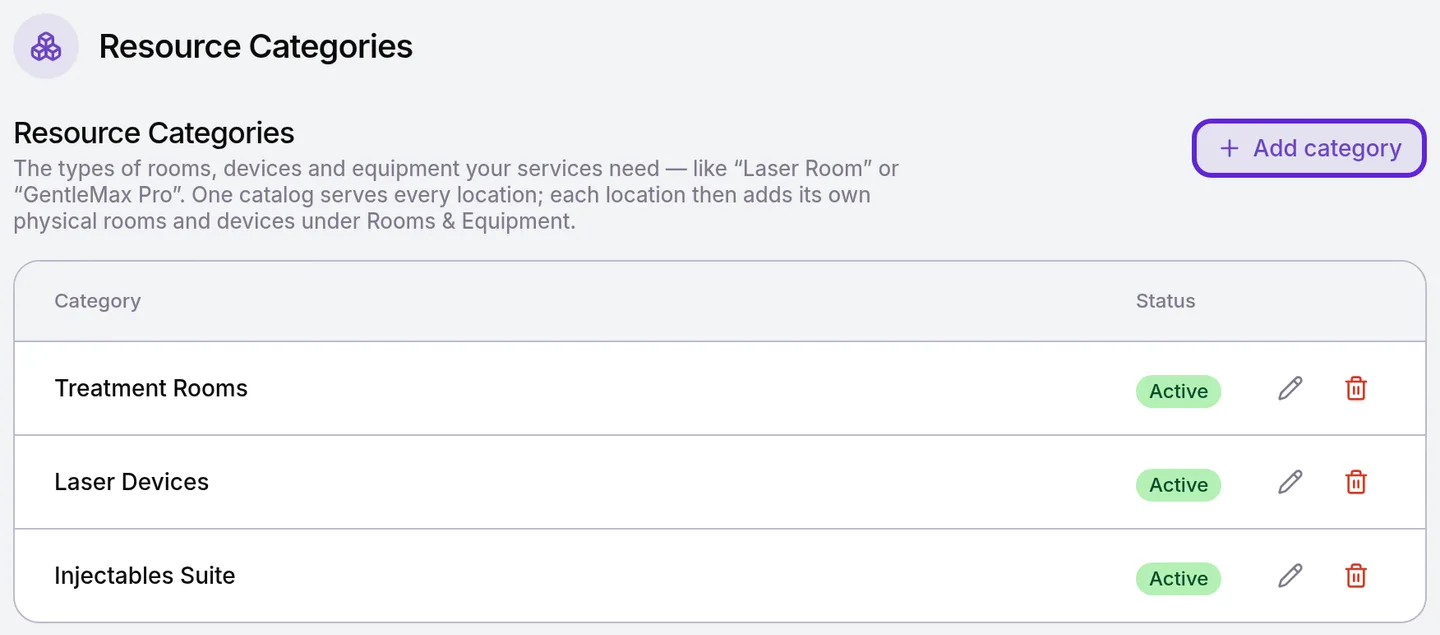
To rename a category, select the pencil next to it. Deleting a category that a room or service still uses deactivates it instead, and it stays attached where it is already used. Select Restore to bring it back.
Add the rooms and devices at each location
Each room or device belongs to one location and one category. Add every one the location has, because Velarya books a category only as many times at once as the location has active rooms of it.
- Go to Manage > Resources. Under Rooms & Equipment the page lists the current location’s rooms and devices.
- Select Add resource.
- Enter the name, such as “Room 5”, and choose its Category.
- Pick a Calendar colour if you like, then select Add resource. The room is listed as Active.
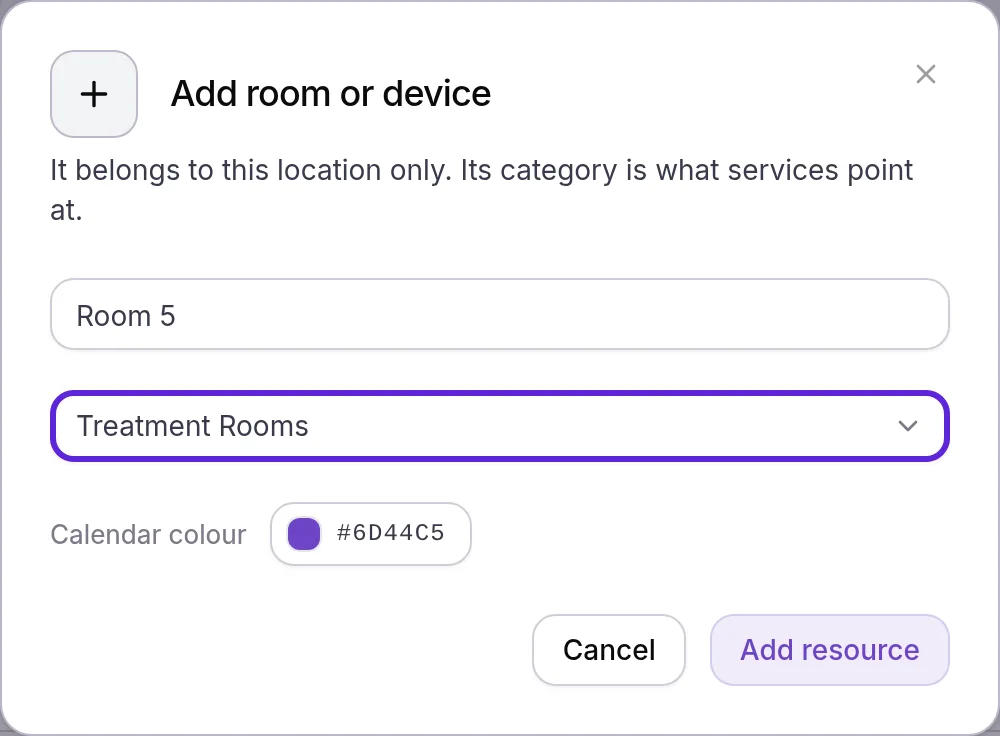
To add rooms at another location, choose it from the menu at the bottom of the left sidebar first.
Set each room’s hours and maintenance windows
A room or device in Velarya is reserved only inside its own weekly hours. A room with no hours is never free, so give every room hours, usually the same as the location’s.
- On Rooms & Equipment, select Hours next to the room.
- Under Weekly operating hours, select Add hours, choose the days and set the start and end times. Add a second row on the same days to leave a gap.
- Select Save Hours. The button reads “Saved”.
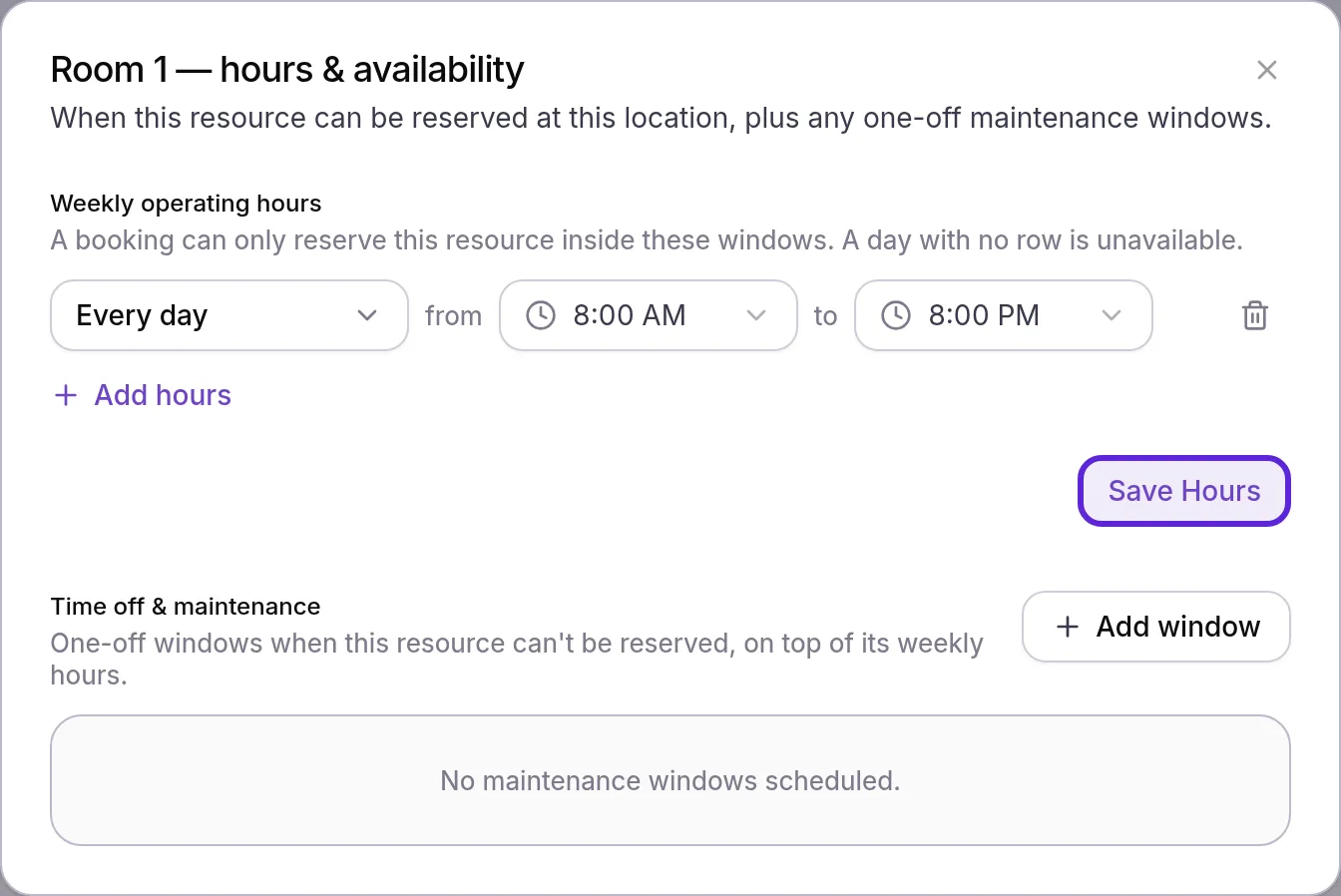
- For a service visit or repair, select Add window under Time off & maintenance.
- Set when it Starts and Ends, add a reason if you like, and select Add window. The room cannot be reserved for the whole window, whatever its weekly hours.
Visits already booked in that window keep the room, so move them on the Calendar.
Link rooms to services
A service reserves rooms through the categories it lists under Required Resources, set once in the Velarya Service Catalog and used at every location that does not set its own.
- In Organization settings > Service Catalog, select the service.
- Under Required Resources, select Browse, select each category the service needs, such as a laser room and a laser device, then select Done.
- Select Save in the Unsaved changes bar. The bar closes, and new bookings of the service reserve a free room or device of each category.
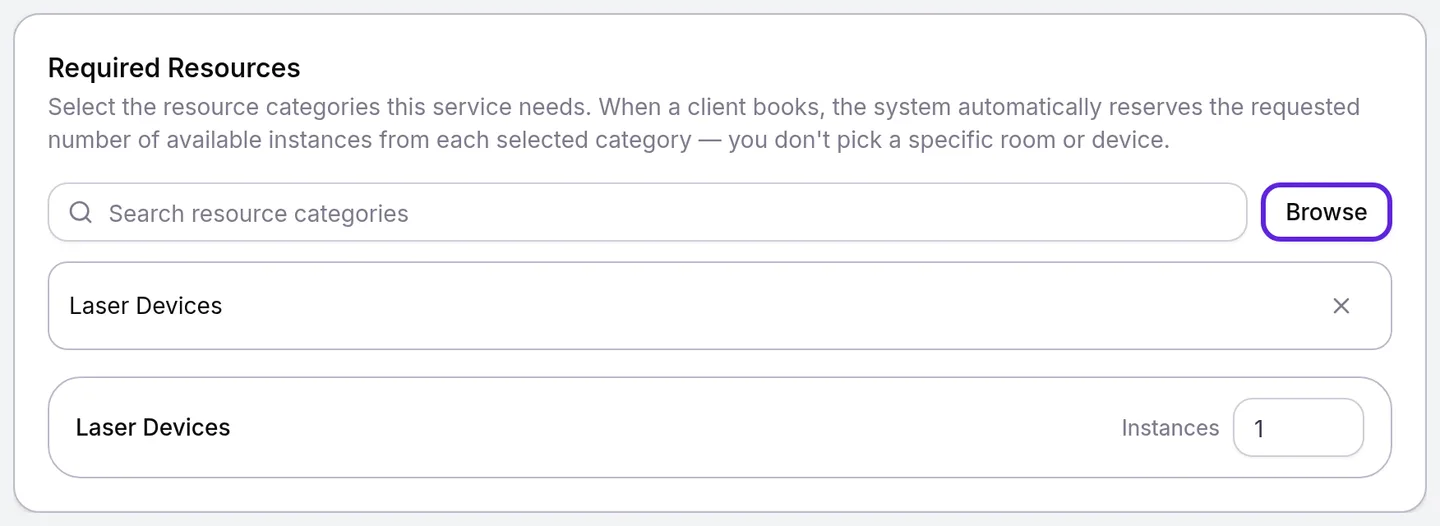
A service that lists two categories reserves one free room or device of each. Create a service patients can book covers the rest of the service editor.
How does Velarya assign rooms?
Velarya treats rooms and devices as part of every booking, from the patient app, the web booking page, the Calendar, walk-ins and the waitlist.
| Situation | What Velarya does |
|---|---|
| A patient or staff member books a service with Required Resources | Picks a free room or device of each category at that location and reserves it automatically |
| Every room of a category is busy | Offers patients no start time then. Staff see “This conflicts with the schedule” and can select Save anyway, which shares a room |
| The location has no active room of a category | Offers patients no times for the service at that location |
| The visit has hands-off or transition time | Holds the room for the whole visit, hands-off and transition time included |
| A room has no weekly hours, or a maintenance window covers the time | Treats the room as unavailable then |
| The visit is moved to a new time | Picks a free room again at the new time |
| A visit is cancelled, marked a no-show or completed | Frees the room |
| You narrow a room’s hours around booked visits | Asks “Hours conflict with booked appointments”, and keeps the visits if you select Save anyway |
What do patients see?
Patients never see rooms or devices. They are offered only times when a room of each kind the service needs is free, and the app shows “Not bookable at this location” when a location has none of a kind. Staff see the reserved room on the appointment, under Rooms & equipment, and can move the visit to another free room there. Book an appointment for a patient covers booking from the Calendar.
If something goes wrong
Resources is missing from Location Settings. Your role lacks Rooms & equipment (per location) at manage at this location. Ask an Admin to update your role.
Add resource is grayed out. There are no active resource categories yet. Select Manage Resource Categories on the page and add one first. If categories exist, your role also needs Service catalog at edit to list them.
A service has no times, although providers are free. A room it needs has no weekly hours, or every room of that kind is booked or in maintenance. Select Hours on each room and check its rows.
“Not bookable at [location]: [service] needs …” on Rooms & Equipment. Rooms & Equipment lists every service that needs a category the location has no active room of. Add a room of that category, or change the service’s resources for this location in Manage > Services.
“Hours conflict with booked appointments”. Upcoming visits already hold the room outside the new hours. Select Save anyway to keep both, or widen the hours.
“The end must come after the start.” The maintenance window ends before it starts. Fix the Ends date or time.
Frequently asked questions
Was this guide helpful?
Last verified