
Create a service patients can book
Updated Last verified against the product
In short
To create a service in Velarya, open Organization settings > Service Catalog and select Add Service in its category. Enter the Service Name, its variations with a Price and Duration (min), options, add-ons, timing and providers, then select Save. Bookable online by patients, on by default, lists it in the patient app and on your web booking page.
- Who can do this
- Admins and Location Managers (Service catalog at Edit)
- Applies to
- Your whole practice, every location
- Plans
- Basic, Scale, Branded and Connected
- Time
- 10 minutes
Before you begin
- Your team is set up, with working hours: Set your hours and staff schedules.
- For a service that needs a room or a device, its resource category exists: Set up rooms and equipment.
Create the service
A Velarya service is one treatment patients book, with its prices, lengths, options and the team who perform it. A new service in your Service Catalog is offered at every location, unless a location switches it off.
- Select Organization settings in the menu at the bottom of the sidebar, then Service Catalog.
- Select Add Service next to the category the treatment belongs in. The new service starts in that category. To add a category first, select Manage Categories. With no categories yet, the page shows Create your first category instead; create one, then select Add Service in it.
- Under Basic Information, enter the Service Name patients see and a Description. Leave Status on Active.
- Under Pricing & Variations, fill in the first variation’s Name, Price ($) and Duration (min). It starts as “Standard”, 60 minutes.
- Select Add Variation for each other size or length patients choose between, such as a longer session.
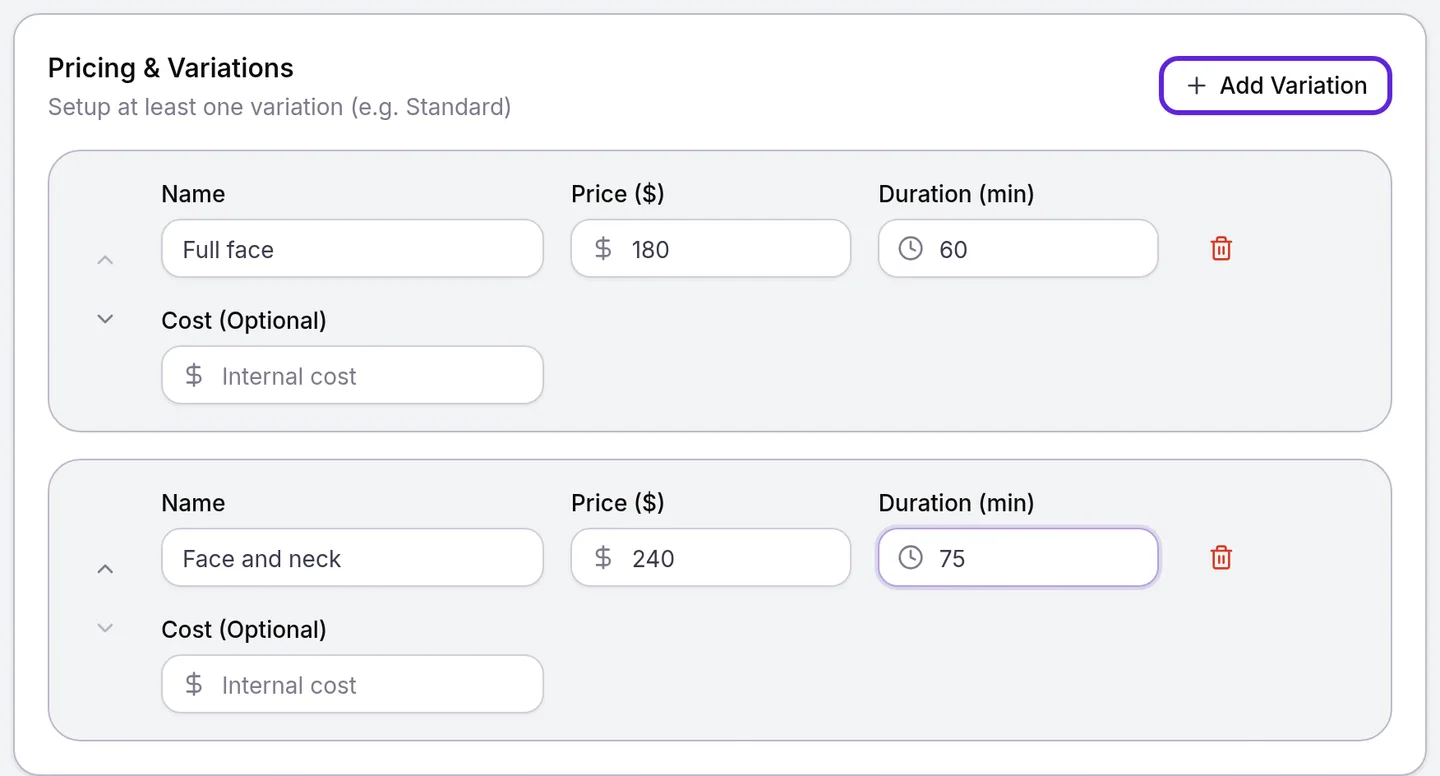
Patients pick exactly one variation. Its Duration (min) is the whole time the patient is with you, hands-off and finishing time included.
Add options and add-ons
Modifiers are choices inside the service that add price or time, and Add-Ons are separate extras patients can attach to it.
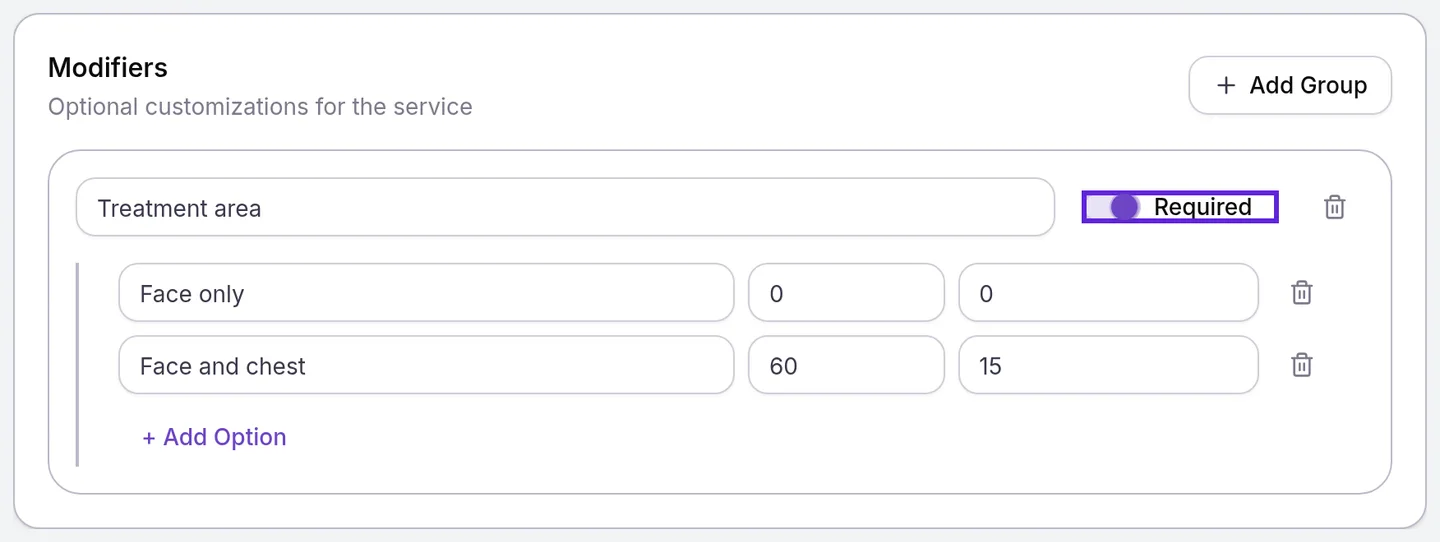
- Under Modifiers, select Add Group and name the choice, for example “Treatment area”.
- Turn on Required when every patient must pick an option from the group.
- Select + Add Option for each option. Enter its name, then the price it adds and the minutes it adds. Both start at 0, which is fine for an option that changes neither. Patients pick one option from each group.
- Under Add-Ons, select Browse, select the add-ons patients may attach to this service, then select Done.
- To cap how many they can pick, enter a number in Max Add-ons Selectable (Optional). Leave it empty for no cap.
The add-on list shows the add-on services you have already created, as Create an add-on explains.
Set the timing, providers and rooms
Scheduling & Providers in Velarya decides what the visit blocks on your calendar and who can perform it.
- Enter Hands-off Time (min) for a gap when the provider steps away, such as numbing, and Finishing Time (min) for when they come back to finish. Both start at 0.
- Set Transition Time (min) for cleanup after the patient leaves. It starts at 15.
- Select Allow other bookings during hands-off time only when the provider can see another patient in the gap. It needs hands-off time above 0.
- Check the preview under the times: Active (hands-on) time and the Footprint the calendar reserves.

- Keep Bookable online by patients selected for the app and your web booking page.
- Under Providers qualified for this service, keep the providers who perform it. Every provider on your team starts selected; remove the others with the cross next to their name.
- Under Required Resources, select Browse, select the resource categories the treatment needs, such as a laser room, then select Done.
- Select Save in the Unsaved changes bar at the top of the page. Velarya creates the service and returns to the Service Catalog.
Providers also need working hours at a location before patients can book them there, as Set your hours and staff schedules shows.
Create an add-on
An add-on in Velarya is a small service, such as LED light therapy, that patients attach to another service and never book on its own.
- In the Service Catalog, select Add Service.
- Turn on Is Add-on Service as you create it, at the top of Basic Information. The editor keeps one price and duration row and hides the other sections.

- Enter the Service Name, choose its Category, and enter its Price ($) and Duration (min), from 0 to 120 minutes.
- Select Save in the Unsaved changes bar. Velarya creates the add-on and returns to the Service Catalog.
- Open each service it goes with, select the add-on under Add-Ons, and select Save.
Until a service links it, the add-on’s own page reads “This add-on isn’t linked to any service yet, so nobody can book it.”
How does a service’s time add up?
A Velarya appointment’s length is the variation, plus the minutes of the options and add-ons the patient picks. Behind that one number, the calendar splits the visit into parts. This example uses a 60-minute variation with 20 minutes of hands-off time, 10 of finishing time and 15 of transition:
| Part | Minutes | Who is busy |
|---|---|---|
| Active (hands-on) time | 30 | The provider, the patient and the room |
| Hands-off | 20 | The patient and the room. The provider too, unless Allow other bookings during hands-off time is selected |
| Finishing | 10 | The provider, the patient and the room |
| Transition | 15 | The provider and the room, after the patient leaves |
The patient sees a 60-minute appointment. The calendar reserves the 75-minute footprint, and the provider’s next booking starts after it. A room or device is held for the whole footprint, hands-off time included, so a second patient fits the gap only when they need no room or another free one.
How do services behave?
A Velarya service applies these rules at every booking.
| Situation | What Velarya does |
|---|---|
| A patient books | Charges the variation’s price plus the options and add-ons they chose, and books the time they add |
| A modifier group is Required | Asks the patient to pick an option from it before booking |
| The service has Required Resources | Reserves a free room or device from each category at the location, automatically |
| A provider has their own Duration or Price for the service | Books and charges that provider’s values at that location |
| Status is Inactive | Offers the service at no location |
| A location has disabled the service | Leaves it off that location’s service list in the app and on the web booking page, and offers no times for it there |
What do patients see?
Patients book the service in the patient app and on your web booking page. They choose a variation, any options and add-ons, then a provider (Any professional in the app, Any available provider on the web booking page), then a time. They see one total price and one duration.
Patients never see hands-off, finishing or transition time, rooms and devices, the Internal Name (Optional) or the SKU (Optional). A service with Bookable online by patients cleared is left off the service list in the patient app and on your web booking page. A patient who reaches it another way, such as rebooking a past visit in the app, reads “This service cannot be booked online” and is asked to contact you.
If something goes wrong
“Select a category”. Choose a Category under Basic Information. With no categories yet, select Create your first category under the field.
“Duration must exceed hands-off + finishing time (active time must be at least 1 min)”. A variation is no longer than its hands-off and finishing time together. Lengthen the variation or shorten those times.
“Fix the highlighted fields before saving.” with nothing highlighted. A modifier group has no options. Add one with + Add Option, or remove the group with its trash icon.
The Allow other bookings during hands-off time box is grayed out. Hands-off Time (min) is 0. Enter the hands-off minutes first.
“No other add-on services found.” No add-on exists yet. Create one as shown above, then come back to Add-Ons.
Patients read “No one is available for this service yet” in the app, or “No provider for this service here” on your web booking page. No provider at that location is assigned the service and bookable online. Add them under Providers qualified for this service or on their Services tab, and check that Bookable online is on in their staff profile.
Patients read “Not bookable at this location”, in the app or on your web booking page. The location has no active room or device in a category the service needs. Add one as Set up rooms and equipment shows.
Patients read “This service cannot be booked online” in the app, or “Not bookable online” on your web booking page. Bookable online by patients is cleared. Open the service, select the box and select Save.
Frequently asked questions
Was this guide helpful?
Last verified