
Set up deposits and cancellation fees
Updated Last verified against the product
In short
In Velarya, deposits and cancellation fees live in the booking policy on Organization settings > Booking. Set Online payment to Deposit, balance later, choose a percent or fixed deposit, require a card on file, then set the cancellation window, the late-cancel and no-show fees, and whether each fee charges automatically or waits for staff review.
- Who can do this
- Admins, for the organization and service policies. Admins and Location Managers, for a location's overrides. Custom roles need Booking rules, deposits, cancellation, waitlist at Edit, held organization-wide for the organization and service policies
- Applies to
- Your whole practice, every location
- Plans
- Basic, Scale, Branded and Connected
- Time
- 10 minutes
Before you begin
- Online booking is on in Organization settings > Booking: Set up online booking.
- A payment account is connected in Organization settings > Payments, so Velarya can take deposits and save patients' cards: Connect your payment account.
- Your treatments have prices: Create a service patients can book.
Take a deposit and require a card on file
A Velarya booking policy decides how patients pay when they book in the app or on your web booking page. Online payment starts on Pay in full. Switch it to Deposit, balance later to take part of the price at booking and the rest at checkout, as Take payment at checkout shows.
- Open the menu at the bottom of the left sidebar and select Organization settings, then Booking under Client Experience.
- In the Payments card, set Online payment to Deposit, balance later.
- Choose the Deposit type: Percent of service or Fixed amount.
- Enter the Deposit percent, from 1 to 100 (25 until you change it), or the Fixed deposit amount, which must be more than $0.00 ($10.00 until you change it).
- Turn on Card on file required at booking to save a card with every booking, pay at venue included. A saved card is what lets Velarya charge a late-cancel or no-show fee automatically. Bookings your team makes on the Calendar ask for the patient’s saved card when this is on or when the policy takes a deposit, as Book an appointment for a patient shows.
- Select Save in the Unsaved changes bar at the top of the page. The bar closes, and bookings made from now on take the deposit.
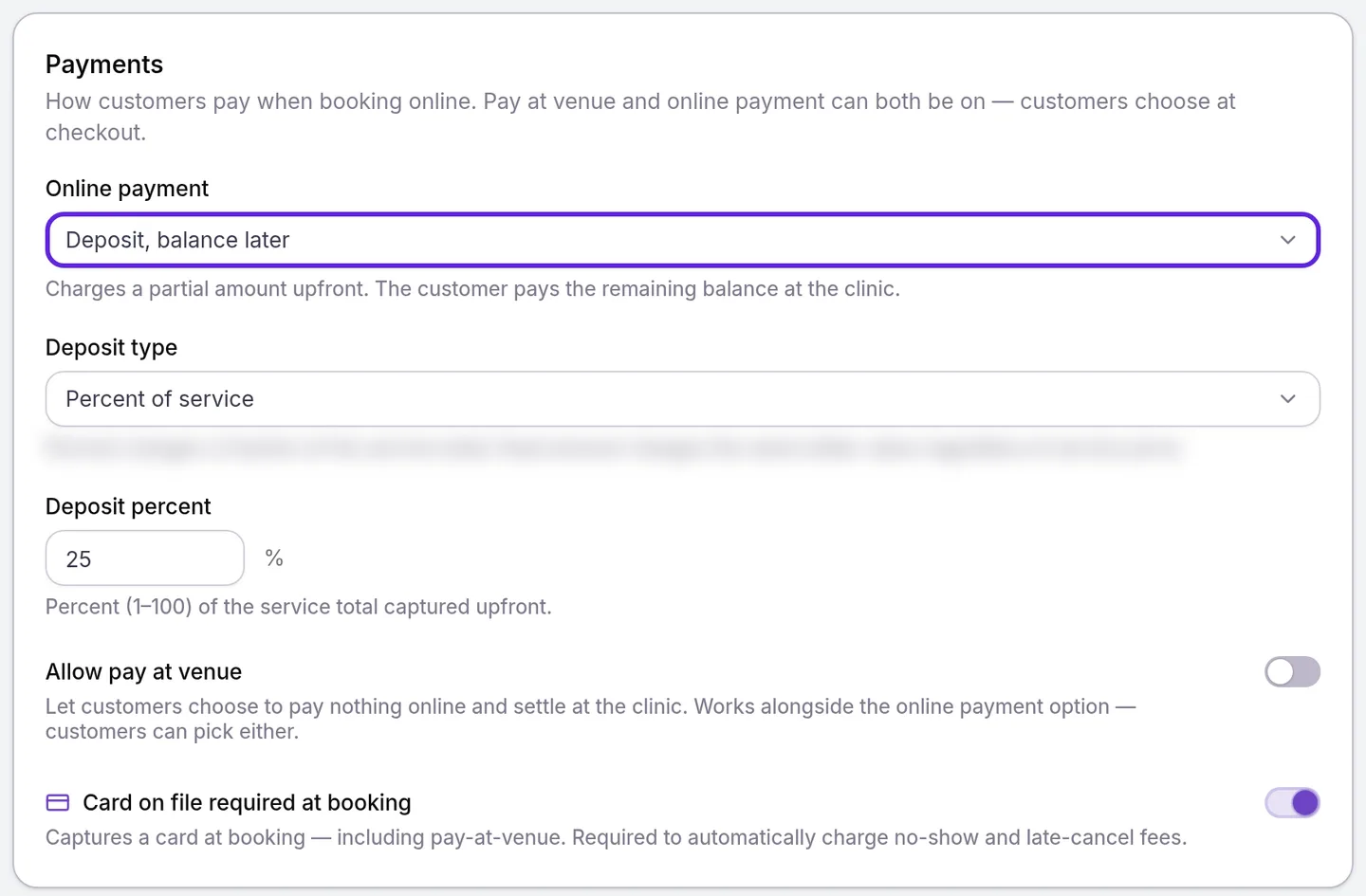
Allow pay at venue lets patients choose to pay nothing online and settle at the practice. It sits alongside Pay in full, and it applies only to bookings with no deposit: when a deposit is required, patients pay the deposit online. Turning Card on file required at booking off while a fee or pay at venue is on asks you to confirm in Disable card on file?, which lists what changes, such as fees no longer charged automatically.
Set the cancellation window and late-cancel fee
The Cancellation policy card sets how much notice patients must give and what a late cancellation costs. A cancellation inside the window is late.
- In Cancellation policy, enter the Cancellation window in hours: 0 to 168, 24 until you change it.
- Turn on Charge a late-cancel fee.
- Choose the Fee type: Flat amount ($25.00 until you change it), Percent of service price (enter the percent, 1 to 100, in Percent of service; 50 until you change it), Full service total, or Keep the deposit (deposit forfeit), which needs Deposit, balance later.
- Choose the Late-cancel charge mode. Auto-charge takes the fee at once, from what the patient paid or from their card on file, and needs Card on file required at booking. With Manual review, an Admin or Location Manager decides in Transactions > Pending Fees before the patient’s card is charged.
- Select Save in the Unsaved changes bar at the top of the page. The bar closes, and bookings made from now on carry the cancellation terms.
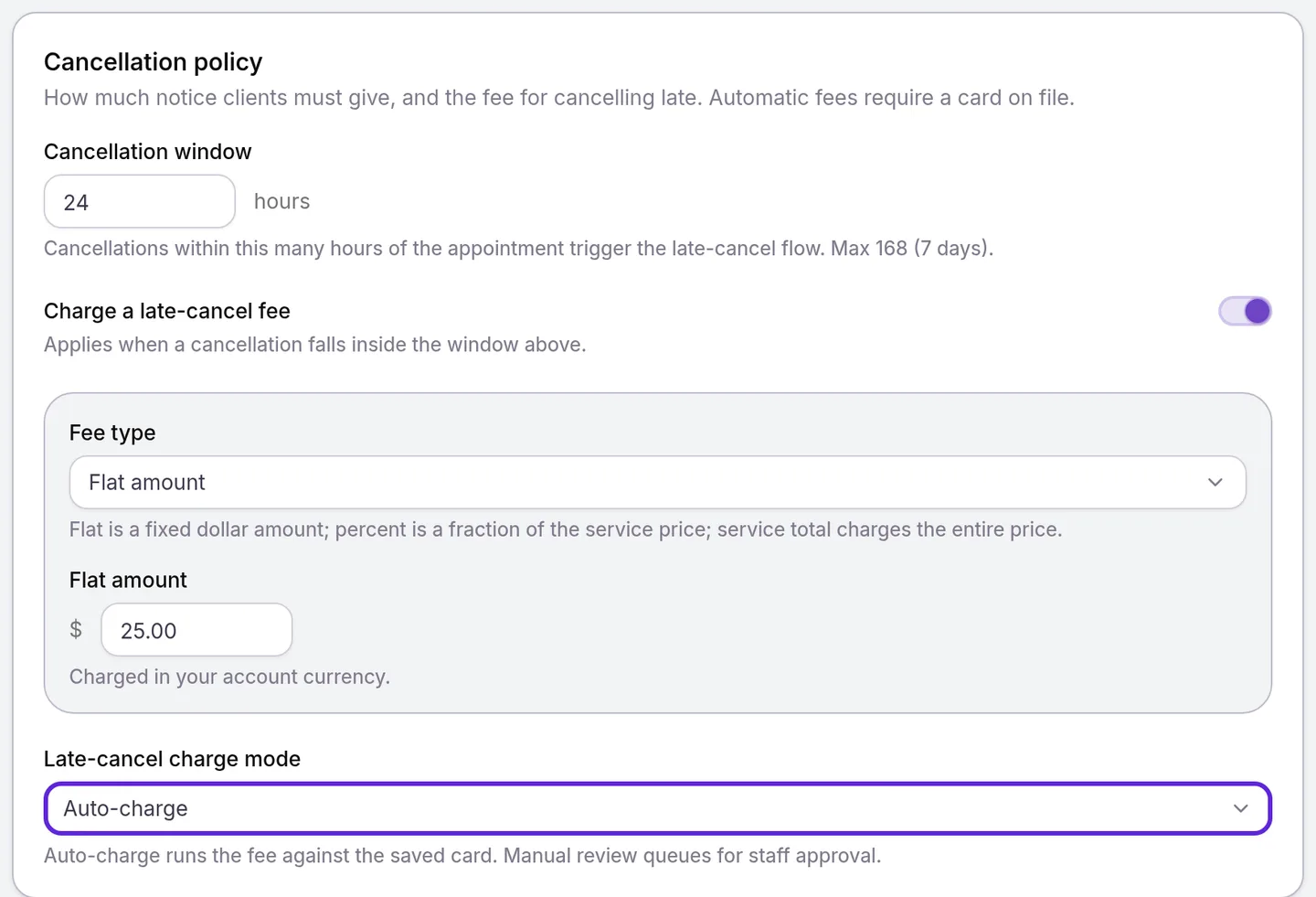
A percent fee is worked out on the visit’s total on its sale, add-ons included, after any discount, rounded down to the cent. On a visit with several services, each service’s fee is worked out on that service’s share.
Set the no-show grace period and fee
The No-shows card sets how long after the start time a patient counts as a no-show and the fee for missing the visit. Staff mark no-shows from the appointment, as Cancel or reschedule an appointment shows.
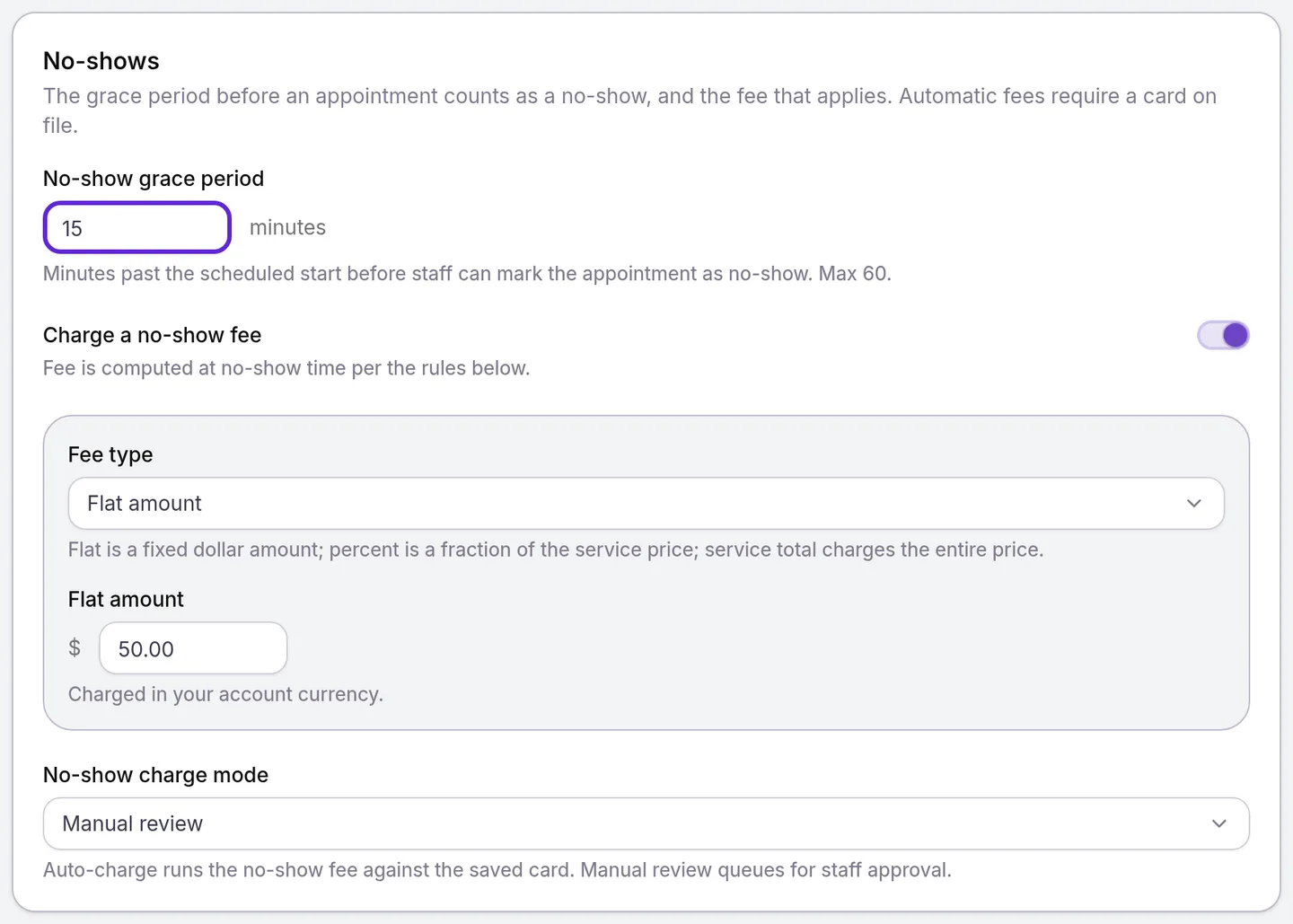
- In No-shows, enter the No-show grace period: 0 to 60 minutes, 15 until you change it. Mark no-show stays unavailable until the start time plus this period has passed.
- Turn on Charge a no-show fee and choose the Fee type. The choices match the late-cancel fee, with $50.00 for Flat amount and 100 for Percent of service until you change them.
- Choose the No-show charge mode: Manual review, the starting choice, or Auto-charge, which needs Card on file required at booking.
- Select Save in the Unsaved changes bar at the top of the page. The bar closes, and bookings made from now on carry the no-show terms.
Use different rules at one location
Every location follows the organization’s booking policy until you override a row for it. Manage > Booking lists each row with the value that applies there and an Inherited or Overridden badge.
- Choose the location from the menu at the bottom of the left sidebar, then select Manage.
- Select Booking under Client Experience.
- Select the row to change: When customers pay, Deposit, Card on file required at booking, Booking window, Cancellation window, Late-cancel fee, No-show grace period, No-show fee or Waitlist.
- Choose Set a value for this location and set the fields. The late-cancel row calls its charge mode Cancellation charge mode.
- Select Save. The dialog closes and the row shows Overridden.
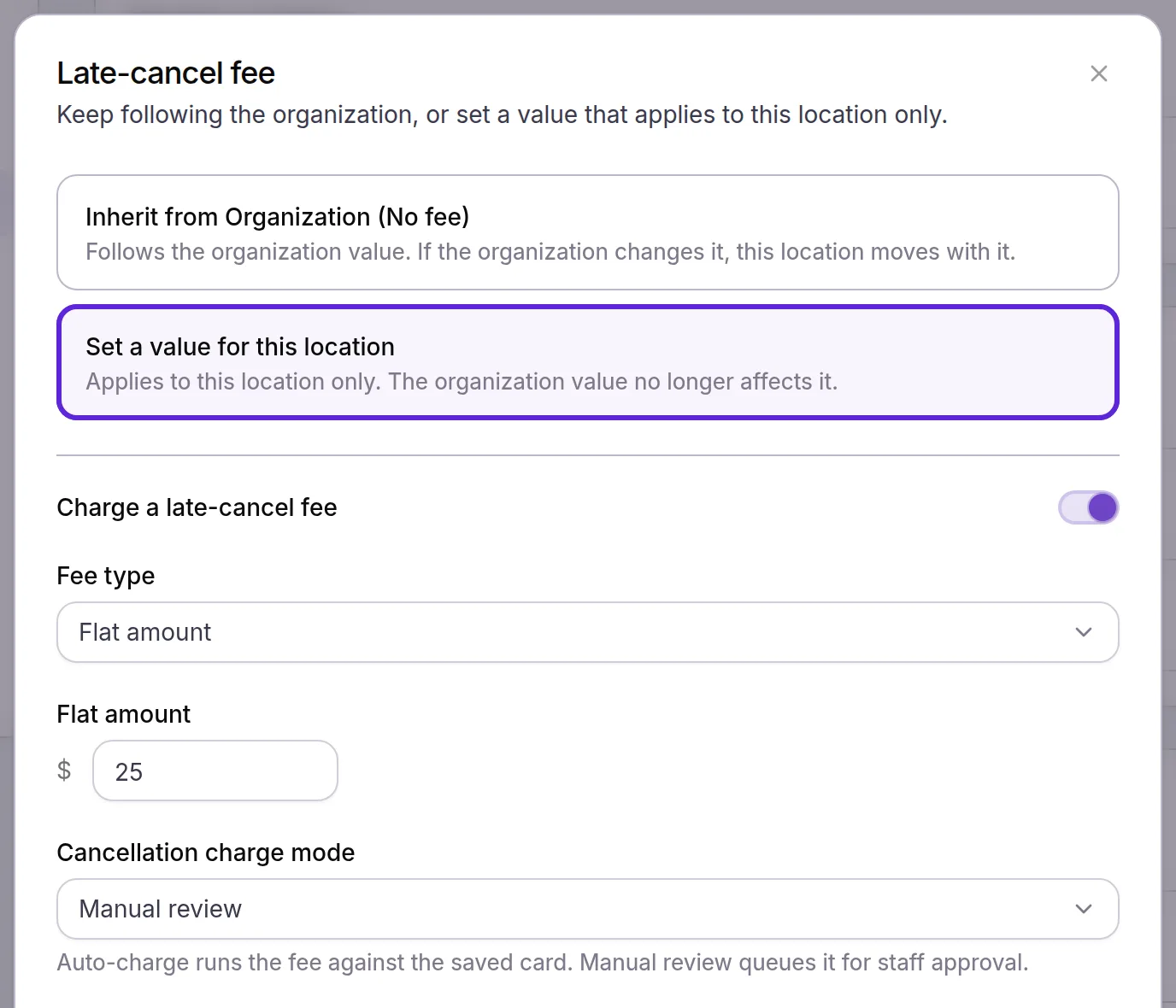
To follow the organization again, open the row and choose Inherit from Organization, which shows the organization’s value in brackets, then Save. Clear all overrides returns every row at the location to the organization’s values after you confirm in Clear all overrides?.
Three rows are set once for the whole practice and show “Locations cannot override”: Enable Online Booking, Web Booking page and Booking contact methods. Card on file works one way: a location can require a card where the organization does not, and a card the organization requires stays required everywhere.
Use a different policy for one service
A service can carry its own deposit, cancellation window and fees, such as a larger deposit for a long treatment. It applies at every location.
- Open Organization settings > Service Catalog and select the service.
- In the Booking Policy card, select Edit booking policy. Service booking policy opens, with every field marked Inherited.
- Change the fields this service needs. Each changed field shows Override, with Use org default to undo it.
- Select Save in the Unsaved changes bar at the top of the page. The bar closes, and the fields you changed show Override.
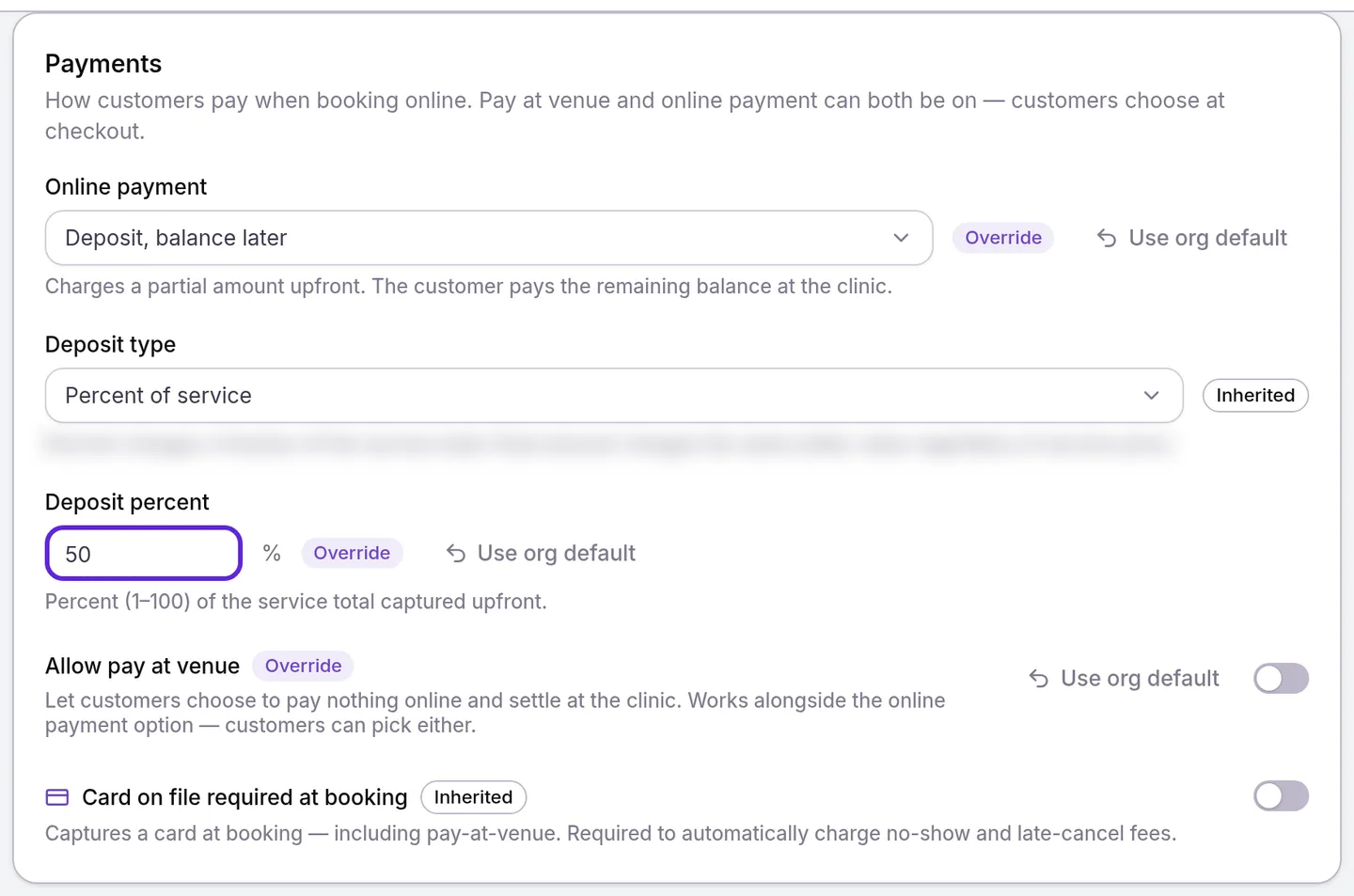
A field the service leaves Inherited follows the location’s override, if there is one, then the organization. Clear all overrides at the foot of the page returns the service to inheriting every field.
What do patients see?
Patients see your Velarya booking policy as they book and when they cancel in the patient app.
- Deposits. At review, the app and your web booking page show Pay now (deposit) and Pay at clinic (balance). The app’s button reads “Pay $X deposit & confirm”, and the booked visit shows “Deposit paid” and “Balance due at venue”.
- Pay at venue. Where it applies, the app offers Pay at location and the web page Pay at venue, with nothing charged at booking.
- Card on file. The app asks for a card and tells the patient “You will not be charged unless you cancel late or miss your appointment.” The web page says the practice keeps a card on file to hold the appointment.
- Cancelling late. Before a patient confirms a cancellation in the app inside the window, the app names the fee, such as “charge a $25.00 fee”, and says whether the fee is taken at once, from what the patient paid or from their card, or reviewed by staff first. Inside the window, the app sends patients to contact the practice to reschedule.
How do deposits and fees behave?
Velarya applies the booking policy of each booking’s location and service, with the money terms fixed when the booking is made.
| Situation | What Velarya does |
|---|---|
| A percent deposit that doesn’t divide evenly | Rounds the deposit down to the cent and adds the remainder to the balance |
| A patient books several services in one visit | Takes a deposit on the whole visit total if any service’s policy takes one, choosing a percent deposit over a fixed one and the higher value. Requires a card if any service does, and offers pay at venue only if every service allows it |
| You change the policy | Bookings made from then on follow it. Existing bookings keep the deposit, cancellation window, fees, charge modes and grace period they were booked under |
| A booking is cancelled within 15 minutes of being made | Charges no late-cancel fee |
| A patient’s own app or web booking is still waiting for them to pay | Charges no late-cancel fee |
| A late-cancel or no-show fee on Auto-charge is no more than what was paid for that service | Keeps the fee from the payment and refunds the rest at once. A patient who prepaid and missed the visit gets back everything above the no-show fee |
| A late-cancel or no-show fee on Auto-charge is more than what was paid | Keeps what was paid and charges the difference to the card on file |
| A fee on Manual review | An Admin or Location Manager decides in Pending Fees before the patient’s card is charged |
| Auto-charge can’t complete: no card, a declined card, or the bank asks the patient to confirm | Records the fee in Pending Fees as No card on file, Charge failed or 3DS required |
| You switch back to Pay in full while a fee type is Keep the deposit (deposit forfeit) | Changes that fee type to Flat amount when you save |
What does a late cancellation cost with a deposit?
With Late-cancel charge mode on Auto-charge, Velarya settles a late cancellation of a $450.00 Hydrafacial, with a 25% deposit of $112.50 paid at booking, as below for each Fee type.
| Fee type | Fee | What Velarya does |
|---|---|---|
| Flat amount, $25.00 | $25.00 | Keeps $25.00 of the deposit and refunds $87.50 |
| Percent of service price, 50% | $225.00 | Keeps the $112.50 deposit and charges the other $112.50 to the card on file |
| Full service total | $450.00 | Keeps the $112.50 deposit and charges the other $337.50 to the card on file |
| Keep the deposit (deposit forfeit) | $112.50 | Keeps the deposit and charges nothing more |
With no payment on the booking, the whole fee is charged to the card on file, or waits in Pending Fees on Manual review. No-Show Policies, Deposits, and the Card You Are Holding covers the card rules to read before you set a fee.
If something goes wrong
“Auto-charge late-cancel mode requires a card on file. Enable card-on-file-at-booking or switch to manual review.” A charge mode is Auto-charge while Card on file required at booking is off. Turn the card requirement on, or set the charge mode to Manual review, then Save. No-show charge mode shows the matching no-show message.
Auto-charge is grayed out, reading “Auto-charge (needs card on file)”. Turn on Card on file required at booking at the same level as the fee: in the Payments card for the organization or a service, or on the location’s Card on file required at booking row. The choice then opens.
Keep the deposit (deposit forfeit) is grayed out, reading “needs deposit booking”. That fee type keeps a deposit, so set Online payment to Deposit, balance later on the same page as the fee: the organization’s Payments card, the service’s Service booking policy, or the location’s When customers pay row.
“This change conflicts with settings saved for:” followed by a location or service. Your change would break a rule for an override saved there, such as Auto-charge without a card. Open that location’s Booking page or the service’s Service booking policy, change or clear the override, then save again.
“Auto-charge no-show mode requires a no-show fee to be enabled.” No-show charge mode is Auto-charge while Charge a no-show fee is off. Turn the fee on, or set the charge mode back to Manual review.
Set a value for this location is grayed out on Card on file required at booking. Your organization requires a card on file, and a location can only make the card rule stricter.
“You have view-only access to booking policy at this location.” Your role holds Booking rules, deposits, cancellation, waitlist at view. Ask an Admin to raise it to edit for the location.
Patients no longer see Pay at venue. The booking takes a deposit, or one of its treatments has Allow pay at venue off, through the organization, the location or the service.
Frequently asked questions
Was this guide helpful?
Last verified