
How online booking works
Updated Last verified against the product
In short
Velarya online booking lets patients book in the patient app or on your web booking page. They pick treatments, a provider or any available one, and an open time, then pay or confirm. Velarya offers the times that fit your team's hours, rooms and booking window, and every booking lands on your Calendar.
- Who can do this
- Admins, or roles with Booking rules, deposits, cancellation, waitlist at Edit for the whole practice
- Applies to
- Your whole practice, every location
- Plans
- Basic, Scale, Branded and Connected
- Time
- 5 minute read
What is online booking in Velarya?
Online booking in Velarya is how patients book their own visits, in the patient app or on your web booking page, without calling you. Both run on the same schedule as your team’s Calendar and Front Desk, so a patient can never book a time your team already filled, and every online booking appears on the Calendar the moment it is made.
Patients who have the app start a booking from its Home, Shop or Calendar tab. Anyone else can book on your web booking page, a link and QR code you share on your website, social profiles and flyers. Set up online booking shows where to turn it on and how to share the link.
How does a patient book online?
A patient books online in the same order in the patient app and on the web booking page.
- Treatments. The patient picks one or more treatments, with any options and add-ons you offer.
- Provider. They choose a provider, or let Velarya pick one: Any professional in the app, Any available provider on the web booking page.
- Time. They pick a day and one of its open start times, which run every 15 minutes.
- Review. They check the visit and its total on Review and confirm (app) or Review your booking (web), and add a discount code if they have one.
- Pay or confirm. Depending on your booking policy, they pay in full, pay a deposit, choose to pay at your practice, or save a card. The app button reads Checkout, Confirm booking, or “Pay $X deposit & confirm”.
On the web booking page, a patient at a practice with several locations picks the location first, and signs in before the review step: Velarya texts a 6-digit code to their phone. A new patient then gives their name and email address (confirmed with a second code) and, if they like, their date of birth. Velarya links a returning patient to the profile your team already keeps, as Add a patient explains. The page ends on “You’re booked”, and the app on “You’re all set!” with a Schedule button that adds the visit to the phone’s calendar. Velarya sends the patient a confirmation, and the booked provider gets a New online booking email or text, set on the Communication tab of their staff profile.
The times patients are offered
Velarya offers a patient a start time when every rule below holds for the whole visit. The same checks run again when they confirm, so a time that filled up in the meantime is refused, never double-booked.
| Rule | What Velarya checks |
|---|---|
| Provider | A provider who performs every chosen treatment at that location is working, not on time off, and free for the whole visit |
| Location hours | The visit fits inside one window of the location’s operating hours, and the day is not a closure |
| Rooms and equipment | Any room or device the treatment needs is free for the whole visit, hands-off and transition time included |
| Minimum advance notice | The time starts at least that many minutes from now (default 0) |
| Latest booking ahead | The time is no more than that many days away (default 365) |
| The patient’s own visits | The time does not overlap another visit the signed-in patient has booked with you |
| Bookable online by patients | The treatment is set to be bookable online, on the service’s page |
| Bookable online | The provider is set to be bookable online, on their staff profile |
Your team books from the Calendar against the same schedule. A staff booking inside the notice, beyond the window or outside your operating hours is saved, with a warning that says so.
Unpaid online bookings and the 20-minute hold
When a patient’s own online booking needs payment, Velarya holds the time for 20 minutes while they pay in the app or on the web booking page. No other patient can book it during those 20 minutes.
- If the patient pays within 20 minutes, the booking is confirmed.
- If the booking is still unpaid after 20 minutes, Velarya cancels it within the next few minutes, frees the time for other patients, and gives back any discount code use it held. The patient is told the booking was cancelled.
- If the patient chooses to pay at your practice, or nothing is due, nothing is held and the booking is confirmed right away.
The 20-minute hold covers a patient’s own checkout in the app or on the web booking page. A booking your team makes on the Calendar stays on the schedule, unpaid, until you take payment at checkout.
What do patients see?
Patients see your treatments with their prices, each provider who performs them, and the open times for the day they pick. Members see their member prices, and every patient sees the total they will pay, including any deposit split into Pay now (deposit) and Pay at clinic (balance). If a discount code stops qualifying between applying it and confirming, because it expired, ran out of uses or was turned off, Velarya takes it off the total and the patient confirms again at the new price.
Patients never see hands-off, finishing or transition time, or which room a visit is booked into. They see each treatment’s length and one total time for the visit.
When a day has no open time, the app says why, for example “No one is working on this date”, “The clinic is closed on this date” or “This service cannot be booked online”. When your practice keeps booking staff-only, or is still setting up, patients see a message and your location’s contact buttons in place of the booking steps.
What you can change
Online booking settings shape what patients can book, and where each one lives. Set up deposits and cancellation fees covers the payment settings on the same page, and How payments work in Velarya shows where the money goes.
| Setting | Default | What it does |
|---|---|---|
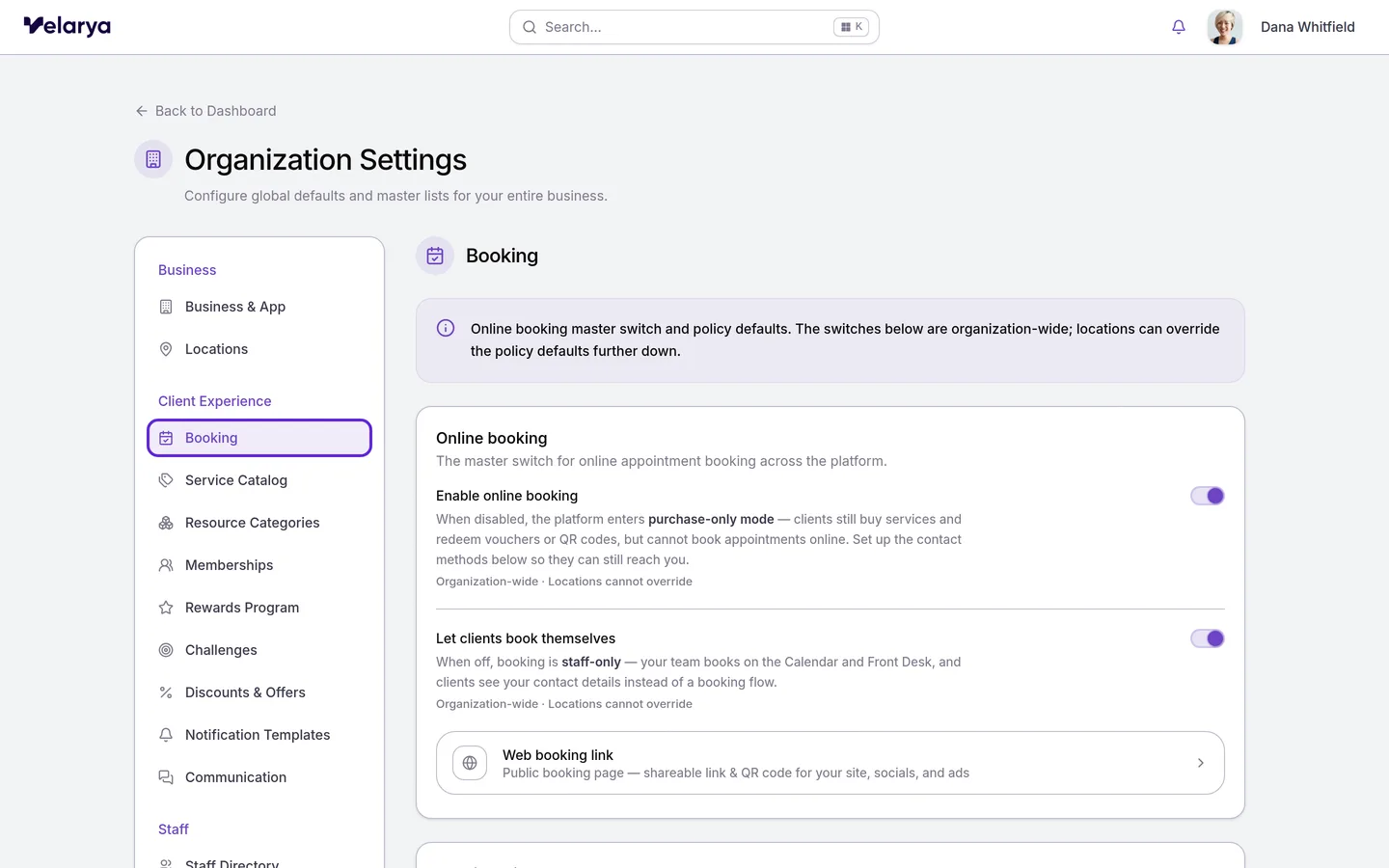
| Enable online booking | On | Off puts the whole practice in purchase-only mode: patients buy treatments and contact you to book, and Calendar and Front Desk leave the sidebar |
| Let clients book themselves | On | Off keeps booking staff-only: your team books, and patients see your contact details |
| Minimum advance notice | 0 minutes | How soon a patient can book, from 0 to 10080 minutes (7 days) |
| Latest booking ahead | 365 days | How far ahead a patient can book, from 1 to 730 days |
| Bookable online by patients | On, per service | Off keeps a treatment off the app and web booking page, and your team still books it |
| Bookable online | On, per provider | Off removes a provider from online booking and from any available provider, and your team still books them |
| WhatsApp Booking and Call to Book | Off | Shown when patients book through you; turn one on so patients see a Call us or WhatsApp button with each location’s number |
A location can set its own booking window, payment, cancellation, no-show and waitlist rules in Manage > Booking, and a service can have its own booking policy. The two switches and the contact methods apply to every location.
Where to find online booking settings
Online booking settings are in Organization settings > Booking, under Client Experience. Turn on the switches in the Online booking card, and set the booking window further down the same page.
A treatment’s Bookable online by patients checkbox is in Organization settings > Service Catalog, as Create a service patients can book shows. A provider’s Bookable online switch is on the Overview tab of their profile in Organization settings > Staff Directory, under Visibility. Provider hours come from Set your hours and staff schedules.
Frequently asked questions
Was this guide helpful?
Last verified
What changed
- : What do patients see? now explains that a discount code which stops qualifying before the patient confirms comes off the total, and the patient confirms again at the new price.