
Add a patient
Updated Last verified against the product
In short
To add a patient in Velarya, open Clients, select Add Client, enter their first and last name, plus their email and phone if you have them, and select Create Client Account. You can also add one from the patient search while booking or selling. A patient who signs up in your app with that phone or email joins the profile.
- Who can do this
- Admins, Location Managers and Front Desk (Client personal info at edit)
- Applies to
- Your whole practice, every location
- Plans
- Basic, Scale, Branded and Connected
- Time
- 1 minute
Add a patient from Clients
Adding a patient in Velarya creates their profile for your whole practice, ready to book, sell to and send notifications to. Search Clients first, so you don’t add someone who is already there.
- Select Clients in the left sidebar.
- Select Add Client at the top right. Add New Client opens.
- Enter the patient’s First Name and Last Name.
- Enter their Email and Phone if you have them. Type the phone number with its country code, starting with +: Velarya saves every number in one format and asks for the country code when it’s missing. A patient’s app sign-up joins this profile by that phone number or email, so a profile with neither stays separate.
- Select Create Client Account. “Client created successfully” appears, and the patient is at the top of Clients, marked Active with “New Client” under it.
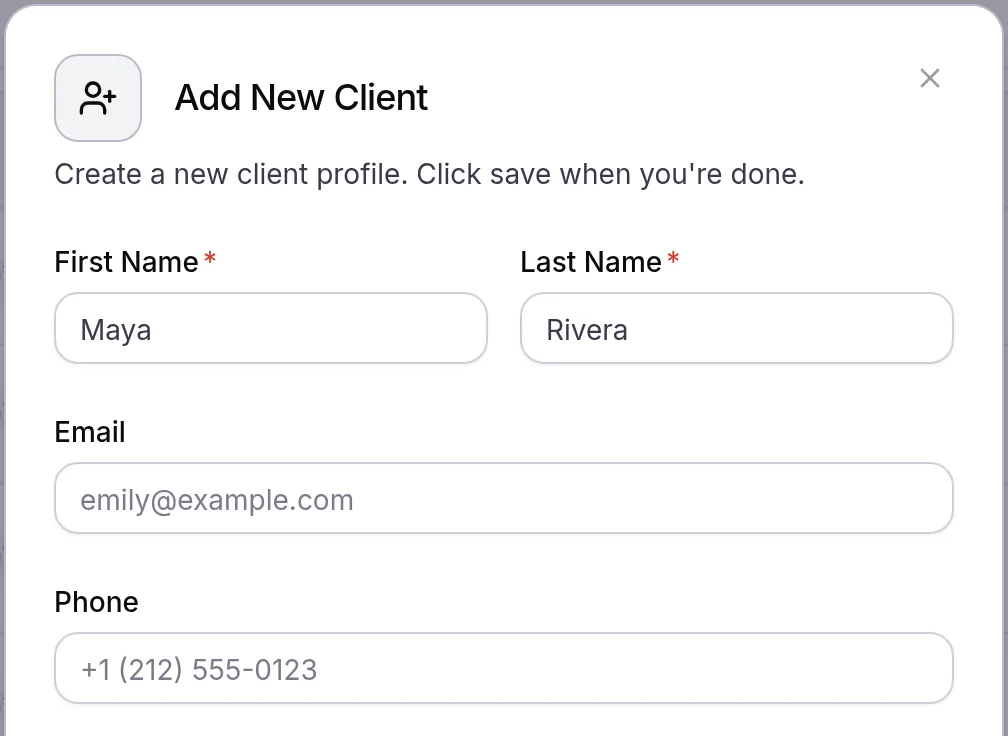
Create Client Account stays grayed out until both names are filled in. To add the rest later, open the new profile and select More actions > Edit client details. An Admin or Location Manager adds the date of birth.
Add a patient while booking or selling
Velarya puts an add-person button next to the patient search wherever you choose a patient for a visit or a sale, so a new patient never holds up the booking.
- Open the screen you’re working in: New appointment on the Calendar, Transactions > New Transaction, or Promote walk-in on the Front Desk.
- Search for the patient first, by name, phone or email.
- If they aren’t there, select the add-person button to the right of the search box.
- Enter the patient’s first and last name, phone number and email, then create the patient.
- Carry on with the booking or sale. Velarya adds the patient to Clients and selects them for you.
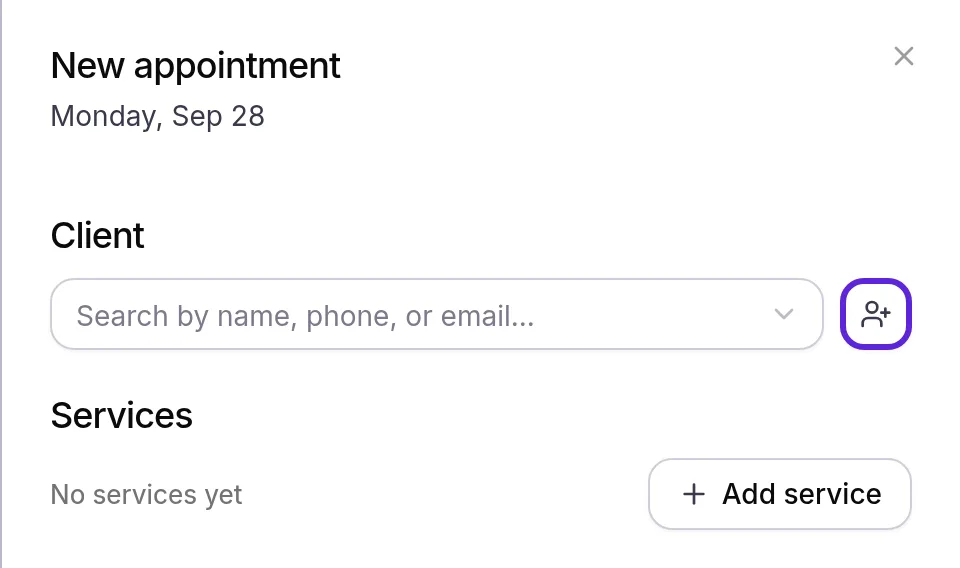
On Promote walk-in, leaving Client blank adds the walk-in as a new patient, with the name, phone number and email on the walk-in card.
Book an appointment for a patient continues from here, and Move patients through the Front Desk covers turning a walk-in into a visit.
How do patients add themselves?
Patients join your practice’s Clients list on their own, with no work from your team, when they:
- sign up in the Velarya app or your own app, with their phone number (after choosing their country in the list beside it, which starts on the United States), a code Velarya texts them and their name, adding a date of birth and an email address if they like;
- sign in with a code on your web booking page to book a visit, as How online booking works describes;
- add your practice in the Velarya app from Profile & Settings > My clinics > Add a clinic.
Before adding anyone, Velarya looks for a profile at your practice with the same phone number, then the same email address. When it finds one, it links the patient’s app account to that profile instead of adding a second patient, so everything you recorded stays in one place. Patients who join this way get your sign-up bonus when it is on, as Set up points earning shows.
A patient with a friend’s referral code selects Have a referral code? and enters it as they sign up or add your practice. When your referral challenge is on, joining with the code makes the patient that friend’s referral at your practice, even when they are already in Clients, as How referral rewards work explains.
What do patients see?
Adding a patient in Velarya sends them nothing: no email, text or app notification. Their profile starts with email and push notifications on and text messages off, until they agree to texts, as Manage patients’ text consent and opt-outs explains.
A patient you add has no sign-in until they sign up in your app or on your web booking page with the same phone number or email, or add your practice in the Velarya app they already use. From then on, the app shows the visits, points, wallet credit and membership on their profile. Your team’s edits to their name, email, phone number or date of birth change your practice’s profile, never how they sign in to the patient app: the patient changes their own sign-in email in the app, with a code sent to the new address.
How does adding a patient behave?
Velarya checks every patient added with Add Client or the add-person button against your practice’s list before saving.
| Situation | What Velarya does |
|---|---|
| The phone number or email is already on a patient at your practice | Refuses the new profile with “Client with this email or phone number already exists in this clinic.” |
| The phone number or email is a staff login on your team | Refuses the new profile. A team member joins as a patient by signing up in your app, where their patient account is separate from their staff login |
| The patient already has a profile at another practice on Velarya | Adds them at yours. Each practice keeps its own profile |
| Notifications | Email and push on, text messages off |
| Locations | The profile belongs to the whole practice, not one location |
| Length | Up to 100 characters for each name and 20 for the phone number |
| Record keeping | Velarya logs who added the patient and when. Staff with HIPAA audit trail viewer find it in Organization settings > Audit Log under Client Create |
If something goes wrong
“Client with this email or phone number already exists in this clinic.” The patient is already in Clients, perhaps added by a colleague or through your app. Search that phone number or email in Clients and open the existing profile. If one person ended up with two profiles, merge them as Merge duplicate patients shows.
“This email or phone is registered to a Staff member/Administrator. Staff cannot be added as clients/patients.” The phone number or email belongs to a staff login on your team. Enter the patient’s personal contact details, or ask your team member to sign up in your app as a patient.
Create Client Account is grayed out. Enter both a first name and a last name.
Add Client, or the add-person button, is missing. Your role doesn’t hold Client personal info at edit. Service Providers view patients without adding them. Ask an Admin to add the patient or to change your role.
“Only an Admin or Location Manager can change a client’s name or date of birth.” Front Desk adds patients and their contact details, while a name change or a date of birth needs an Admin or Location Manager. Ask one of them to set it.
A returning patient doesn’t come up in the search. Search by their phone number or email address as well as their name. A patient who signed up in your app may spell their name differently from your records.
A patient shows twice after signing up in the app. Their app account used a different phone number and email from the profile you added. Keep one profile and merge the other into it.
Frequently asked questions
Was this guide helpful?
Last verified
What changed
- : How patients add themselves now covers the country list beside the phone number at app sign-up, and Have a referral code?, which makes a patient who joins with a friend's code that friend's referral.