
Find, filter and export your patients
Updated Last verified against the product
In short
In Velarya, Clients lists every patient in your practice. Search by name, email or phone, add filters for status, membership, phone, balance or join date, and save the result as a view. Select patients to activate, deactivate, archive or merge them. Staff with Export client lists export the filtered list as a CSV file.
- Who can do this
- Every built-in role searches and filters Clients (Client personal info at view). Bulk actions need Client personal info at edit, and Export needs Export client lists (Admins by default)
- Applies to
- Your whole practice, every location
- Plans
- Basic, Scale, Branded and Connected
- Time
- 2 minutes
Search and filter the list
The Velarya Clients list holds every patient in your practice, one row each, with their phone number, status and membership, and their wallet balance for roles with Wallet, points & credits at view. Search and filters narrow it to the patients you need.
- Select Clients in the left sidebar. All clients lists every patient, newest first, 10 to a page. Archived patients show struck through, with an archive icon.
- Type part of a name, an email address or a phone number in Search clients…. The list narrows as you type.
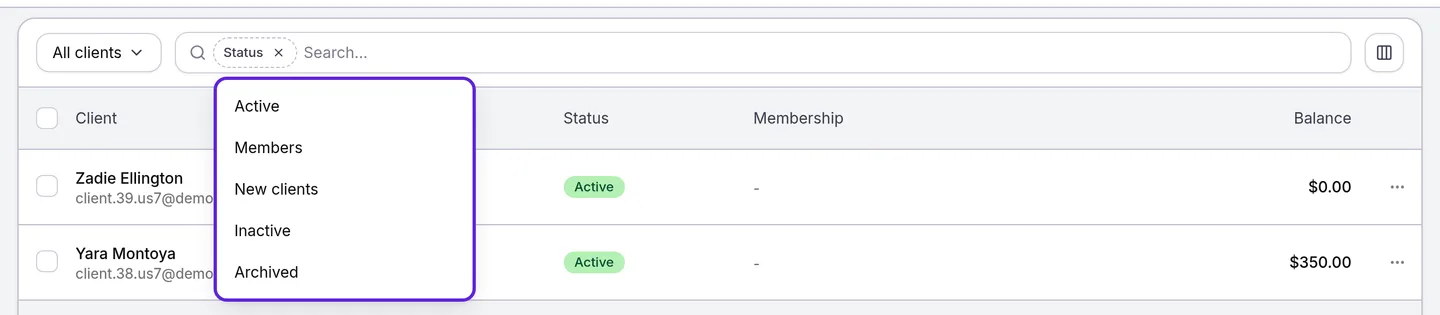
- To filter, select the search box and choose a filter under Add filter: Status, Has membership, Phone, Balance or Joined.
- Pick a value. The filter sits as a pill in the search box, and each filter you add narrows the list further.
- Select the cross on a pill to remove that filter.
- Select a patient’s row to open their profile.
| Filter | Choices | Lists |
|---|---|---|
| Status | Active, Members, New clients, Inactive, Archived | Active: patients whose badge reads Active, members included. Members: active patients with a membership. New clients: active patients without one. Inactive and Archived: patients with that status |
| Has membership | Members only, Non-members | Patients whose membership is active, trialing, past due or pending, or everyone else |
| Phone | Has phone, Missing phone | Patients with or without a phone number |
| Balance | =, > or < and an amount | Patients by wallet credit, such as more than $50.00, for roles with Wallet, points & credits at view |
| Joined | Today, Yesterday, Last 7 days, Last 30 days, This month, Last month, This year, or a Custom range | Patients by the date they were added or signed up |
The columns button at the right of the search box sorts the list under Sort by and shows, hides or reorders columns under Columns, such as Joined. How patient profiles work explains each status badge.
Use and save views
A view in Velarya is a saved set of filters, sorting and columns for the Clients list. Five come built in: All clients, Members, Non-members, New and Inactive.
- Select the view menu at the top left of the list. It shows the view you’re on, such as All clients.
- Choose a view. The list, its filters and its columns change to match.
- To keep a list of your own, set the filters, sort and columns you want. Save appears beside the search box.
- Select Save > Save as new view, or Save as new view in the view menu.
- Enter a View name and select Save view. The view joins the menu, and Clients reopens on the view you used last.
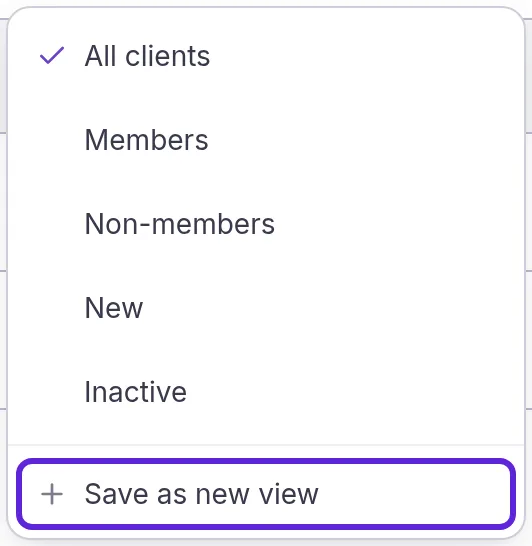
To change a view you saved, open it, adjust it and select Save > Update view. Hover over a view in the menu and select its three-dot button for Duplicate view, which opens a copy named after it. Views you saved also offer Rename view and Delete view there. The reset button beside Save takes the list back to the view as it was saved.
Act on several patients at once
Bulk actions in Velarya change many patients in one go, for staff with Client personal info at edit.
- Tick the box at the start of each patient’s row, or the box in the header to select the whole page. A bar appears at the foot of the screen, such as “2 clients”.
- Choose an action in the bar:
- Activate marks the patients Active.
- Deactivate marks them Inactive, so they can’t sign in to your practice in the patient app or book until they’re activated again.
- Archive takes them off your active list and out of your practice in the patient app, keeping every record. Restore Client brings an archived patient back, and archived patients in a selection keep their status when you choose Activate or Deactivate.
- Merge appears when exactly two patients are selected, for staff with Merge duplicate clients (Admins by default).
- Delete appears for Admins and deletes the patients’ profiles for good.
- Confirm in the dialog: Confirm Activation, Confirm Deactivation, or the button with the number of patients, such as Archive 2 Clients or Delete 2 Clients. “Status updated successfully”, “Successfully archived 2 clients” or “Successfully deleted 2 clients” appears.

Merge duplicate patients walks through Merge, and Update, archive or delete a patient explains what archiving and deleting keep.
Export the list
Export in Velarya downloads the patients in your list as a CSV file, for staff with Export client lists. Admins hold it by default.
- Search and filter the list to the patients you want, or leave it on All clients for everyone.
- Select Export at the top right, a download icon on a phone. Velarya downloads clients.csv with the patients the list holds, across all its pages.
- Open the file in a spreadsheet. The columns are ID, First Name, Last Name, Email, Phone, Status, Wallet Balance, Reward Points and Joined.

The file holds your patients’ names and contact details, so store it where only your team can open it.
How does the Clients list behave?
The Clients list in Velarya shows the same patients to everyone on your team, formatted by each person’s role.
| Situation | What Velarya does |
|---|---|
| Locations | One list for the whole practice: every patient appears once, whichever locations they visit |
| Names | Follow your role’s Client name visibility: full, first initial (“Emily J.”) or first only |
| Members | Counted from the membership itself: a patient is a member while their membership is active, trialing, past due or pending (assigned and awaiting its first payment), and leaves Members when it ends |
| New patients | A patient you add appears at the top of All clients at once. One who signs up in your app, or whom a colleague adds, appears the next time the list loads |
| Record keeping | Velarya logs each time the list is opened (CLIENT_LIST), without the words typed in the search, and each export (CLIENT_EXPORT) with who exported and when |
If something goes wrong
“No clients found matching your search.” Nothing matches your search, filters and view together. Check the spelling, select Clear search to empty the search box, remove a filter pill, or choose All clients in the view menu.
A patient is missing from Active. They’re inactive or archived. Choose Inactive or Archived under Status, or go back to All clients.
Export is missing. Your role doesn’t hold Export client lists. Ask an Admin to export the list for you, or to add the grant to your role in Roles & Permissions.
There are no boxes to tick. Bulk actions need Client personal info at edit, which Service Providers don’t hold by default.
Merge isn’t in the bar. Select exactly two patients. Merge also needs Merge duplicate clients, which Admins hold by default.
Frequently asked questions
Was this guide helpful?
Last verified