
Update, archive or delete a patient
Updated Last verified against the product
In short
In Velarya, you change a patient's details with More actions > Edit client details on their profile. Disable account stops the patient signing in and booking, Archive client takes them off your active list until you restore them, and an Admin's Delete client erases their profile, activity and clinical record at your practice for good.
- Who can do this
- Client personal info at edit (Admins, Location Managers and Front Desk) to update, disable, archive and restore a patient. Admins and Location Managers change a name or date of birth. Admins delete
- Applies to
- Your whole practice, every location
- Plans
- Basic, Scale, Branded and Connected
- Time
- 2 minutes
Before you begin
- The patient has a profile in Clients: Add a patient.
Update a patient’s details
Edit Patient Profile in Velarya is where your team corrects a patient’s name, contact details and date of birth. Velarya keeps one profile for each patient across your whole practice, and How patient profiles work explains the rest of it.
- Select Clients in the left sidebar, then select the patient.
- Select More actions at the top right, then Edit client details. The pencil on the Contact card opens the same dialog.
- Change First Name, Last Name, Email Address, Phone Number or Date of Birth. First and last name are both required.
- Select Update Profile. “Client profile updated” appears, and the profile shows the new details.
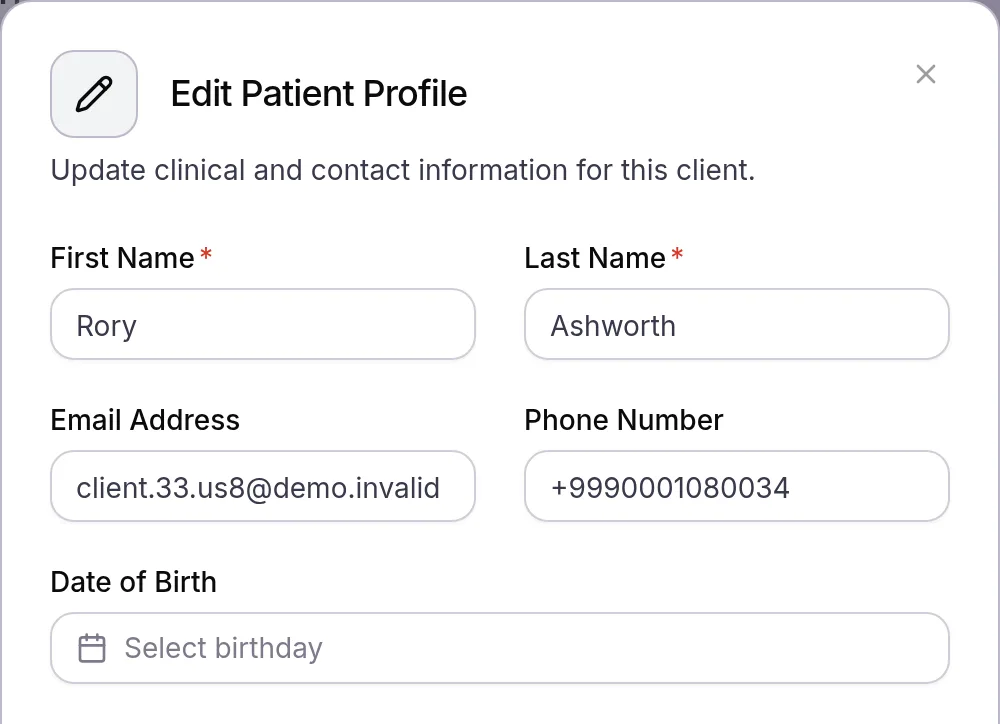
A new name or date of birth needs an Admin or a Location Manager. Anyone with Client personal info at edit changes the email and phone number. These edits change your practice’s profile of the patient. Editing a patient’s phone or email in the dashboard never changes how they sign in to the patient app: the patient changes their own sign-in email in the app, with a code sent to the new address. The switches under Communication Preferences in the same dialog are covered in Manage patients’ text consent and opt-outs.
Disable or enable a patient’s account
Disable account in Velarya stops a patient from signing in to your practice in the patient app and from booking, while their profile stays on your list as Inactive. Every record stays as it is.
- Open the patient’s profile from Clients.
- Select More actions, then Disable account. “Client account disabled” appears, and the patient’s status becomes Inactive.
- To let the patient back in, select More actions, then Enable account. “Client account activated” appears, and the patient can sign in and book again.
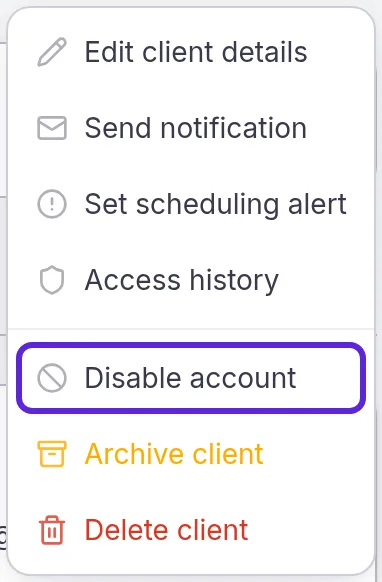
To disable several patients at once, select them on the Clients list and choose Deactivate in the bar at the bottom of the screen. Activate reverses it. Archived patients in the selection keep their status; bring them back with Restore Client. Find, filter and export your patients covers selecting patients in bulk.
Archive a patient
Archiving in Velarya takes a patient off your active list and out of your practice’s patient app, and keeps every record, so you can restore them at any time. Use it for patients who have moved away or stopped visiting.
- Open the patient’s profile and select More actions, then Archive client.
- Read Archive Client? and select Archive Client. “Client archived” appears, and Velarya takes you back to Clients.
On the Clients list, Archive Client in a row’s ⋯ menu does the same for one patient, and Archive in the bottom bar does it for every selected patient. An archived patient keeps their appointments, sales, memberships, balances, notes and clinical records. When a patient is leaving your practice, cancel their membership and upcoming appointments before you archive them, as Change or cancel a membership and Cancel or reschedule an appointment show.
Restore an archived patient
Restore Client in Velarya brings an archived patient back to your active list with everything they had.
- Select the Search clients… box on Clients, choose Status under Add filter, then Archived. Archived patients also appear in All clients, struck through.
- Select ⋯ at the end of the patient’s row, then Restore Client. “Client restored successfully” appears.
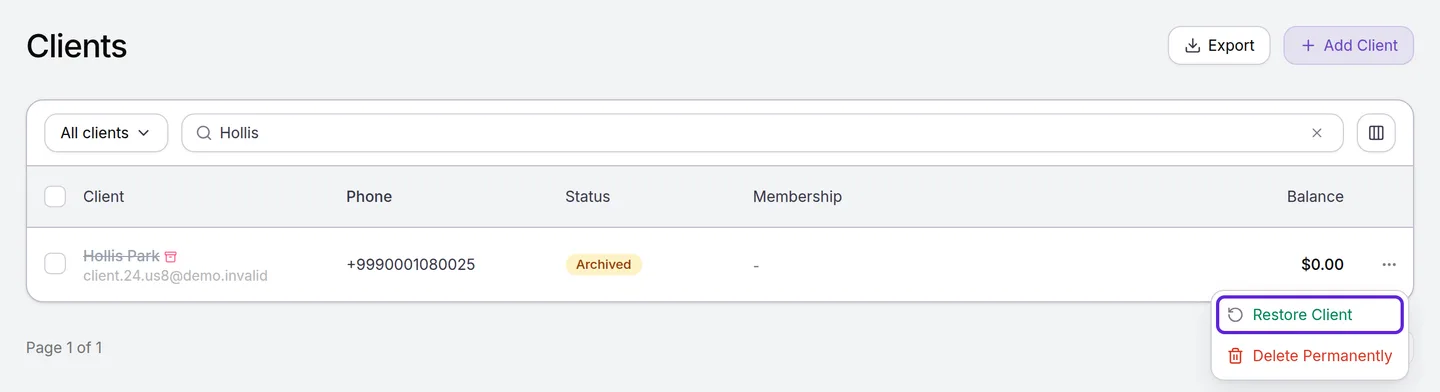
An archived patient’s profile says they’re archived, and More actions > Restore Client there does the same. The patient returns as Active, with “New Client” or “Member” under it, and your practice is back in their patient app the next time they sign in.
Delete a patient permanently
Deleting a patient in Velarya erases their profile, activity and clinical record at your practice for good. It never deletes their Velarya app account, which they keep for any other practices. Admins delete patients.
- Open the patient’s profile, select More actions, then Delete client.
- Read Permanently Delete Client?. It counts what will be erased for this patient: clinical records under “Protected health information will be destroyed”, then appointments, transactions, memberships, wallet transactions, loyalty entries and vouchers.
- Select Permanently Delete, or Keep Client to stop. “Client permanently deleted” appears, with a line on any sales kept, and Velarya takes you back to Clients.
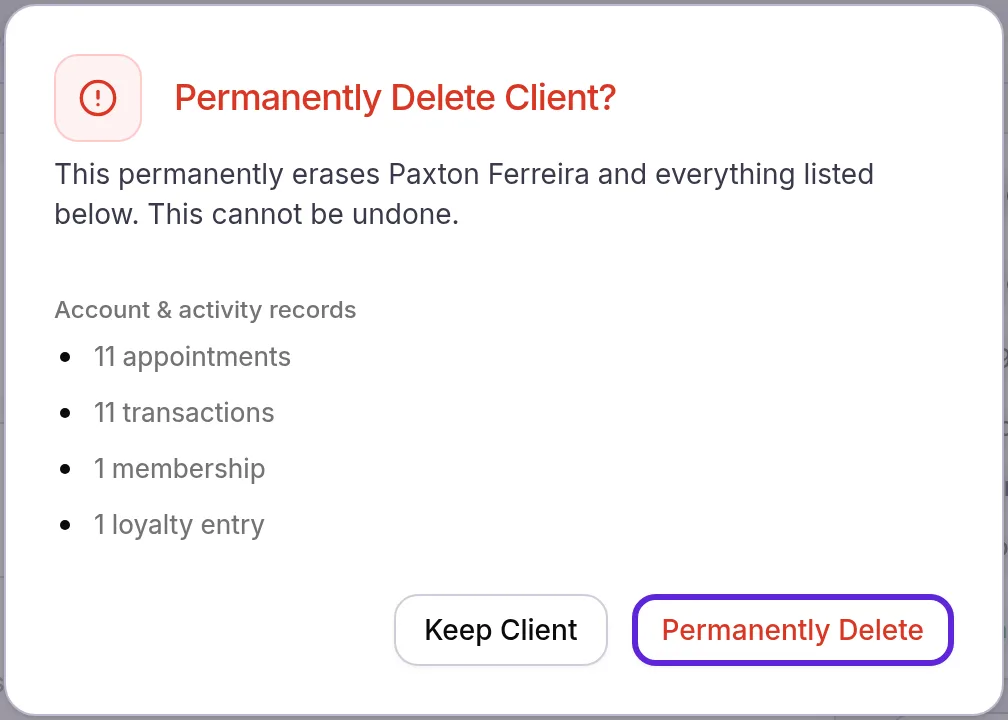
Before it erases anything, Velarya cancels the patient’s memberships so their card is never charged again.
The patient’s clinical record goes with the profile: medical history (allergies, medications, conditions), injectable and product records, charts, signed consent forms, visit notes, photos, files and medical alerts. When your practice needs to keep them, archive the patient instead. What the clinical record holds is in Record a patient’s medical history and files.
Sales with a tax invoice stay. When your practice issues tax invoices through e-invoicing, those sales stay on your transactions list without the patient’s profile or notes, and the dialog counts them under “Kept for Saudi VAT law”.
On the Clients list, Admins also find Delete Permanently in a row’s ⋯ menu, and Delete in the bottom bar for several patients.
What do patients see?
Patients see disabling, archiving and deleting in the patient app.
- Edited details. A staff edit changes your practice’s profile only. The patient keeps signing in with the email or phone number they verified in the app.
- Disabled. The patient can’t sign in to your practice or book until you select Enable account.
- Archived or deleted. Your practice leaves their patient app. A patient who uses the Velarya app with other practices keeps their sign-in and everything at those practices.
- Restored. Your practice is back in their app the next time they sign in. An archived patient who adds your practice again in the Velarya app returns to your active list, with their history.
A patient can also delete their own account in the patient app, from Profile & Settings > Delete account > Delete my account. Velarya then cancels their memberships and upcoming appointments and removes their name and contact details at every practice they belong to. Their profile stays on your Clients list as “Deleted User”, shown as Deleted, and your records of past visits and sales stay complete.
How do disabling, archiving and deleting compare?
Disabling, archiving and deleting in Velarya differ in what the patient keeps and whether you can undo them.
| Disable account | Archive client | Delete client | |
|---|---|---|---|
| Who can do it | Client personal info at edit | Client personal info at edit | Admins |
| On the Clients list | Inactive | Archived, struck through, hidden by the Active filter | Removed |
| In the patient app | No sign-in or booking at your practice | Your practice leaves the app | Your practice leaves the app |
| Records | All kept | All kept | Erased, except sales with a tax invoice |
| Clinical records | Kept | Kept | Erased |
| Memberships | Unchanged | Unchanged | Cancelled first |
| Upcoming appointments | Unchanged | Unchanged | Erased |
| To undo | Enable account | Restore Client | Not reversible |
Velarya records every update, status change, archive, restore and deletion in your practice’s audit log, with who made it and when. How patient privacy works shows where to read it.
If something goes wrong
“Only an Admin or Location Manager can change a client’s name or date of birth.” Your role can change contact details, but a name or date of birth needs an Admin or a Location Manager. Ask one of them to make the change.
“Client with this email or phone number already exists in this clinic.” Another profile at your practice has that email or number, often a duplicate of this patient. Find it on Clients and merge the two, as Merge duplicate patients shows.
“Cannot update: Email or phone belongs to a Staff member/Administrator.” The email or number belongs to someone on your team. Enter the patient’s own contact details.
“Could not cancel the client’s Stripe subscription; deletion aborted to avoid an orphaned subscription. Please retry.” Velarya couldn’t stop a membership’s billing, so it deleted nothing. Select Delete client again in a moment.
Delete client is missing from More actions. Deleting a patient takes an Admin. Archive the patient, or ask an Admin to delete them.
Disable account and Archive client are missing. On an archived patient’s profile, More actions offers Restore Client instead: restore the patient first. Otherwise these actions appear for staff with Client personal info at edit, so ask an Admin to change your role in Roles & Permissions.
An archived patient isn’t on the list. The Members, New and Inactive views and the Active status filter leave archived patients out. Choose Archived under Status, or switch back to All clients.
A patient named “Deleted User” is on the list. The patient deleted their own account in the patient app. The profile stays for your records, without their name or contact details.
Frequently asked questions
Was this guide helpful?
Last verified