
Record a patient's medical history and files
Updated Last verified against the product
In short
In Velarya, a patient's medical record sits on their profile's Clinical tab: medical alerts with a severity of Info, Warning or Critical, and a medical history of allergies, medications and conditions. Alerts show at the top of the profile for everyone who opens it. The Files tab keeps signed consents, IDs and outside records.
- Who can do this
- Medical history and medical alerts: Clinical details (sex at birth, meds, allergies) at edit (Admins by default). Files: Client documents & photos at add (Admins and Location Managers)
- Applies to
- Your whole practice, every location
- Plans
- Scale, Branded and Connected
- Time
- 3 minutes
Before you begin
- The patient has a profile in Clients: Add a patient.
Add a medical alert
A medical alert in Velarya is a short safety warning on a patient, such as a severe allergy or a blood thinner, graded Info, Warning or Critical. It shows at the top of the patient’s profile for everyone who opens it.
- Select Clients in the left sidebar and open the patient. Select the Clinical tab.
- In the Medical Record card, select Add alert beside Alerts & flags. Add medical alert opens.
- Type the warning in Alert, up to 500 characters.
- Choose the Severity: Info, Warning or Critical. It starts on Warning.
- Select Add alert. “Alert added” appears, and the alert joins Alerts & flags with your name and the date.
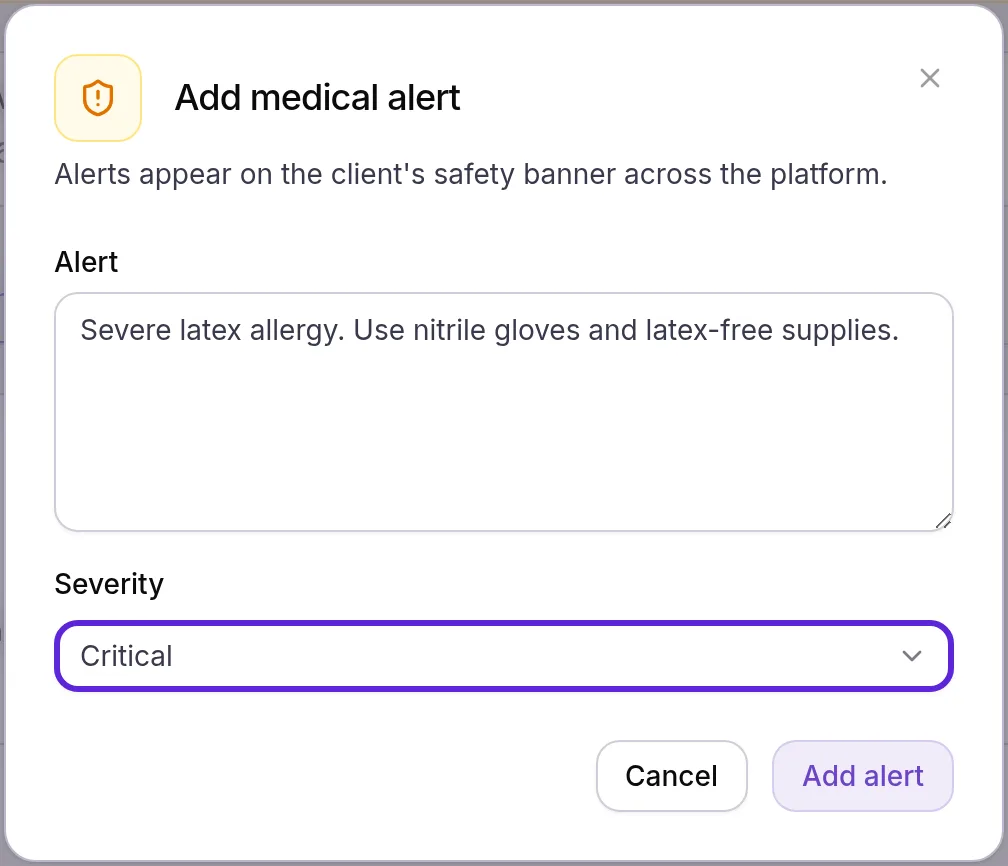
To change an alert, select its pencil, edit it in Edit medical alert and select Save. To remove one, select its bin and confirm with Delete. The banner drops it at once.
Record allergies, medications and conditions
A patient’s medical history in Velarya is the Medical history section of the Medical Record card: allergies, medications, medical conditions, sex at birth, pregnancy, breastfeeding and a clinical background.
- On the patient’s Clinical tab, select Edit beside Medical history. Edit medical record opens.
- Type the patient’s Allergies, or tick No known allergies.
- Fill in Medications and Medical conditions.
- Choose Sex at birth: Female, Male, Intersex or Unspecified. Switch on Pregnant or Breastfeeding when either applies.
- Add lasting context in Clinical Background, such as “keloid-prone, pre-numb 30 minutes”.
- Select Save. “Medical record saved” appears, and the section lists each field, with “None recorded” where one is blank.
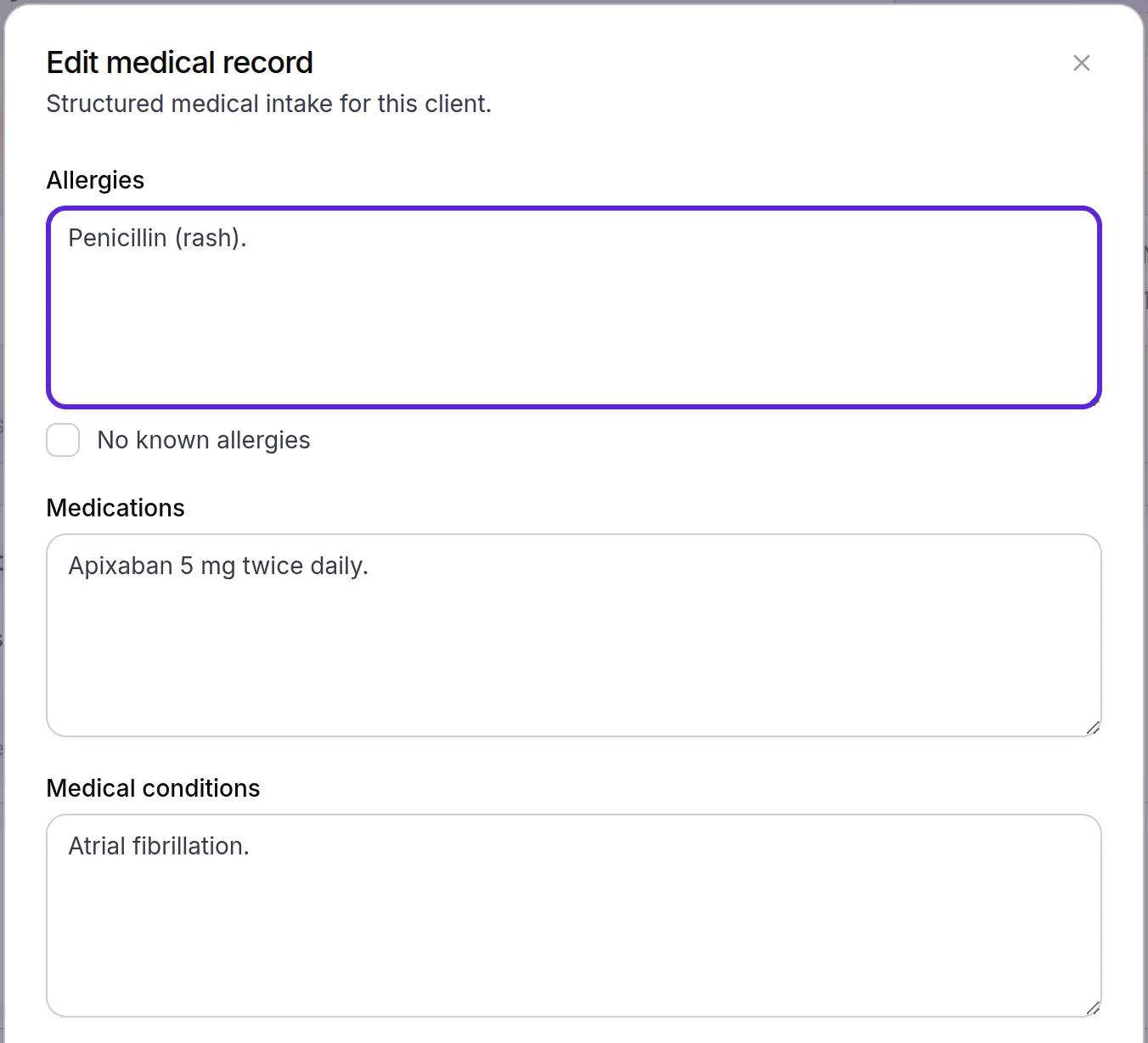
Forms and charts keep the history current. When a patient submits a form with a connected question, or you complete a chart with one, the answer replaces that field, and a chart you start fills its connected questions from the history. Send intake and consent forms covers the forms patients fill.
Upload a file to the patient’s record
The Files tab in Velarya keeps documents about a patient: a signed paper consent, a copy of their ID, records from another provider.
- Open the patient’s profile and select the Files tab.
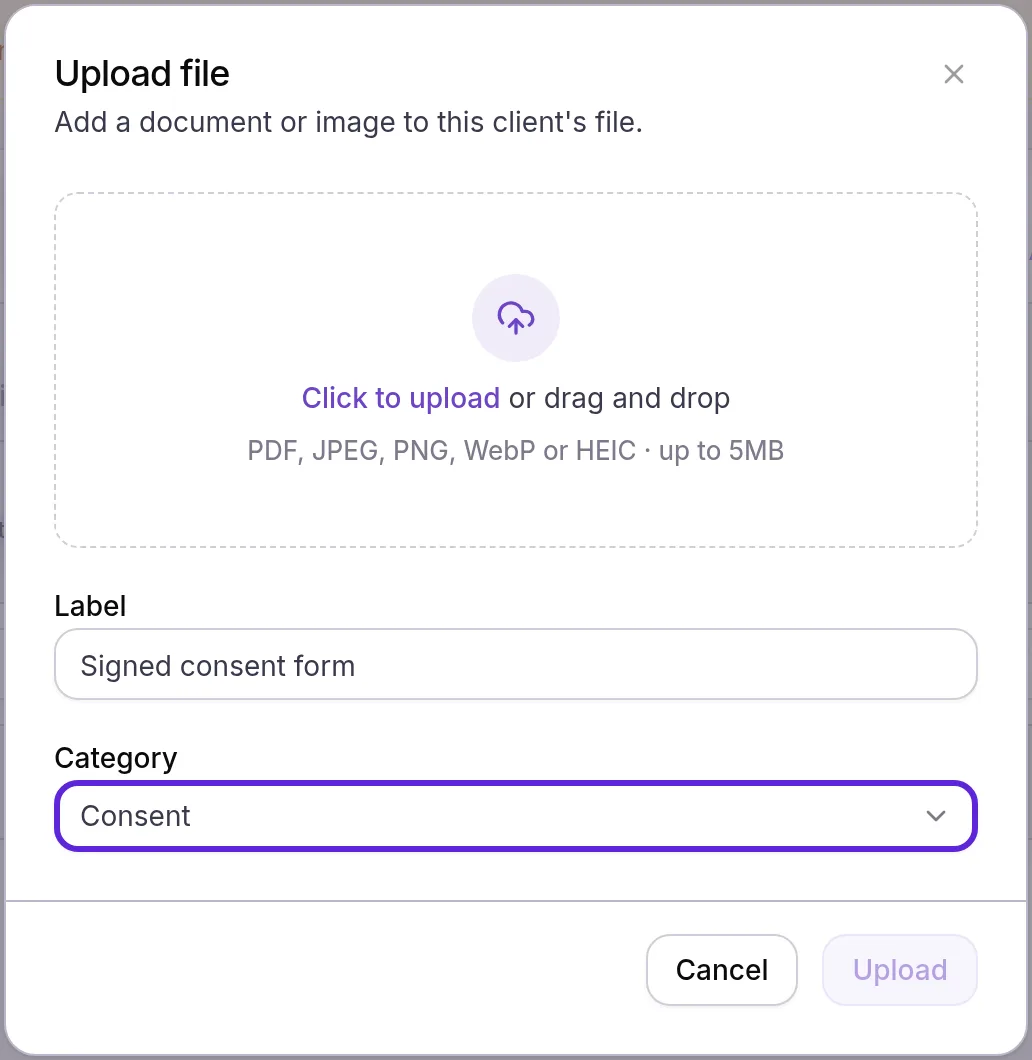
- Select Upload. Upload file opens.
- Drop the file on the box, or select the box to choose it: a PDF or a JPEG, PNG, WebP or HEIC image, up to 5 MB.
- Type a Label, such as “Signed consent form”. Left blank, the file keeps its own name.
- Choose the Category: Consent, ID, External record or Other. It starts on Other.
- Select Upload. “File uploaded” appears, and the file joins the list.
The list shows each file’s Name, Category, Uploaded by, Date and Size, and the tabs above it filter by category. Open a row’s menu to Download or Delete a file, or tick several rows to do either at once. Documents attached to a History comment or a visit note are saved here too.
Where do medical alerts show?
Medical alerts in Velarya show on the patient’s profile, on each of their sales and on their Clinical tab.
- On the patient’s profile, in the Alerts banner at the top, for everyone who can open the profile, Front Desk included. Each alert carries its severity badge, and the banner turns red when any alert is Critical.
- On the patient’s sales in Transactions, above the stats, under “Medical alert” (“Medical alerts” when there are several), for staff who can open the sale and hold Clinical details (sex at birth, meds, allergies) at view. Visits are charted from the sale, as Chart a visit shows.
- Under Alerts & flags on the Clinical tab, newest first, with who added each alert and when.

The same banner carries the patient’s scheduling alert, with a Scheduling badge. That one is for front desk instructions, as Add notes, tags and alerts to a patient explains.
How does the medical record behave?
Velarya keeps the medical history, alerts and files in the patient’s clinical record: each sits behind its own permission, the medical history’s text fields and every stored file are encrypted, and every access is logged.
| Situation | What Velarya does |
|---|---|
| Medical history text | Allergies, Medications and Medical conditions hold up to 5,000 characters each, and Clinical Background up to 10,000. All four are stored encrypted. |
| A form or chart answers a connected question | The answer replaces that field in the medical history. A blank answer changes nothing. |
| A medical alert is deleted | It leaves the banner and Alerts & flags. Velarya keeps the deleted alert in the record, with who deleted it. |
| A file is uploaded | Velarya checks that its contents match its type, stores it encrypted and opens it through a private link that expires after five minutes. |
| A file is deleted | It leaves the list. Velarya keeps the stored copy for the record retention period. |
| Someone views, changes or downloads any of it | It appears in the patient’s Access history, with who and when. |
| Two profiles of the same patient are merged | The duplicate’s medical alerts and files move to the profile you keep, and its medical history is combined with the kept profile’s, as Merge duplicate patients explains. |
| A patient is deleted | Their medical history, alerts and files are erased with the profile. Archiving the patient keeps them. |
| Permission | View | Change |
|---|---|---|
| Clinical details (sex at birth, meds, allergies) | Admins, Location Managers, Service Providers | edit: Admins |
| Client documents & photos | All four built-in roles | add: Admins, Location Managers. remove: Admins |
An Admin can build a custom role that holds edit, such as one for a medical director, in Organization settings > Roles & Permissions. How patient privacy works explains each permission.
If something goes wrong
The profile has no Clinical tab. Your role does not hold Clinical details (sex at birth, meds, allergies) at view, which Front Desk does not hold by default. Ask an Admin if your work needs it.
Add alert and Edit are missing on the Clinical tab. Your role holds Clinical details at view, which reads the record but does not change it. Only Admins hold edit by default.
The profile has no Files tab, or Files has no Upload button. Files needs Client documents & photos at view, and Upload needs add. Admins and Location Managers hold add by default.
“… exceeds the 5MB limit”. The file is larger than 5 MB. Save a smaller copy, such as a PDF scanned at a lower resolution, and upload that.
“… is not a supported file type” or “File content does not match its type”. The file is not a PDF or a JPEG, PNG, WebP or HEIC image, or its name claims one type while its contents are another. Save or export it again as a PDF and upload that.
Delete is missing from a file’s menu. Deleting files needs Client documents & photos at remove, which Admins hold by default.
“File is attached to a clinical note and cannot be removed”. The file is part of a visit note, so it stays with that note in the record.
“Couldn’t open the file”. The download link could not be created. Select Download again; each select makes a fresh link.
Frequently asked questions
Was this guide helpful?
Last verified