
Add notes, tags and alerts to a patient
Updated Last verified against the product
In short
In Velarya, you keep a standing Client Note on a patient's Overview, post dated comments with @mentions on their History, tag them from the Tags card, and set a scheduling alert from More actions that the front desk confirms before marking them arrived. Patients never see any of these.
- Who can do this
- Comments: Client notes at edit (Admins, Location Managers and Service Providers). Client Note, tags and scheduling alerts: Client personal info at edit (Admins, Location Managers and Front Desk)
- Applies to
- Your whole practice, every location
- Plans
- Basic, Scale, Branded and Connected
- Time
- 2 minutes
Before you begin
- The patient has a profile in Clients: Add a patient.
Write a standing Client Note
The Client Note in Velarya is one standing note on a patient’s Overview tab: the background every colleague should read before a visit, such as preferences and how the patient likes to be looked after. It stays until someone changes it, which takes Client personal info at edit.
- Select Clients in the left sidebar and select the patient. Their profile opens on Overview.
- Select Add a standing note about this client… in the Client Note card. When a note is already there, select the pencil in the card’s corner.
- Type the note. It holds up to 5,000 characters.
- Select Save. “Client note saved” appears, and the note shows to everyone who opens the profile.
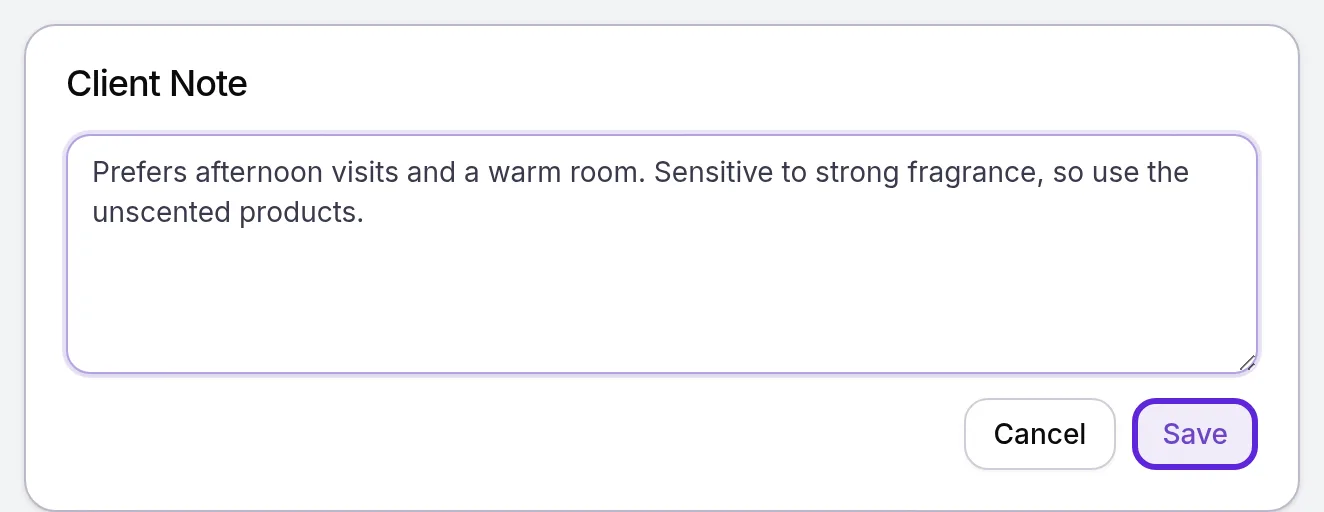
To remove the note, open it, clear the text and select Save. When a patient has no note, a role that can read the card but not change it sees “No note yet.”
Leave a comment on the patient’s History
A comment in Velarya is a dated entry on the patient’s History tab, signed with your name, for updates your team should see in order: a phone call, a question about a package, a follow-up. You can bring a colleague in with an @mention and attach a file.
- Open the patient’s profile and select the History tab. The timeline lists appointments, sales, memberships, wallet and rewards activity and comments, latest date first.
- Type in Leave a comment….
- Type @ and the start of a colleague’s name, then select them from the list. Their name appears under the text, and you can mention up to 20 colleagues.
- To attach a file, select the paperclip and choose a PDF, or a JPEG, PNG, WebP or HEIC image, of up to 5 MB. A comment holds up to 10 files, saved with the patient’s files.
- Select Post, or press Ctrl+Enter (Cmd+Enter on a Mac). “Comment added” appears, and the comment shows under today’s date with your name and the time.
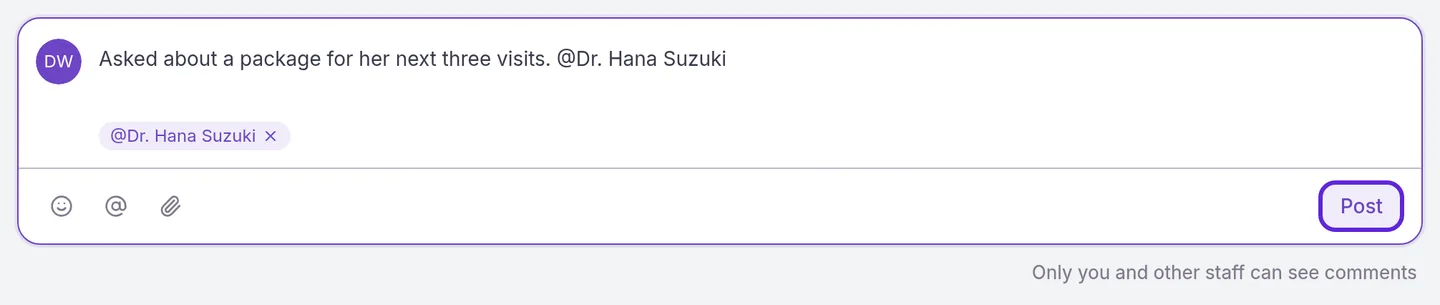
Select Comments above the timeline to list just the comments, newest at the top. Upcoming appointments sit above today’s entries under All. The timeline shows 10 entries at a time, and Load More brings the next 10.
Tag a patient
A tag in Velarya is a short label on a patient’s Tags card, such as “VIP skincare” or “Referred by a friend”. Tags come from one list shared by your whole practice, so a tag created for one patient is offered for every other.
- Find the Tags card on the patient’s Overview.
- Type a tag in Add a tag… and press Enter. It is saved at once, and “Tags updated” appears.
- To pick from your practice’s tags, select the pencil on the card. Tags opens.
- Type in Search to find or create tags, then tick a tag under Available, or select Create with the name to make a new one. Tags you choose move under To add.
- Select Save. “Tags updated” appears, and the tags show on the card.
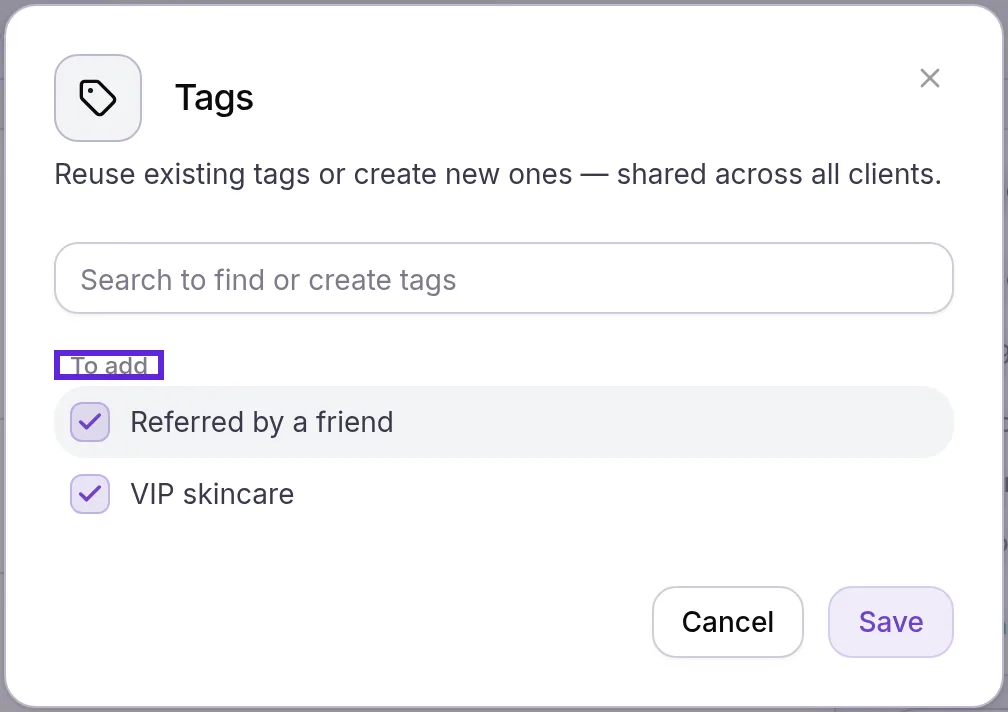
To take a tag off, select the × next to it on the card. The tag stays in your practice’s list for other patients. Velarya matches tag names whatever their capitals, so “VIP” and “vip” are one tag.
Set a scheduling alert
A scheduling alert in Velarya is one short instruction for the front desk that shows wherever the patient is booked and must be confirmed before the patient is marked arrived. Use it for timing, parking, arrival or payment instructions.
- Open the patient’s profile and select More actions > Set scheduling alert.
- Type the instruction in Alert message, up to 500 characters, such as “Prefers the first appointment of the day.”
- Select Save Alert. “Scheduling alert saved” appears.
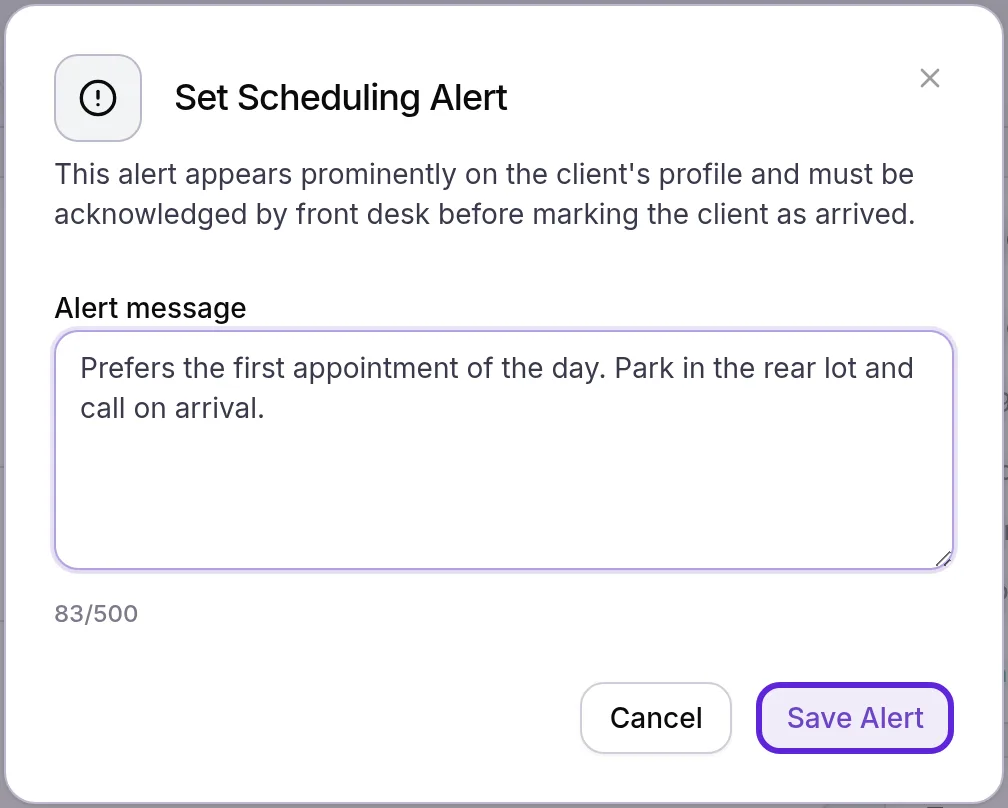
The alert then shows in three places: in the Alerts banner at the top of the profile with a Scheduling badge, as a red stripe down the patient’s card on Front Desk, and in red at the top of their appointment panel. Before the patient is marked arrived, the front desk sees Scheduling alert for with the patient’s first name and confirms with Mark as arrived, as Move patients through the Front Desk shows.

To change the alert, select More actions > Edit scheduling alert. To remove it, select Clear scheduling alert. “Scheduling alert cleared” appears.
Which note goes where?
Each place in Velarya has one job and its own audience, so pick the one that matches what you want colleagues to do with it.
| Where | Use it for | Who sees it | Who can change it |
|---|---|---|---|
| Client Note on Overview | Standing background: preferences, how to look after the patient | Everyone who opens the profile | Client personal info at edit |
| Comments on History | Dated updates, questions to a colleague, attached files | Roles with Client notes at view, which all four system roles hold | Client notes at edit to post |
| Tags | Labels that group patients, such as a program or referral source | Everyone who opens the profile | Client personal info at edit |
| Scheduling alert | One front desk instruction, confirmed at arrival | Everyone who opens the profile, Front Desk and the appointment panel | Client personal info at edit |
| Medical alert | Allergies and contraindications, with a severity | The Alerts banner for everyone who opens the profile | Clinical details (sex at birth, meds, allergies) at edit |
| Visit notes | What happened at a treatment | Staff with Clinical charts & forms at view | The note’s author, with Clinical charts & forms at edit |
Medical alerts and the rest of a patient’s medical history are covered in Record a patient’s medical history and files, and visit notes in Chart a visit. Who holds each permission by default is in How patient privacy works.
What do patients see?
Patients see none of the notes, comments, tags or alerts in this guide. They are for your team, and nothing in the patient app shows them. The notification a mentioned colleague receives names you but never the patient.
If something goes wrong
The Client Note shows “No note yet.” and does not open. Changing the note takes Client personal info at edit, which Service Providers hold at view. Ask a colleague at the front desk, or an Admin.
There is no Leave a comment… box on the History tab. Your role holds Client notes at view, which shows comments but does not post them. Ask an Admin to set it to edit, or to give you a role that has it.
Set scheduling alert, or the pencil on the Tags card, is missing. Both need Client personal info at edit, which Service Providers hold at view. Ask a colleague at the front desk, or an Admin.
There is no paperclip in the comment box. Attaching files takes Client documents & photos at add, which Admins and Location Managers hold. Ask an Admin to give your role that level.
“Failed to upload file” when you attach a file. The file is over 5 MB, or is not a PDF, JPEG, PNG, WebP or HEIC image. Save it in one of those formats at 5 MB or less and attach it again.
Save Alert stays grayed out. Alert message is empty. Type the instruction, or use Clear scheduling alert to remove an alert that is no longer needed.
A colleague is missing from the @mention list. Unless you are an Admin, the list shows colleagues who work at one of your locations. It also hides anyone already mentioned in the comment. A colleague added while you had Velarya open appears after you reload the page.
Frequently asked questions
Was this guide helpful?
Last verified