
Manage patients' text consent and opt-outs
Updated Last verified against the product
In short
Velarya sends a patient appointment texts, form links and account notices while SMS is on for them. Patients your team adds start with SMS off, so turn on SMS Notifications in Edit Patient Profile once the patient agrees. A patient who replies STOP to a text is opted out at once, and texts stay off until they reply START.
- Who can do this
- Admins, Location Managers and Front Desk (Client personal info at edit)
- Applies to
- Your whole practice, every location
- Plans
- Basic, Scale, Branded and Connected
- Time
- 1 minute
Before you begin
- The patient has a profile in Clients with a phone number: Add a patient.
Why does SMS start off for new patients?
Velarya checks a patient’s SMS setting before it sends them appointment texts, form links and account notices, and SMS starts off for every patient your team adds, until the patient agrees to texts. Patients added in Clients with Add Client, or as a walk-in on Front Desk, start with email and push notifications on and SMS off. Patients who join in the app start with texts off unless they choose texts when they sign up.
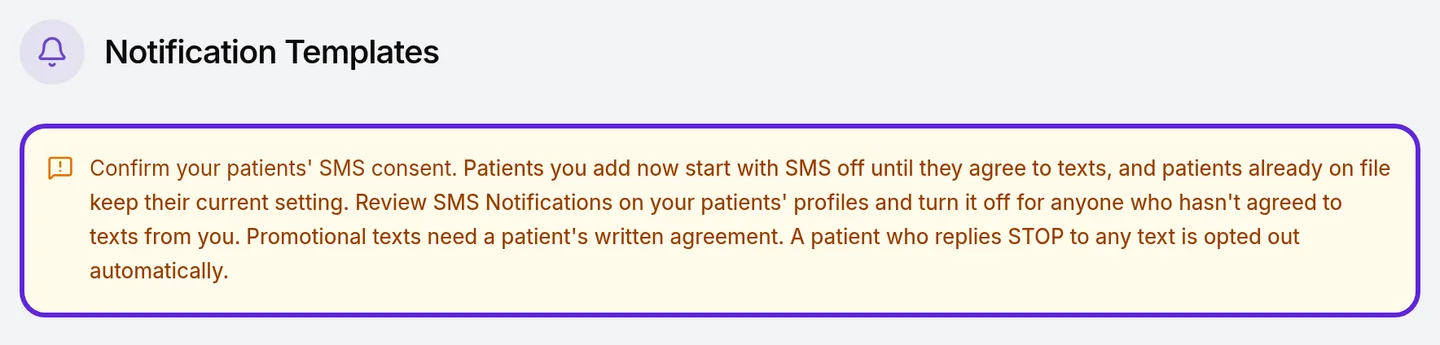
Patients already on file keep the SMS setting they had. Notification Templates in Organization settings opens with a note about it, Confirm your patients’ SMS consent., which asks you to review SMS Notifications on your patients’ profiles.
Record that a patient agreed to texts
When a patient tells your team they want texts, record it on their profile in Velarya. From then on their appointment texts, form links and account notices go to their phone.
- Select Clients in the left sidebar and select the patient.
- Check the Contact card: a phone number is on file and SMS shows in grey.
- Select More actions > Edit client details, or the pencil on the Contact card. Edit Patient Profile opens.
- Under Communication Preferences, turn on SMS Notifications.
- Select Update Profile. “Client profile updated” appears, and SMS turns green on the Contact card.
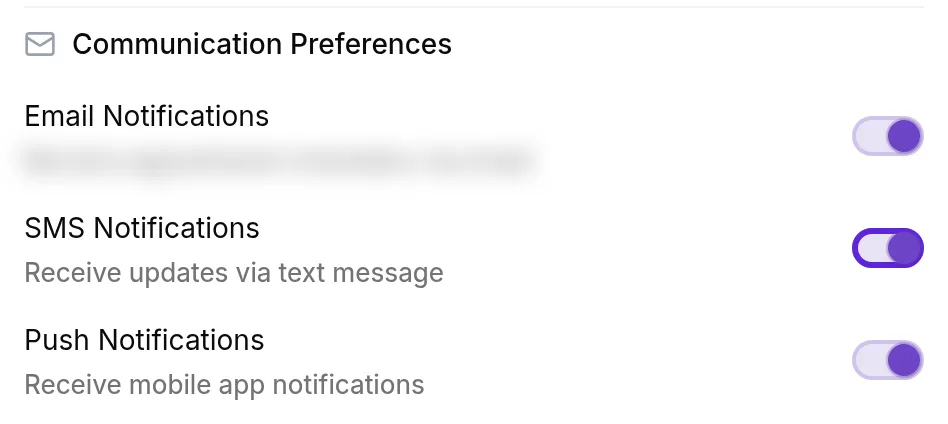
Turn SMS Notifications off the same way when a patient asks your team to stop texting them. If the patient later creates an app account, the setting you recorded stays as it is, unless they tick the text box, which turns texts on.
What happens when a patient replies STOP?
A STOP reply turns off texts to that patient in Velarya at once. Velarya reads the replies to its texts and treats a reply that is one of these words on its own, in any capitals, as a request to stop: STOP, STOPALL, UNSUBSCRIBE, CANCEL, END, QUIT, REVOKE and OPTOUT.
- SMS turns off at once. Appointment texts, form links, account notices and messages from Send notification stop.
- The profile shows it. The patient’s profile and Edit Patient Profile show that they replied STOP and when, and SMS Notifications stays off until they reply START.
- The app shows it. In the app, I want to receive SMS messages stays off, shows the date of the STOP and asks the patient to text START.
- START turns texts back on. A reply of START or UNSTOP turns SMS back on where the STOP turned it off. A setting that was already off stays off.
- It reaches every profile with that phone number. A STOP turns SMS off on every patient profile in Velarya with the same phone number, even at a practice that never texted the patient, and each of those profiles shows the STOP.
- It is recorded. Each STOP and START appears in the patient’s Access history, under System.
What do patients see and choose?
Patients choose texts for themselves in the patient app, and the appointment confirmation text tells them how to stop.
- At sign-in. When a patient signs in to the app with their phone number, an optional box asks whether they want texts. Ticking it turns texts on at every practice they belong to in the app, including one where your team turned SMS off. A sign-in never turns texts back on after a STOP.
- In the app’s settings. Under Communication preferences, the patient turns I want to receive SMS messages on or off for the practice they have open in the app. After a STOP, the switch stays off and asks them to text START.
- In each text. Each text names what happened, such as a confirmed appointment or forms to complete, and points the patient to their email, the app or the form link for the details. The appointment confirmation ends “Reply STOP to opt out.”
Loyalty notifications patients receive lists what each text and push notification says.
How does text consent behave?
Velarya keeps a text consent setting on each patient’s profile at your practice and checks it before it sends them appointment texts, form links and account notices.
| Situation | What Velarya does |
|---|---|
| A patient is added in Clients or as a walk-in | SMS starts off; email and push notifications start on |
| A patient joins in the app | Texts start off unless they tick the text box when they sign up |
| A patient on file creates an app account | SMS stays as your team recorded it, unless they tick the text box, which turns it on |
| A patient books on your web booking page | Velarya texts them a booking confirmation with a link to the app, unless they replied STOP |
| SMS is on | One setting covers appointment confirmations and reminders, form links, membership and payment notices, and Send notification by SMS |
| No phone number is on file | Nothing is texted, whatever the setting |
| The patient replies STOP | SMS turns off at once on every profile with that phone number, at every practice, and stays off until they reply START |
| The patient replies START or UNSTOP | SMS turns back on where the STOP turned it off; a setting that was already off stays off |
| The patient changes the switch in the app | Texts change at the practice open in the app |
Appointment reminder timing is set in Set up appointment reminders. Form links follow the same switch, as Send intake and consent forms to patients shows.
If something goes wrong
“Client replied STOP to your texts. SMS stays off until they text START.” You sent a message with Send notification by SMS to a patient who opted out. Send it by email or push instead, and ask the patient to text START or UNSTOP to the number they sent STOP to if they want texts again.
“Client has not agreed to texts. Turn on SMS in their profile once they agree.” SMS is off for this patient. Once they agree, record it as in Record that a patient agreed to texts, then send again.
“A text can only say there is a new message, and this client has no app account to read it in. Send it by email instead.” SMS is on, but a text from Send notification points the patient to the app, which they haven’t joined. Send the message by email.
A patient says their appointment reminders never arrive by text. Check the Contact card: SMS must be green and a phone number must be on file. If the profile shows a STOP, the patient texts START to turn texts back on. Reminders also need Appointment Reminders on in Notification Templates.
Edit client details is missing from More actions. Changing a patient’s contact settings needs Client personal info at edit, which Service Providers hold at view. Ask a colleague at the front desk or an Admin.
A patient who replied STOP wants reminders again. Ask them to reply START or UNSTOP to the number they sent STOP to.
Frequently asked questions
Was this guide helpful?
Last verified