
How payments work in Velarya
Updated Last verified against the product
In short
Velarya takes card payments into your practice's own payment account, which pays out to your bank, so Velarya never holds your funds. Patients pay when they book online or through a payment link, and your team takes card, card reader, cash and other payments at checkout. An Admin connects the account in Organization settings > Payments.
- Who can do this
- Admins, for payment accounts and the service fee (Payment accounts & fees at Manage). Admins, Location Managers and Front Desk, for taking payment at checkout (Transactions / orders at Edit)
- Applies to
- Your whole practice, every location
- Plans
- Basic, Scale, Branded and Connected
- Time
- 5 minute read
What is a payment account in Velarya?
A payment account in Velarya is your practice’s own account with Velarya’s payment provider, where card payments from patients settle before they are paid out to your bank. Velarya never holds your funds: a card payment goes from the patient’s card to your payment account, then to your bank.
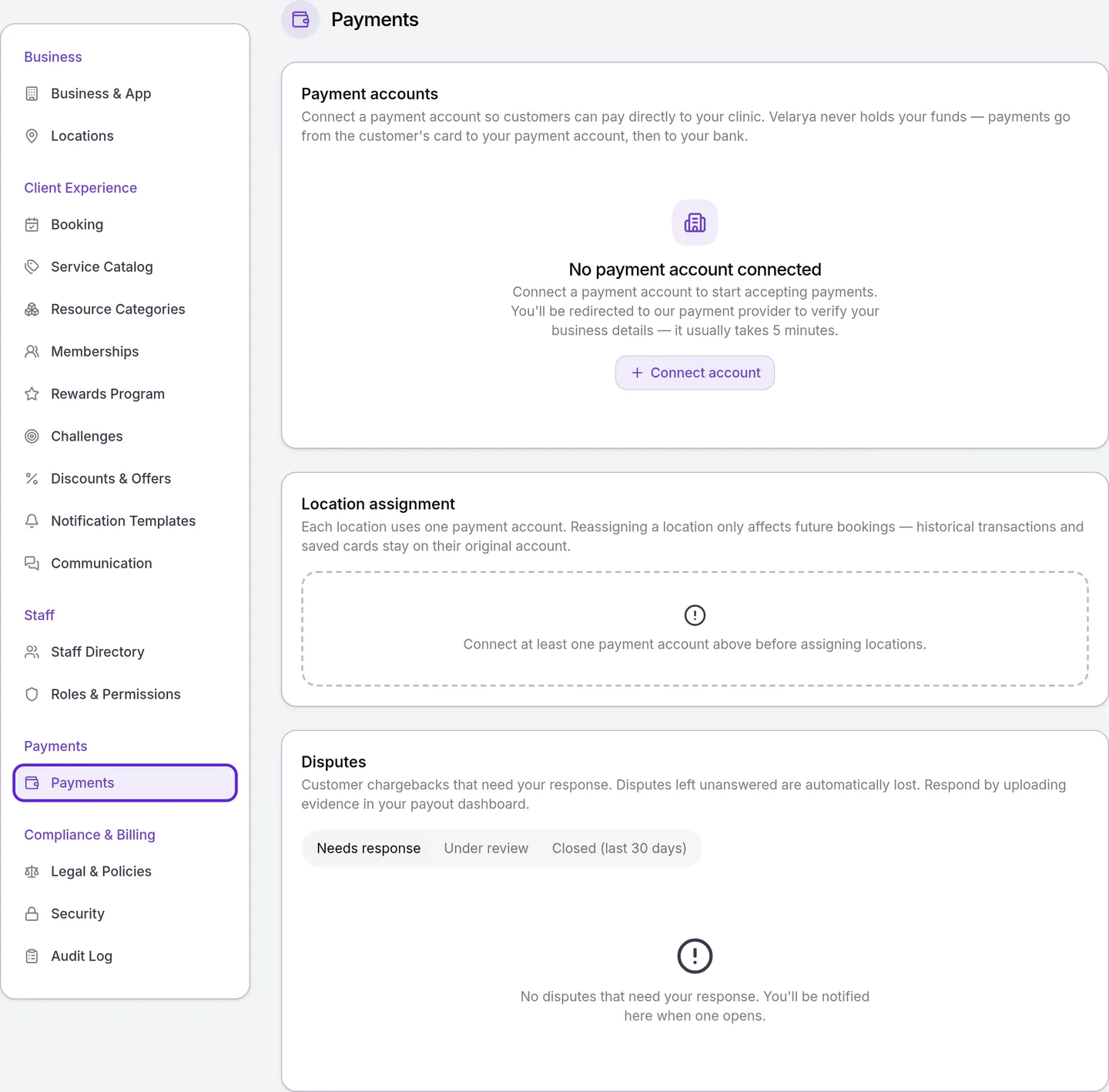
An Admin connects the payment account once, for the whole practice, in Organization settings > Payments, as Connect your payment account shows. Every sale is recorded in Transactions however it was paid, so card, cash and other payments sit in one list.
How does money get from a patient to your bank?
A card payment in Velarya moves from the patient to your bank in four steps.
- The patient pays. They pay in the patient app or on your web booking page when they book, through a payment link, or at your front desk.
- The payment lands in your payment account. Velarya charges the card on the payment account of the location the sale belongs to.
- Velarya takes its service fee. When your plan includes one, the fee comes out of the payment. In Organization settings > Payments, you choose whether patients pay it on top of the bill at checkout in your dashboard.
- Your payment account pays out to your bank. You follow each payout in the payout dashboard, which opens from Organization settings > Payments.
A card payment counts as paid once the payment provider confirms it. For a card payment in the app, on your web booking page or through a payment link, patients who get email notifications then receive a receipt from your practice. The payment provider sends none of its own. At your desk, your team emails or prints the receipt from the checkout. Cash and Other payments are recorded by your team at checkout and never pass through the payment account.
Where patients pay
Patients pay in Velarya in five places. Your booking policy decides what is due when patients book online, and your team picks the method at checkout.
| Where | How the patient pays |
|---|---|
| Patient app | By card when they book, as your booking policy asks: in full, a deposit, or a card saved for later. They pick a saved card or add a new one, and can put their wallet credit toward the purchase. Where you allow it, they choose Pay at location instead |
| Web booking page | By card, as your booking policy asks. Where you allow pay at venue, they choose between Pay now (card) and Pay at venue. A deposit shows as Pay now (deposit) and Pay at clinic (balance) |
| Checkout at your desk | Card on file, Card for a new card typed into the card form, Card reader for a reader paired with the location, Cash, or Other, such as a check or a bank transfer. Split payment takes the bill in parts, each paid by Card on file, Cash or Other |
| Payment link | Staff open the sale in Transactions and choose More actions > Copy payment link, or Send payment link to email it as “Your invoice from” your practice’s name when the patient has an email on file. The patient signs in and pays by card on the page the link opens |
| Membership | By card when the patient joins and at every renewal, as How memberships work explains |
Vouchers, wallet credit and discounts lower the amount due before anyone pays, as Redeem a voucher at checkout and Apply a discount at checkout show. Take payment at checkout walks through each method at the desk.
The service fee and who pays it
The Velarya service fee is Velarya’s commission on sales, charged when your plan includes one. The Fees card on Organization settings > Payments shows when your plan includes it, and an Admin chooses who pays the Service fee there:
- Absorb, the starting choice: the fee is taken from your payout, and patients never see it.
- Pass to client: at checkout in your dashboard, the fee is added as its own Service fees line, and the patient pays it.
When you pass the fee on, your team can take it off one sale at checkout with Waive, next to Service fees; Undo puts it back. Waiving one sale leaves your setting as it is. When a card payment is refunded, Velarya reverses its service fee too.
Payment accounts across locations
Each location in Velarya uses one payment account, and most practices connect one account for every location. A second account is for locations owned by a different legal entity, or that need separate bank deposits. The first account you connect is marked Default, and Velarya links every location you have at that moment to it. After you add a location, check its account in Location assignment.
With more than one payment account:
- Each location’s card payments, deposits and card readers settle into the account chosen for it in Location assignment.
- Cards on file are saved per account, so a patient adds their card again the first time they visit a location on a different account.
- A membership is billed by the account of the location that sold it, wherever the member uses its benefits.
- Transactions and your reporting stay in one place in Velarya, while payouts and bank deposits are separate for each account.
- Moving a location to another account applies to payments from then on, and past transactions stay on their original account.
What do patients see?
Patients pay your practice directly through Velarya, and the receipt and their card statement both carry your business name.
- Paying as they book. The app and your web booking page show what is due now under your booking policy and ask for a card. The app tells patients “Your card will be saved for future payments. You can remove it anytime from Payment methods.” In the app’s Payment methods, patients can Remove card or Make default.
- The service fee. With Pass to client, patients see a Service fees line on the bill at your desk. With Absorb, they never see it.
- Receipts. When patients pay by card in the app, on your web booking page or through a payment link, those who get email notifications receive an email receipt from your practice. At your desk, your team emails or prints the receipt from the checkout.
- Card statements. The charge shows your business name as set up on your payment account.
What you can change
Six Velarya settings shape how your practice is paid. The first three are on Organization settings > Payments; the last three are your booking policy, covered in Set up deposits and cancellation fees.
| Setting | Default | What it does |
|---|---|---|
| Payment accounts | None connected | The account card payments settle into; Connect account starts setup |
| Service fee | Absorb | Whether patients pay Velarya’s service fee at checkout (Pass to client) or you do (Absorb) |
| Location assignment | Your first account, for every location you had when you connected it | Which payment account each location’s payments go to |
| Online payment | Pay in full | Whether patients pay in full when they book online, or a deposit with Deposit, balance later |
| Card on file required at booking | Off | Saves a card with every booking, so late-cancel and no-show fees can be charged automatically |
| Allow pay at venue | Off | Lets patients book online and pay at your practice |
Card readers are paired for each location in Manage > Card Readers, and each reader settles into its location’s payment account.
Where to find payments
Velarya’s payment settings are in Organization settings > Payments, in the Payments section of the settings menu. The page holds the Payment accounts, Location assignment and Disputes cards, and the Fees card when your plan includes a service fee.
Sales are in Transactions in the left sidebar. The cards at the top add up Total Revenue, Transactions, Average Order and Refunds, and the list below them holds every sale with its payment status.

Frequently asked questions
Was this guide helpful?
Last verified
What changed
- : Where patients pay now names the email Send payment link sends: "Your invoice from" your practice's name.