
Apply a discount at checkout
Updated Last verified against the product
In short
To apply a discount at checkout in Velarya, open the unpaid visit's billing, its checkout panel or a New Transaction, enter the code in Discount code and select Apply. Enter an amount in Custom Discount ($) to take money off by hand. Velarya reprices the sale before payment and tells you when a code is not used.
- Who can do this
- Admins and roles with Discounts at checkout set to Apply or Override (Override for the Pricing row)
- Applies to
- Each location separately
- Plans
- Basic, Scale, Branded and Connected
- Time
- 2 minutes
Before you begin
- For a discount code, the code is active in Organization settings > Discounts & Offers: Create a discount code.
- The visit or sale has a patient and has not been paid yet. Discounts go on before you take payment.
- Your role holds Discounts at checkout, as the Admin, Location Manager and Front Desk roles do: Loyalty roles and permissions.
Apply a discount code to a visit
You apply a Velarya discount code to any unpaid visit from its billing: the appointment’s panel on Front Desk or Calendar, or its sale in Transactions. Velarya prices the visit on its server, so the patient pays the same total wherever they pay.
- Open the visit. On Front Desk or Calendar, select the appointment to open its panel. In Transactions, select the sale.
- Select the pencil next to Transaction in the panel, or next to Billing on the sale. The treatments open for editing, with any code the visit already holds.
- Type the code in Discount code and select Apply. The code turns into a badge with Discount applied, and each treatment shows its new price.
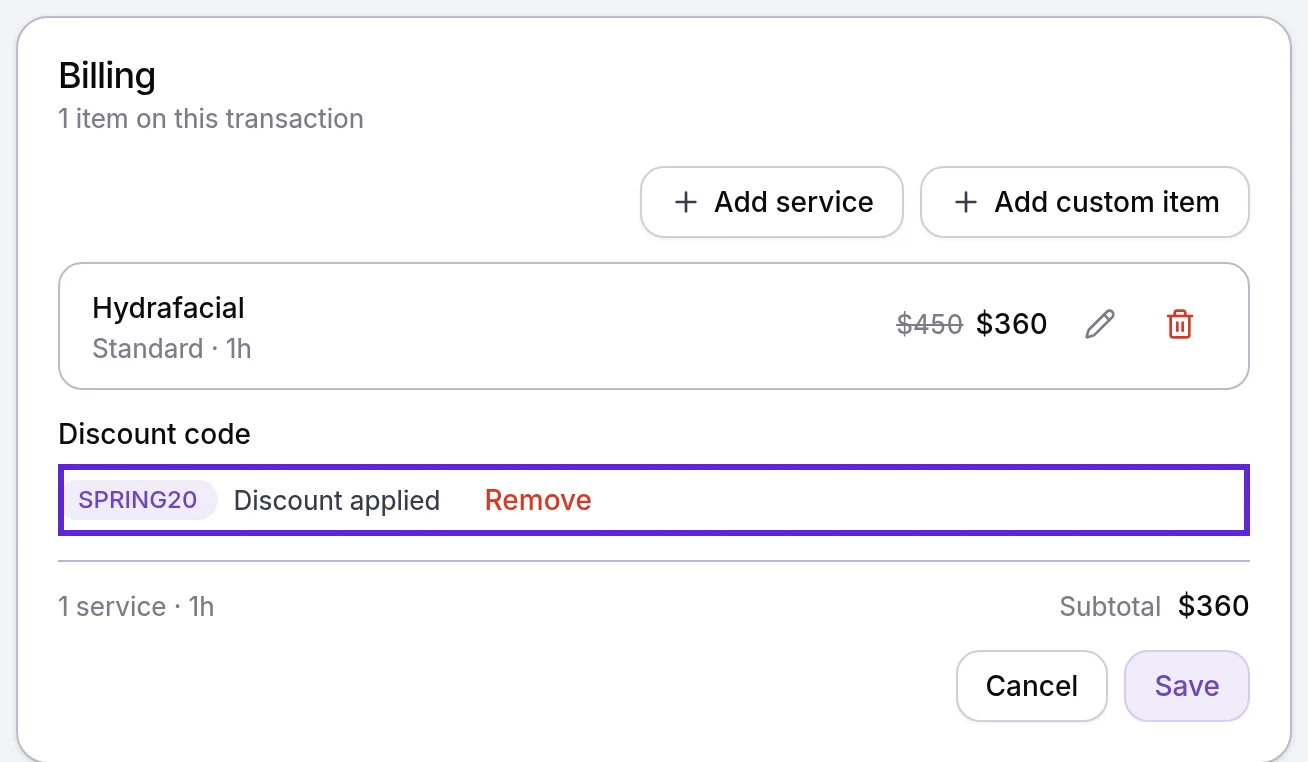
- Select Save. The visit shows a Discount line above its new total, ready to check out, and the code’s use is reserved for the patient.
To take a code off before payment, select Remove next to it, then Save. Velarya gives the code’s use back. The Discount code field works once the visit or sale has a patient and a treatment.
When does Velarya not use a code?
Velarya uses a discount code only when it lowers the price. After Apply, a message under the code says when it was not used, and after Save a notice says when an edit removed it. Neither counts a use.
| Message | Why |
|---|---|
| “SPRING20 wasn’t applied: the patient’s member price saves as much or more” | The code does not combine with member pricing, and the member price saves the same or more |
| “SPRING20 wasn’t applied: the patient’s birthday discount saves as much or more” | The same, for a birthday discount |
| “SPRING20 wasn’t applied: the patient’s member and birthday prices save as much or more” | The same, for both |
| “SPRING20 wasn’t applied: it takes nothing off this sale” | No treatment is left for the code to lower: vouchers pay for every treatment, or the sale holds products or custom items and no treatment |
| “SPRING20 was removed because this sale no longer meets its minimum” | An edit took the visit below the code’s minimum |
| “SPRING20 was removed because it no longer applies to any treatment on this sale” | An edit removed every treatment the code covers |
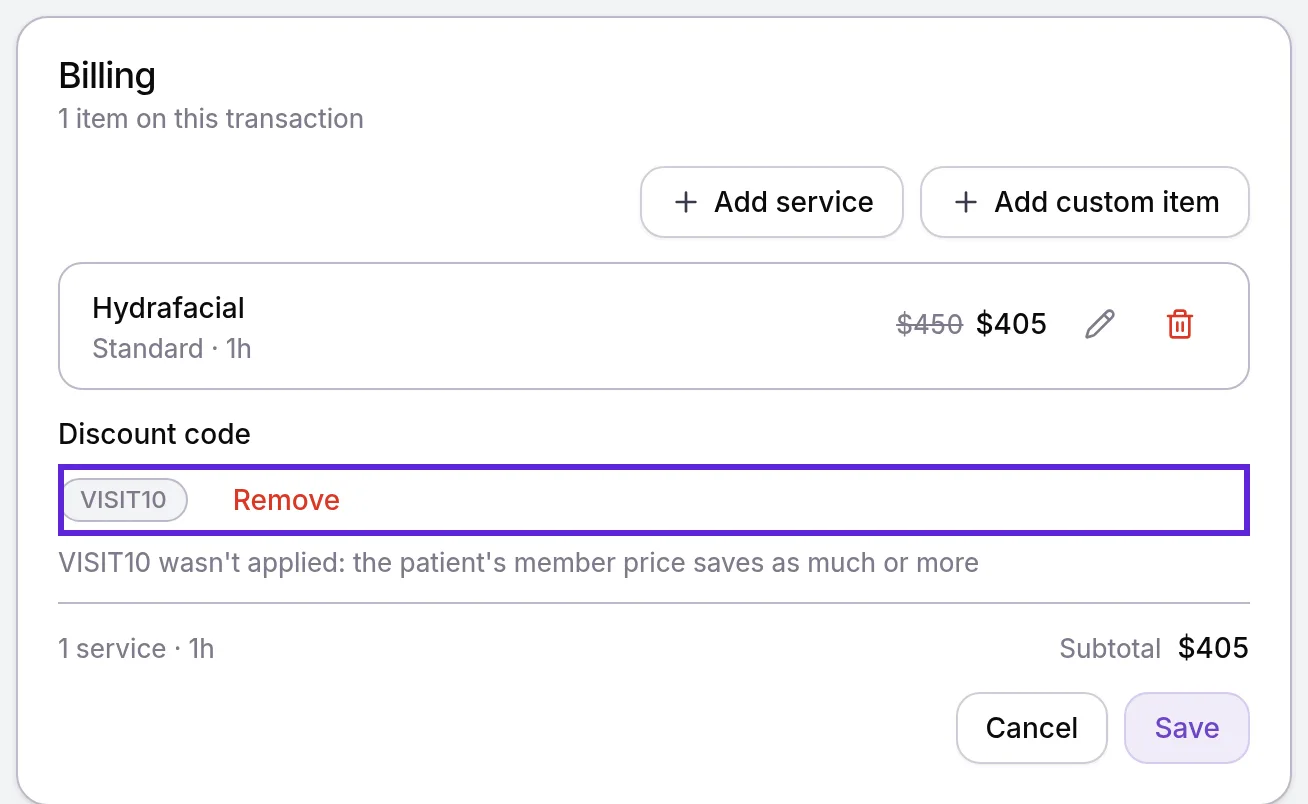
To let a code add to a member or birthday price instead, tick Member pricing or Birthday discounts on the code, as Create a discount code shows.
Apply discounts while taking payment
The Discounts block in the Velarya checkout panel takes a discount code and a Custom Discount ($) right before payment, and every change reprices the sale on Velarya’s server. Open the visit’s checkout first: select Open Checkout in a completed visit’s panel, drag its card into Completed on Front Desk, or select Collect payment on the sale in Transactions.
- Under Discounts, type the code in Discount code and select Apply. A Code SPRING20 row appears in the Transaction Summary, with the new Total due.
- Enter an amount in Custom Discount ($) and select Apply. A Custom discount row appears.
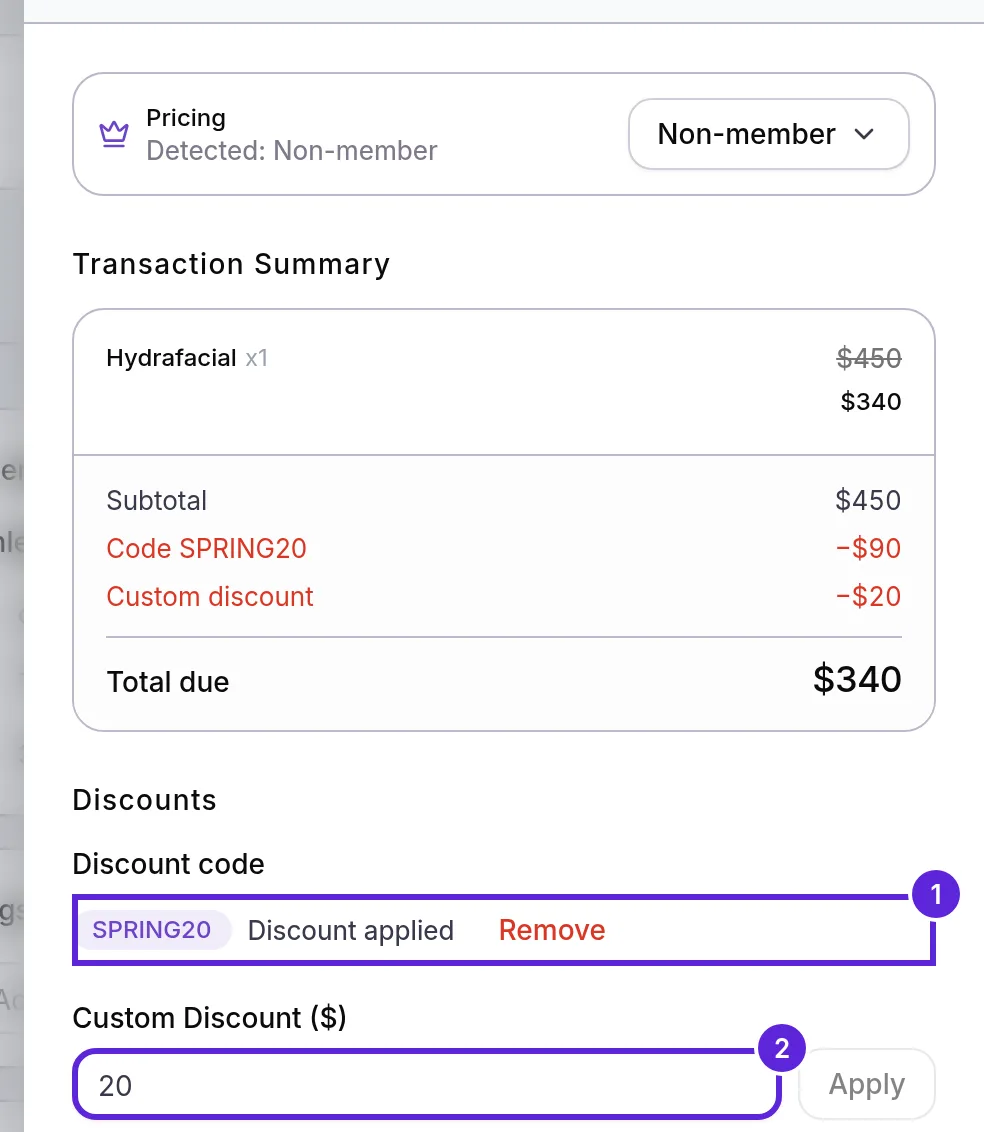
- Select Apply voucher on any treatment that shows Voucher available. A Vouchers row appears, and the code is worked out again on what is left.
- Take payment as usual.
The Discounts block shows while the sale is unpaid, for roles with Discounts at checkout. To clear a custom discount, empty the field and select Apply.
Take a dollar amount off a new sale
Custom Discount ($) on a New Transaction takes a set amount off a sale you ring up at the desk, such as a goodwill gesture, and Discount code sits above it.
- Select Transactions in the left sidebar, then New Transaction.
- Under Customer, search for the patient and select them.
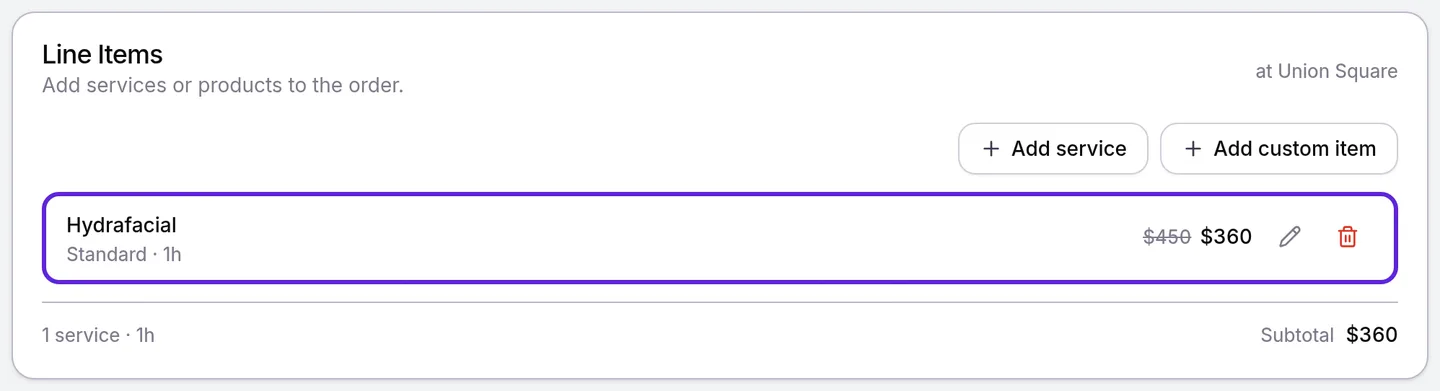
- Select Add service, choose the treatments and select Done. Velarya prices each treatment for this patient: their member price, or their birthday price while a birthday discount is active, whichever is lower, with the regular price struck through. While it prices the sale, Subtotal and Total due read “Calculating…” and Complete Transaction waits.
- Under Payment & Totals, type a code in Discount code and select Apply, if the patient has one.
- Enter the amount in Custom Discount ($). The summary lists the Subtotal at regular prices, a row for each saving, such as Code SPRING20 and Custom discount, and the lower Total due.
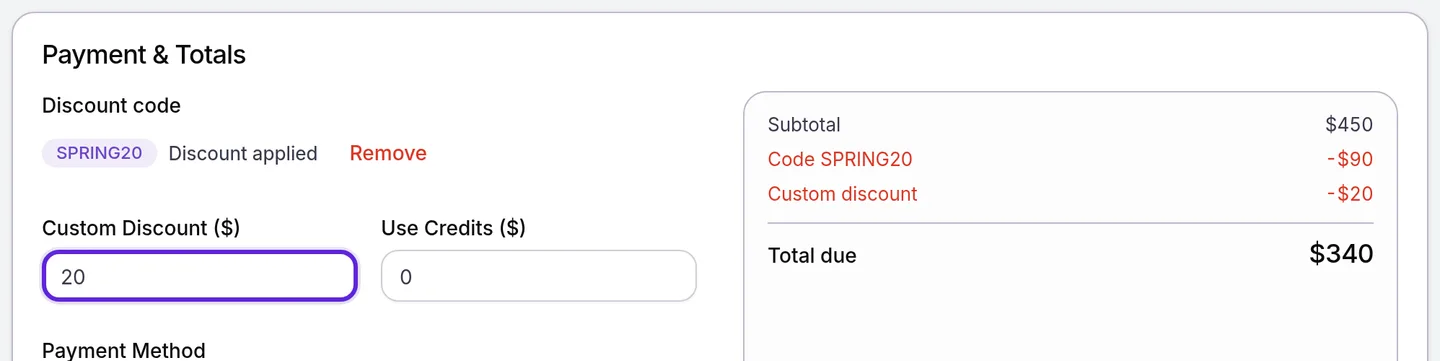
- Choose a Payment Method and select Complete Transaction, or Charge on reader for Card reader. “Transaction completed successfully” appears. With Card, Velarya creates a payment link, and the sale is paid when the patient pays through it.
The custom discount can be up to what is left to pay after every other saving. Save for Later keeps the custom discount with the draft. Enter the discount code when you resume the draft, so a parked sale never ties up one of the code’s uses.
Switch the pricing for one visit
The Pricing row at the top of the Velarya checkout panel charges one visit at non-member prices, or at the prices of any membership plan in your practice. It starts on what Velarya detected for the patient, such as “Detected: Essentials member” or “Detected: Non-member”.
- Open the visit’s checkout, as described above.
- Open the menu next to Pricing and choose Non-member or a plan. Override membership pricing? opens, naming the patient and the pricing you chose.

- Select Apply pricing. “Pricing updated for this visit” appears, and the Transaction Summary shows the new total.
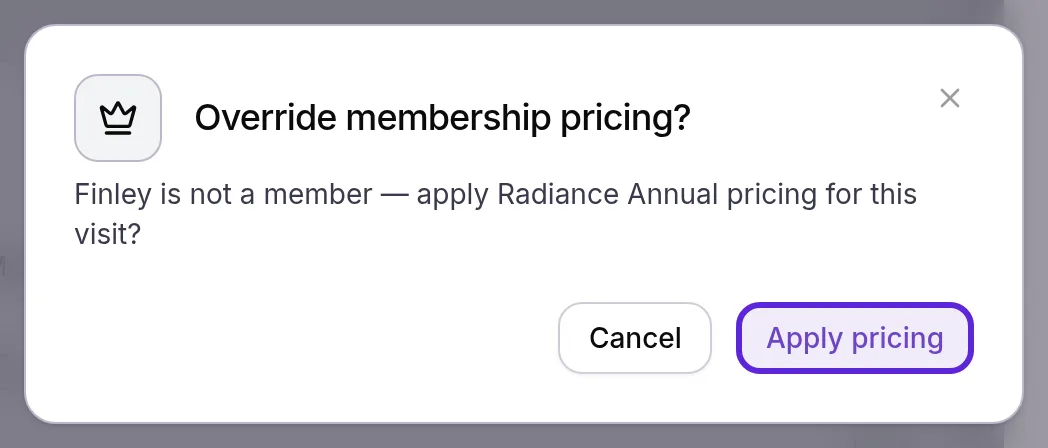
To return a visit to automatic pricing, choose the patient’s own plan, or Non-member for a patient without a membership. Velarya switches back at once, without asking you to confirm. The Pricing row shows while nothing has been paid on the visit.
Which discount does the patient get?
Velarya applies savings in one fixed order: each treatment’s lower member or birthday price, then vouchers, then one discount code, then any Custom Discount ($). A code adds to a member or birthday price only when it is set to combine with it; otherwise the patient gets whichever saves more.
The first three examples use a sample menu: a $450.00 Hydrafacial in Facials and a $950.00 Neuromodulator, with a plan that takes 10% off every treatment and a birthday gift of 20% off Facials. How discounts combine works through each one treatment by treatment.
| The visit | The patient pays |
|---|---|
| A member with a birthday gift and a 15% code that combines with nothing | $1,190.00: the code saves more on the regular prices, so it replaces the $1,215.00 member and birthday total |
| A member without a birthday gift and a 10% code that combines with member pricing | $1,134.00: 10% off the $1,260.00 member total |
| A member with a birthday gift and a 10% code that combines with both | $1,093.50: 10% off the $1,215.00 member and birthday total |
| A member on a 15% plan with a Hydrafacial voucher and a $380.00 chemical peel, a $50.00 code that combines with member pricing, then $20.00 in Custom Discount ($) | $253.00: the voucher pays for the Hydrafacial, and both discounts come off the $323.00 member price of the peel |
How do checkout discounts behave?
A Velarya discount code applied at checkout stays on the visit through every edit, at the terms it was applied with.
| Situation | What Velarya does |
|---|---|
| You edit the visit’s treatments after applying a code | Keeps the code and reprices the new treatments with it. If the visit falls below the code’s minimum, or keeps no treatment the code covers, removes it and says so |
| The code ends, is turned off or reaches its limit after a visit or saved sale got it | Keeps the visit’s discounted price |
| The code ends, is turned off or reaches its limit before you complete a New Transaction | Says why under Discount code, and Complete Transaction waits until you select Remove next to the code |
| The visit is cancelled or marked a no-show before anything is paid | Gives the code’s use back |
| The patient’s birthday discount ends between booking and checkout | Keeps the birthday price the visit was booked with |
| You change the Pricing row on a visit with a code | Keeps the code and works it out again with the new prices |
| A patient is charged non-member prices | Still gives them their birthday discount, as described in Set up a birthday gift |
| A deposit was paid at booking | Takes discounts off as long as the new total stays at or above what was collected |
| The visit is completed but not paid | Applies the code. At a location connected to E-invoicing, apply it before you mark the visit completed |
Velarya counts points on what the treatments cost after every discount, before wallet credit: a $450 Hydrafacial with a $50 Custom Discount ($) and $25 of credit earns points on $400.00, which is 2,000 points at an Earning Rule of 5 points per $1. How points work covers the rest of the points rules.
Who can apply a discount at checkout?
Discounts at checkout in Roles & Permissions decides who lowers prices at the desk, at each location where the staff member works.
| What staff do | Roles that can by default |
|---|---|
| Apply a discount code in billing, the checkout panel or a new sale | Admin, Location Manager, Front Desk |
| Enter a Custom Discount ($) in the checkout panel or on a new sale | Admin, Location Manager, Front Desk |
| Change the Pricing row | Admin, Location Manager |
A custom role needs Discounts at checkout at apply for codes and custom discounts, or at override to change the Pricing row as well. The role editor turns on Transactions / orders at edit with it, which also lets staff apply vouchers, as Loyalty roles and permissions shows. The Discount code and Custom Discount ($) fields appear only for roles that hold Discounts at checkout.
What do patients see?
Patients see a discount your front desk applies in Velarya on the payment link, the receipt and the visit in the patient app.
- A payment link you send lists each treatment, then the Subtotal, the Discount and the total, before they pay.
- The receipt, printed or opened from View your receipt in the receipt email, lists each treatment, then Subtotal, Discount, any Credits Applied and Total Paid.
- In the patient app, the visit in their Activity opens with its services, the Discount, the Total and the Points Earned.
If something goes wrong
“Invalid discount code”, “This discount code is not yet active”, “This discount code has expired”, “This discount code is not valid at this location” or “This discount code has reached its usage limit”. The code is misspelled, inactive, deleted, outside its dates, used up or limited to other locations. Check it on Discounts & Offers.
A new sale won’t complete, and Discount code says why the code stopped working. The code ended, was turned off or reached its limit after you applied it on a New Transaction. Select Remove next to the code, then Complete Transaction.
“Too many discount code attempts. Please try again in a few minutes.” Thirty codes you entered within 15 minutes came back “Invalid discount code”, such as misspelled, turned-off or deleted codes, with every try counted. Velarya then refuses every code you enter for the rest of those 15 minutes. Codes that apply, or that are refused for another reason, never count, and your teammates’ accounts are unaffected.
“This patient has already used this discount code”, “This discount code is for new patients only, and this patient has visited before” or “This discount code is for members only, and this patient has no active membership”. The code’s Who can use it or one-use setting leaves this patient out. A code for chosen plans names them, such as “This discount code is for Essentials or Radiance Annual members only”.
“This discount code doesn’t apply to any treatment on this sale” or “This discount code needs a visit of $300.00 or more ($250.00 on this sale)”. The code covers other treatments, or the visit is below its minimum, counted at the patient’s own prices.
The Discount code field is grayed out, or “Choose a patient before applying a discount code.” Choose the patient and add at least one treatment first. On a New Transaction, also finish each treatment’s options.
“Your role can’t apply discount codes”, “Your role can’t add a custom discount” or “Your role can’t change this visit’s pricing”. Your role lacks Discounts at checkout at apply or override at the visit’s location. Ask an Admin to update your role, or have a Location Manager finish the sale.
“Can’t be more than $360.00, the amount left to pay”. The custom discount is larger than what is left after the other savings. Lower it; Complete Transaction waits until you do.
“This sale is settled, so its discounts can no longer change” or “This order is settled and its items can no longer be changed”. The sale was paid, perhaps at another desk. To give money back, ask an Admin or Location Manager to refund it in Transactions, as Refund a payment shows.
“The total can’t go below the $311.25 deposit already collected”. The discount would take the total below the deposit. Take less off.
“A completed or cancelled visit on this order can’t be changed” or “This transaction has a tax document, so its lines cannot change. Issue a refund to correct it with a credit note.” You changed a completed visit’s treatments, or the visit’s tax document is recorded. For the first, select Cancel and apply only the code. For the second, take payment and correct it with a refund.
“1 service still needs its options configured”. A treatment needs its Variation or another option. Select the pencil on its line, choose the option, select Done, then try again.
There’s no Pricing row. The row appears with Discounts at checkout at override (Admins and Location Managers by default), on a visit with nothing collected yet.
Frequently asked questions
Was this guide helpful?
Last verified
What changed
- : A visit keeps the birthday price it was booked with, a new sale whose code stops working waits for you to remove it, and the limit on wrong codes per staff account is covered in troubleshooting. A visit cancelled or marked a no-show before payment gives the code's use back, the Pricing row shows for any visit with nothing collected, and the receipt FAQ says which savings make up its Discount line.
- : The checkout panel's Discounts block takes a code and a Custom Discount ($), and vouchers reprice the sale there. Codes can combine with member and birthday pricing, New Transaction takes a code, and the not-used and removed messages are quoted. New screenshots.
- : New Transaction prices each treatment for the patient with the regular price struck through (new screenshot), shows Calculating… while it prices the sale, and a line missing its options is covered in troubleshooting.