
Create a discount code
Updated Last verified against the product
In short
To create a discount code in Velarya, open Organization settings > Discounts & Offers and select Create Code. Set its value and what it applies to, then any minimum, who can use it, usage limits, combinations, dates and locations, and select Create code. Patients enter the code when they book, and your team enters it at checkout.
- Who can do this
- Admins and roles with Discounts, offers & vouchers set to edit
- Applies to
- Your whole practice, every location
- Plans
- Scale, Branded and Connected
- Time
- 5 minutes
Before you begin
- Your treatments have prices in Organization settings > Service Catalog, because a discount code takes its value off those prices.
Open Discounts & Offers
The Discounts & Offers page in Organization settings holds every Velarya discount code for your whole practice: codes patients type when they book, and your team enters at checkout.
- Open the menu at the bottom of the left sidebar and select Organization settings.
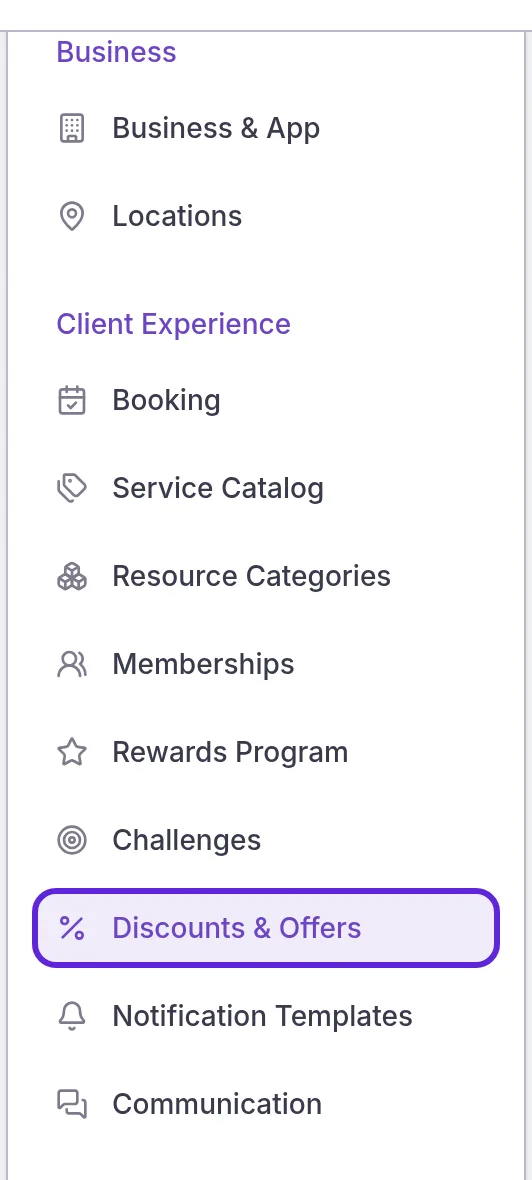
- Under Client Experience, select Discounts & Offers.
- Select Create Code. The New discount code window opens.
Set the code and its value
A Velarya discount code starts with the code patients type and a Type and Value that decide what they save.
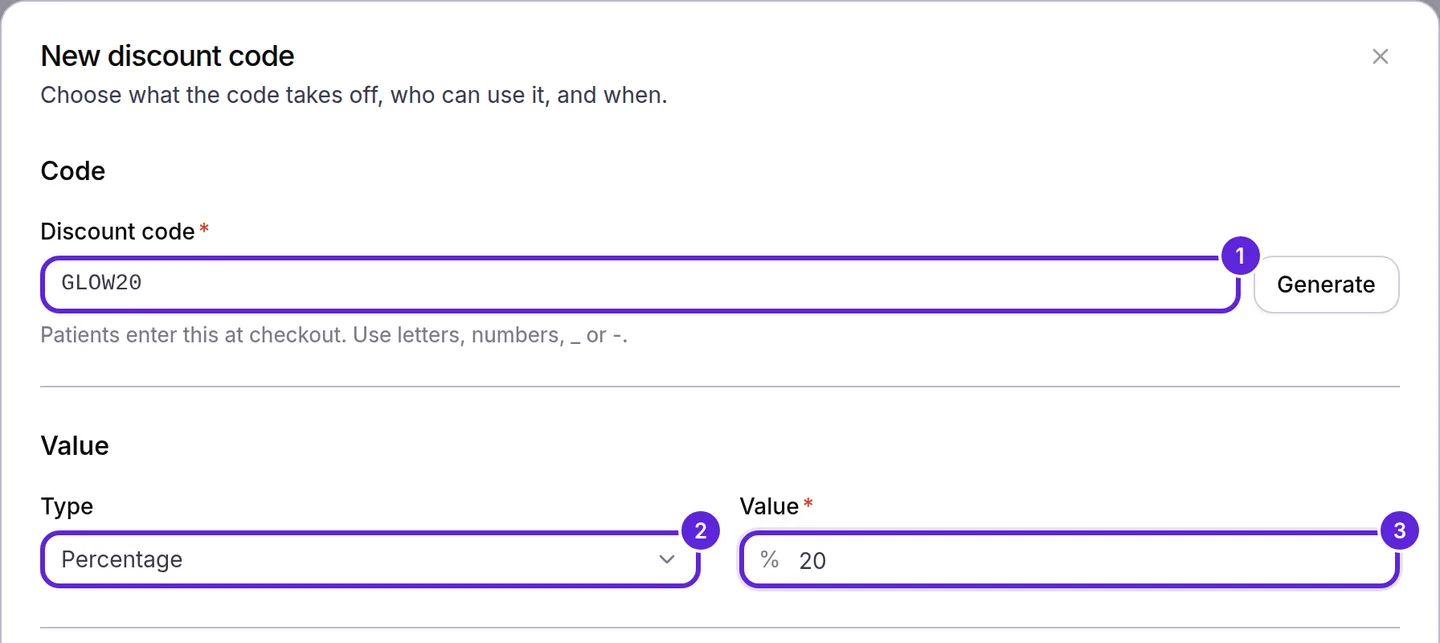
- Enter the code in Discount code, such as GLOW20, or select Generate for a random one. Letters turn into capitals as you type.
- Choose a Type: Percentage takes a share of the price off, and Fixed amount takes a set amount off.
- Enter the Value: a percentage from 1 to 100, up to two decimals, or an amount above $0.00.
Choose what the code applies to
Applies to decides which treatments in a visit a Velarya discount code takes money off: the entire visit, or chosen categories or services.
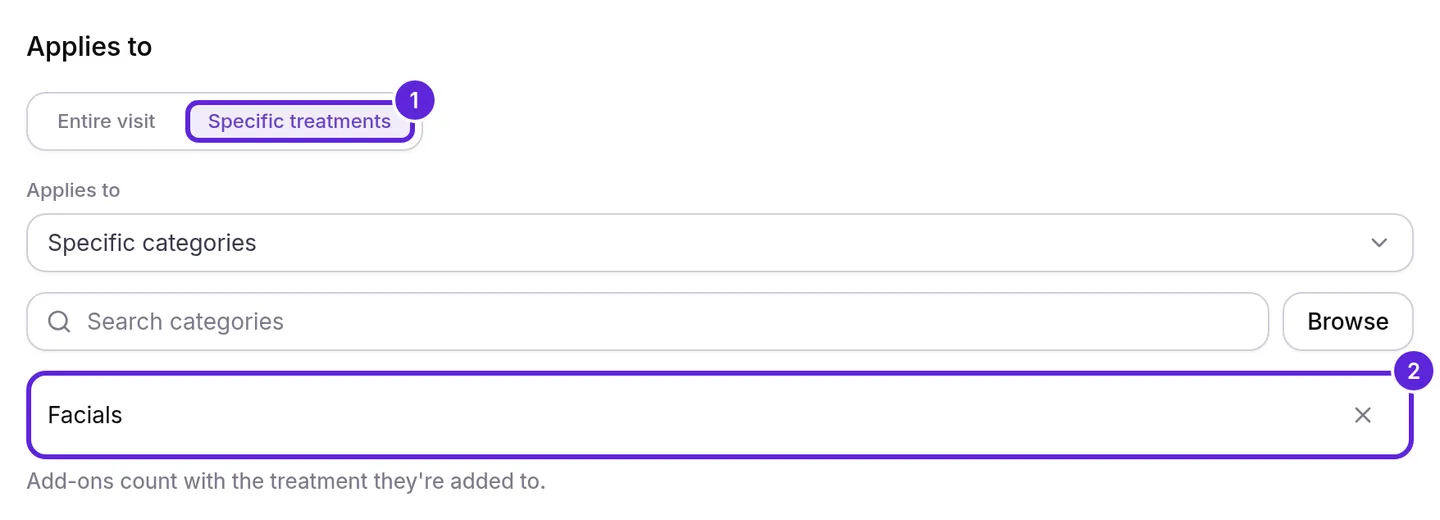
- Keep Entire visit, or select Specific treatments.
- For specific treatments, choose Specific categories or Specific services, select Browse, tick each one and select Done. Add-ons count with the treatment they are added to.
An entire-visit code comes off the total of the visit’s treatments once and is shared across them in proportion to their price. A code for specific treatments comes off each treatment it covers. A Fixed amount on specific treatments comes off once per visit, shared across those treatments. Every percentage rounds to the nearest cent, and no code takes a visit below $0.00.
| The visit | The code | The patient pays |
|---|---|---|
| A $450.00 Hydrafacial | 20% off the entire visit | $360.00 |
| A $149.50 treatment | 15% off the entire visit | $127.07, after $22.43 off ($22.425 rounded) |
| A $450.00 Hydrafacial and a $950.00 Neuromodulator | 20% off Facials | $1,310.00: the code takes $90.00 off the Hydrafacial only |
| A $450.00 Hydrafacial and a $380.00 chemical peel | $50.00 off those two services | $780.00: $50.00 once, shared across both |
Set a minimum and who can use it
A Velarya discount code can ask for a minimum visit and can be kept for new patients, members or the members of chosen plans.
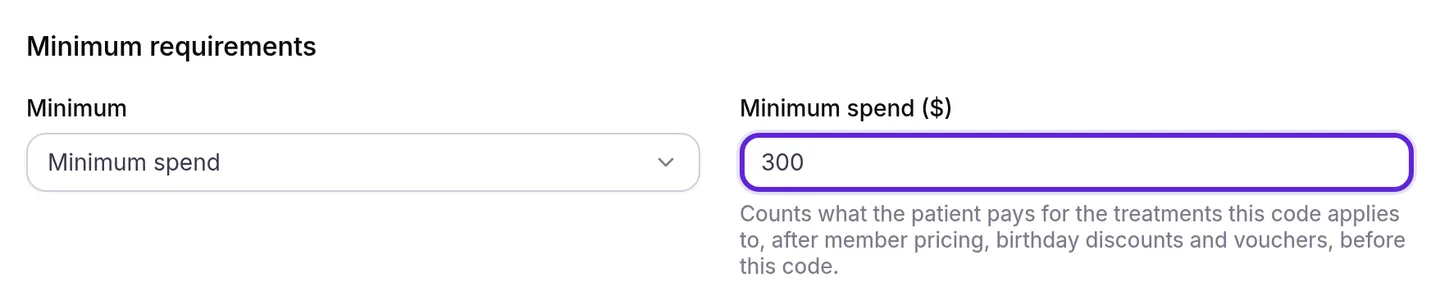
- Under Minimum requirements, choose No minimum, Minimum spend or Minimum number of treatments, and enter the amount or number.
- Under Eligibility, choose Who can use it: All patients, New patients (first visit), Members only or Specific membership plans.
- For Specific membership plans, select Browse, tick the plans whose members can use the code and select Done.

A minimum spend counts what the patient pays for the treatments the code applies to, after member pricing, birthday discounts and vouchers, and before the code. A $300.00 minimum on a member’s $450.00 Hydrafacial counts the $405.00 member price. A minimum number of treatments leaves out a treatment a voucher pays for.
Members only accepts any patient whose membership is active, in a trial or paused. When a code for members does not combine with member pricing, the window reminds you that members already get their member prices.
Limit uses and choose what the code combines with
Velarya discount codes have no usage limit and combine with nothing until you set these options.
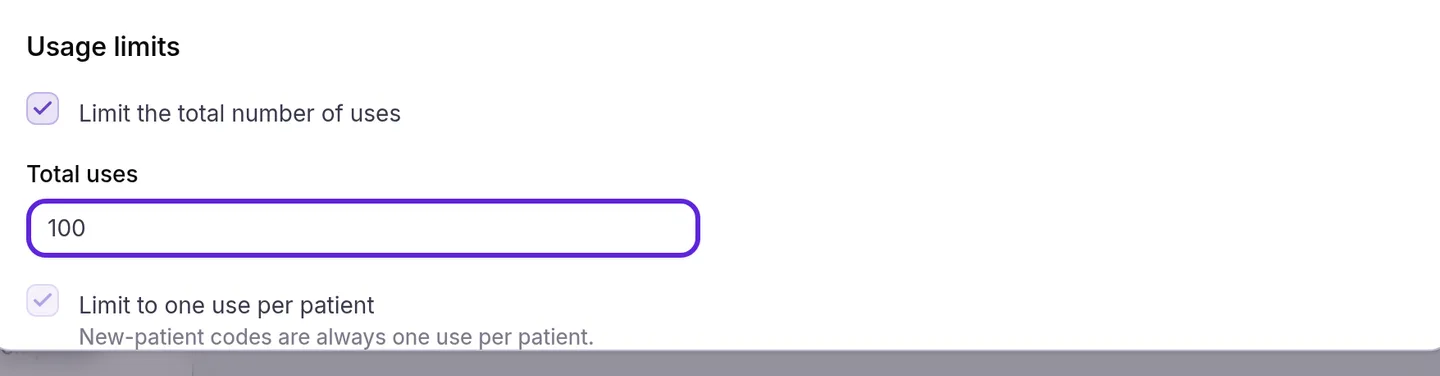
- Tick Limit the total number of uses and enter Total uses, such as 100 for the first 100 bookings or sales.
- Tick Limit to one use per patient to let each patient use the code once, so 100 uses reach 100 patients. A code for new patients always has it ticked.
- Under Combinations, tick Member pricing for the code to come off the member price instead of the regular price, and Birthday discounts to come off the birthday price.
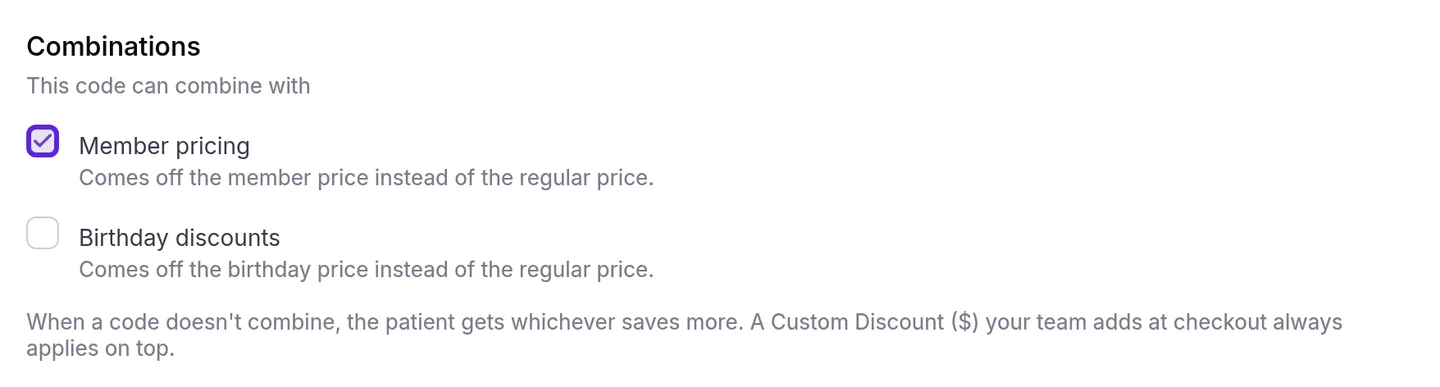
Left clear, the patient gets whichever saves more: the code, or their member and birthday prices. How discounts combine works through each case on a sample menu.
Set when and where the code works, then save
A Velarya discount code runs from its start date and time, in your practice’s time zone, until its end, at the locations you choose.
- Under Active dates, pick a Start date and Start time. They start as today and the current time, rounded down to the quarter hour.
- Tick Set end date and pick an End date and End time, or leave it clear for a code with no end. The end time starts at 11:59 PM, and the code works through the end of that minute.
- Under Locations, select Browse next to Eligible locations, tick each location that accepts the code and select Done. With none chosen, it works at every location. The section appears when your practice has more than one location.
- Read the Summary, which lists every setting in plain words.
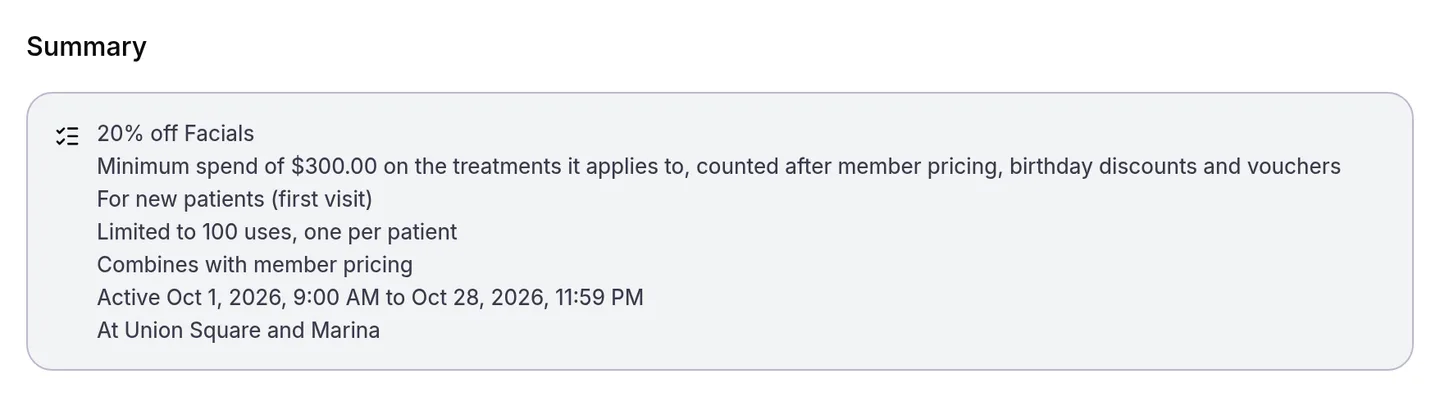
- Select Create code. The window closes, and the code appears in the list.
When does a discount code count a use?
A Velarya discount code counts one use per booking or sale, against the patient, and reserves it the moment a booking or sale applies the code. Reserved uses count toward Total uses and toward one use per patient, and Used shows them, such as “1 held by unpaid bookings”.
| What happens | The code’s use |
|---|---|
| A patient books with the code, or your team applies it before payment | Reserved |
| Money is taken on the visit or sale, a deposit included | Counted in Used, such as “37 of 100” |
| The visit is cancelled, including a late cancel, or marked a no-show, before anything is paid | Given back. On a booking with several visits, once every visit is cancelled or missed |
| An unpaid booking expires | Given back |
| The sale is voided or deleted | Given back |
| Your team removes or replaces the code, or an edit leaves it saving nothing, below its minimum or with no treatment it applies to | Given back |
| The sale is fully refunded | Given back. A partial refund keeps the use |
| A patient starts a purchase in the app or on your online booking page with no visit booked, and leaves without paying | Given back after 20 minutes |
| A sale your team creates with no visit booked, such as a payment link or a Pending sale, stays unpaid | Given back after 7 days |
| The patient pays after a use was given back | Counted again, even past Total uses, because money was taken |
Once a booking or sale holds a code, the patient pays that price wherever they pay. The price holds even if the code later ends, is turned off, is deleted or reaches its limit.
Turn a code off, change it or delete it
Each code on Discounts & Offers shows its terms, a status of Active, Scheduled, Expired, Used up or Inactive, and its uses. You change a Velarya discount code from the ⋯ menu at the end of its row, or the ⋮ menu on its card on a phone.
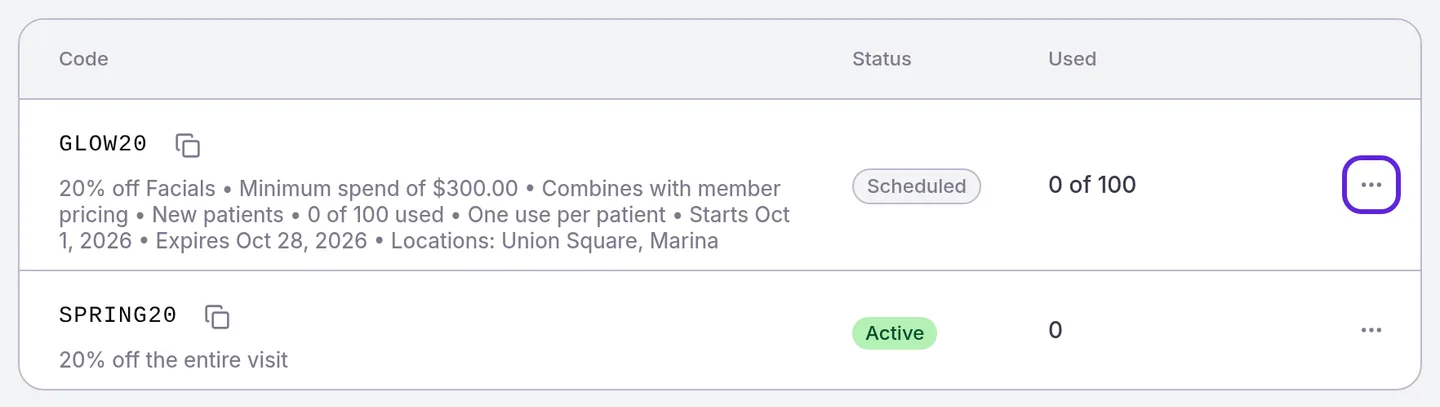
- Deactivate stops the code at once and shows Inactive. Activate turns it back on with its uses and settings as they were.
- Edit Details opens Edit GLOW20, which also shows how many uses the code has, and how many unpaid bookings hold. Change any setting and select Save changes. New terms apply to later bookings and sales, and ones that already hold the code keep the terms they were given.
- Delete opens Delete GLOW20?, with the code’s uses and any unpaid bookings holding it. For a code patients can use right now, first type GLOW20 in Type GLOW20 to confirm. Select Delete code, or Deactivate instead to stop it and keep it. Sales and bookings that used it keep their discount, and “GLOW20 deleted” appears with Undo.
- Deleted, above the list, shows deleted codes and when each was deleted. Restore in a code’s menu brings it back switched off.
Saving and turning a code on or off confirm without a message: the window closes or the list shows the change. Select the copy icon next to a code to copy it.
Apply a code at the front desk
Your team enters a Velarya discount code for a patient before payment, wherever they check out. Roles with Discounts at checkout at apply or override can do it, as Apply a discount at checkout shows step by step.
- In the billing of an unpaid visit or an unpaid sale in Transactions (select the pencil on Billing), in Discount code under the treatments, then Apply and Save.
- In the checkout panel, under Discounts, where Custom Discount ($) and vouchers also apply.
- In Transactions > New Transaction, under Payment & Totals, once the sale has a patient.
What do patients see?
Patients enter a Velarya discount code on the review step when they book or buy, in the patient app or on your online booking page, and see every saving on its own row before they book.
- In the patient app, on Review and confirm, the patient selects Add next to Discount Code, types it under Add a discount code and selects Apply. The row then reads Applied, and the summary shows “🏷️ Discount (GLOW20)” beside any Membership Savings or Birthday Gift row.
- On your online booking page, the patient types the code in Discount code and selects Apply. The summary strikes through the Subtotal and lists “🏷️ Code GLOW20” with the saving.
- When the code cannot be used, the reason appears under the field before they book, such as “This discount code needs $300.00 or more of the treatments it applies to”.
- When their member or birthday price already saves as much, the code reads Not used with the reason, such as “Your member price saves as much or more, so this code wasn’t used”, and Remove.
How does a discount code behave?
A Velarya discount code follows the same rules in the patient app, on your online booking page and at your front desk, because Velarya prices every visit on its server.
| Situation | What Velarya does |
|---|---|
| The patient has a member or birthday price | Follows the code’s Combinations. A code that saves no more is not used and counts no use |
| A voucher pays for a treatment in the visit | Takes the voucher first; the code works on what is left |
| Your team adds a Custom Discount ($) | Takes it off after the code |
| The patient pays partly with wallet credit | Takes every discount off first, then applies the credit |
| The patient or your team enters a different code | Uses the new code in its place and gives the earlier code’s use back |
| A patient books during the dates for a visit after them | Accepts the code: the dates count the moment the code is applied, not the day of the visit |
| The visit is at a location missing from Eligible locations | Refuses the code |
| The code ends, is turned off or reaches its limit after the patient applies it | Stops the booking with the reason, takes the code off and shows the new total for the patient to confirm |
To give each patient a discount on their birthday without a code, see Set up a birthday gift.
If something goes wrong
“Couldn’t save changes. Please review the highlighted fields below.” A setting is invalid, and the message under it names the problem: “Minimum 3 characters”, “Maximum 30 characters” or “Use uppercase letters, numbers, _ or -” under Discount code; “Percentage must be between 1 and 100”, “Use at most 2 decimal places” or “Enter an amount above $0.00” under Value or Minimum spend ($), and “Enter an amount of 99,999.99 or less” under Value; “Choose at least one category”, “Choose at least one service” or “Choose at least one membership plan”; “Enter a number”, “Must be a whole number” or “Must be at least 1” under Total uses or Minimum number of treatments; “Choose a start date”, “Choose an end date” or “End must be after the start”. Correct it and select Create code or Save changes again.
“A discount code with that name already exists”. Codes are unique across your practice, active or inactive, whatever their capitalization. Choose another code, or select Edit Details on the existing one.
“Failed to save discount code. Please try again.”, “Failed to update status”, “Failed to delete discount” or “Failed to restore discount”. The change didn’t reach Velarya. Check your connection and try again.
“Another code uses this name now. Rename or delete that code, then restore this one.” A newer code took the name. Rename or delete it, then select Restore again.
Discounts & Offers isn’t in the Organization settings menu, or Create Code is missing. The page needs Discounts, offers & vouchers at view, and Create Code and the row menu need edit. Ask an Admin; Loyalty roles and permissions lists each role’s defaults.
A patient sees “Invalid discount code”, “This discount code is not yet active”, “This discount code has expired” or “This discount code is not valid at this location”. The code is mistyped, inactive or deleted, used outside its dates, or used at a location missing from Eligible locations. Check its spelling and status on Discounts & Offers, and select Edit Details to change its dates or locations.
A patient sees “This discount code is for members only”, “You’ve already used this discount code” or a message about their membership plan. The code’s Who can use it or Limit to one use per patient setting refused them, as you set it.
A patient or your team sees “Too many discount code attempts. Please try again in a few minutes.” After 10 codes refused as “Invalid discount code” (mistyped, switched off or deleted) within 15 minutes from one patient, or 30 from one internet connection, Velarya refuses every code from that patient or connection for the rest of those 15 minutes. This keeps codes from being found by guessing. Your team sees it after 30 such codes from one staff login in 15 minutes.
The code shows Not used. The patient’s member price or birthday discount saves the same or more, so they keep it and the code counts no use. Tick Member pricing or Birthday discounts under Combinations for codes that should add to those prices.
Frequently asked questions
Was this guide helpful?
Last verified
What changed
- : Deleting a code patients can use right now asks you to type its name and offers Deactivate instead, and Undo and a new Deleted list bring codes back. Also covers a code that stops working before the patient books, the limit on guessed codes (switched-off and deleted codes count, and your team has its own limit), the membership plan message, the code field on an unpaid sale in Transactions, and that Total uses counts bookings and sales, not patients.
- : Rewritten for the new code window: what a code applies to, a minimum, who can use it, total and per-patient limits, combinations with member and birthday pricing, start and end times, and a summary. Uses are reserved at booking and given back on cancellation, and saves confirm without a message.