
Refund a payment
Updated Last verified against the product
In short
To refund a payment in Velarya, open the sale in Transactions, select More actions, then Refund. Choose Full refund, Partial refund or Refund specific lines, pick a Reason and confirm. A card payment goes back to the patient's card; for cash or other payments, Velarya records the refund and you return the money.
- Who can do this
- Admins and Location Managers (Issue refunds), at the sale's location. A custom role needs Issue refunds, which requires Transactions / orders at Edit
- Applies to
- Each location separately
- Plans
- Basic, Scale, Branded and Connected
- Time
- 2 minutes
Before you begin
- The patient paid for the sale: Take payment at checkout.
- Card payments go back through the payment account that took them: Connect your payment account.
Refund a paid sale
Velarya refunds a payment from the sale in Transactions. The same Refund action covers a whole visit, part of it or single treatments, and Velarya works out how the money goes back.
- Open the sale. Select Transactions in the left sidebar and select the patient’s sale, or open the appointment’s panel on the Front Desk or Calendar and select the open icon next to Transaction.
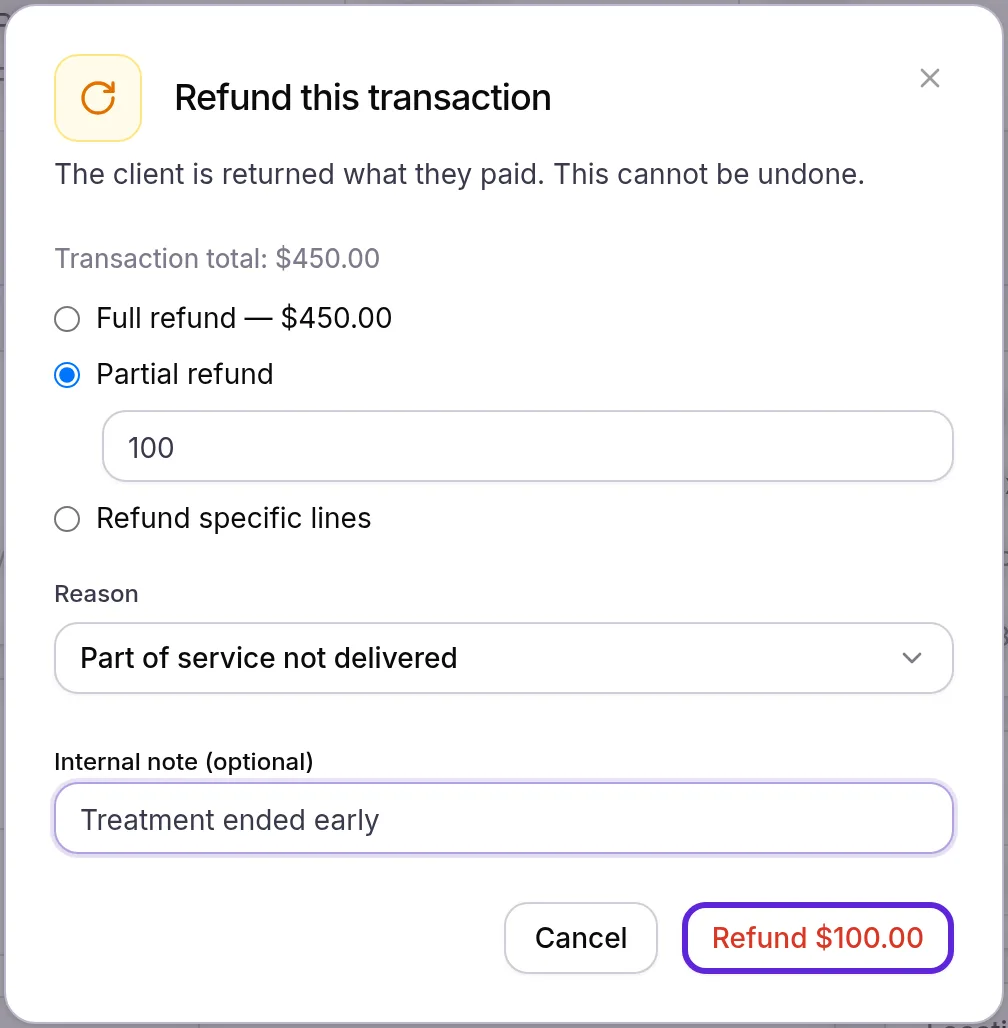
- Select More actions, then Refund. Refund this transaction opens with the Transaction total, and any amount Already refunded.
- Choose how much to refund:
- Full refund, which shows everything still refundable.
- Partial refund, then enter the amount.
- Refund specific lines, then select each item to refund, and set how many for a line with more than one. Each line offers what is left to refund on it, and a preview lists each line and the total.
- Choose a Reason: Service cancelled, Part of service not delivered, Pricing error, Goodwill, Duplicate charge or Other. At a location with e-invoicing, Other also needs an Explanation in Arabic, which goes on the patient’s credit note.
- Add an Internal note (optional) for your team, such as what the patient asked for. The sale’s timeline shows it with the reason.
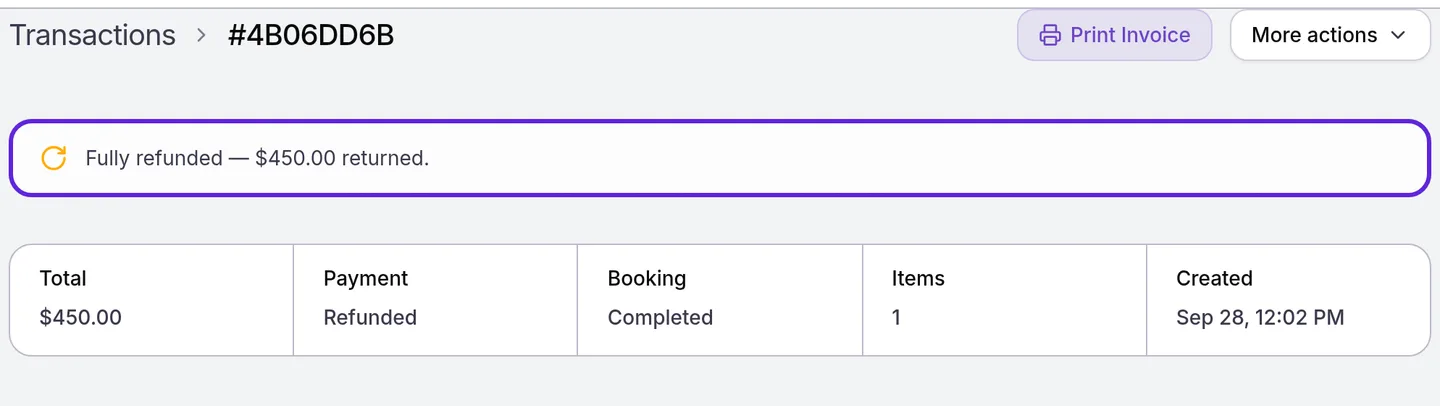
- Select Refund with the amount. “Refund issued” appears, and the sale shows how much went back, such as “Fully refunded” with the amount, or “Partially refunded” with what was returned and what remains.
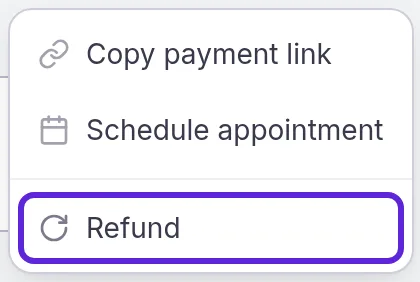
You can also refund from the list: in Transactions, open the row’s menu and select Refund. To refund single treatments, open the sale itself.
Where does the refunded money go?
A Velarya refund returns the money the way the patient paid, and records it on the sale either way.
| How the patient paid | What happens when you refund |
|---|---|
| Card on file, Card, Card reader, or a card payment in the app, on your web booking page or through a payment link | Velarya sends the money back to the same card through your payment account. It can take a few business days to show on the patient’s statement |
| Cash or Other | Velarya records the refund on the sale. Hand the money back yourself, in cash or the way it came in |
| Part by card, part in Cash or Other | Velarya sends the card part back to the card and records the rest for you to hand back |
| A deposit when they booked, with the balance still due | Velarya refunds up to what the patient has paid so far |
The sale’s Payment reads Refunded, and the list shows Refunded, or Refunded with the amount after a partial refund. The timeline’s Refunds tab records who refunded what, when and why, with the reason and the internal note. Total Revenue in Transactions counts only what you kept.
Reverse an unpaid sale
A Velarya sale with no payment on it is reversed instead of refunded, because there is nothing to give back. Refund on an unpaid sale closes it as Void: “Transaction reversed” appears, and the sale reads “This transaction was reversed and is excluded from revenue”. A draft saved with Save for Later is discarded instead, from Discard on the draft.
Refund a cancellation or no-show fee
In Velarya, a late-cancel or no-show fee charged to the patient’s card is refunded from the appointment’s panel with Refund fee, as Cancel or reschedule an appointment shows. Refund fee takes Issue refunds too.
What do patients see?
Patients hear about a Velarya refund as soon as you issue it.
- The refund notice. The patient gets a refund notice by email and in the patient app. If they have turned texts on, they also get a text asking them to check their email or the app.
- A refund receipt. On a refunded sale, More actions > Email refund receipt emails “Your refund receipt from” your practice’s name, with the amount refunded and a View your receipt button. It needs an email address on the patient’s profile.
- Points. Velarya takes back the points the refunded amount earned, as How points work explains.
How do refunds behave?
Velarya refunds follow these rules:
| Situation | What Velarya does |
|---|---|
| A partial refund | Leaves the rest of the sale refundable. Refund again later, up to what is left |
| A refund larger than what is left | Refuses it. Full refund always shows the most you can refund |
| Refund specific lines | Offers each line’s share of what the patient paid, less anything already refunded on it |
| Partial refund on a sale with several treatments | Spreads the amount across the treatments in proportion to what is left on each |
| You select the refund button twice, or retry after a connection drop | Records one refund and returns the money once |
| A sale that was already fully refunded or reversed | Refund no longer appears on it |
| A refund made outside Velarya | Velarya records it on the sale and asks Admins to confirm its reason |
Take payment at checkout covers how each payment method is recorded in the first place.
If something goes wrong
There is no Refund in More actions. Your role needs Issue refunds at the sale’s location, which Admins and Location Managers hold. The action also stays hidden on a draft, a reversed sale and a sale that has been fully refunded. Ask an Admin or Location Manager to issue the refund.
“Refund amount exceeds the remaining refundable balance”. The amount is more than what is left to refund. Enter the amount shown next to Full refund, or less.
“Card refunds are not set up for this location yet.” The payment account that took this card payment is not reachable, for example because it was disconnected. An Admin checks the account’s status in Organization settings > Payments, as Connect your payment account shows.
“Order is already refunded”. Everything the patient paid has gone back, for example because someone else refunded it a moment before you. Check the sale’s timeline under Refunds.
“This order has nothing left to refund.” Nothing on the sale can be returned, for example because the deposit was kept as a late-cancel or no-show fee. To return a kept deposit, reverse the no-show or restore the appointment first, as Cancel or reschedule an appointment shows.
“This transaction cannot be refunded in its current state.” The patient has disputed the card payment with their bank, so the dispute decides whether the money goes back. Wait for the dispute to close.
The Refund button stays grayed out. Choose a Reason. For a partial refund, enter an amount above zero and no more than the amount next to Full refund. For Refund specific lines, select at least one line.
“Forbidden: location access denied”. You don’t work at the sale’s location. Ask an Admin to add the location to your profile, or ask a Location Manager there to refund it.
“This refund could not be completed. Please try again.” The payment account didn’t complete the refund, and nothing was recorded on the sale. Try again in a few minutes.
“A refund could not be completed” in your notifications. The patient’s bank turned a card refund back after Velarya recorded it. Velarya reverses it on the sale, so the amount is refundable again. Open the sale from the notification and return the money to the patient another way.
Frequently asked questions
Was this guide helpful?
Last verified