
Set up online booking
Updated Last verified against the product
In short
To set up online booking in Velarya, open Organization settings > Booking, check that Enable online booking and Let clients book themselves are on, then set Minimum advance notice and Latest booking ahead and select Save. Share your web booking page from Web booking link, which gives you the link and a QR code.
- Who can do this
- Admins, or roles with Booking rules, deposits, cancellation, waitlist at Edit for the whole practice; the same permission at one location sets that location's booking window
- Applies to
- Your whole practice, every location
- Plans
- Basic, Scale, Branded and Connected
- Time
- 10 minutes
Before you begin
- A location with saved operating hours, and at least one provider with working hours and services assigned: Set your hours and staff schedules.
- At least one service in Organization settings > Service Catalog: Create a service patients can book.
Turn on online booking
Online booking in Velarya has two switches in Organization settings > Booking. Enable online booking runs booking in Velarya, and Let clients book themselves opens the patient app and your web booking page to patients.
- Open the menu at the bottom of the left sidebar, select Organization settings, then Booking under Client Experience.
- Check that Enable online booking is on. It is on for a new practice.
- Check that Let clients book themselves is on; it is on for a new practice. Each switch saves the moment you flip it, and the Web booking link row shows below them.
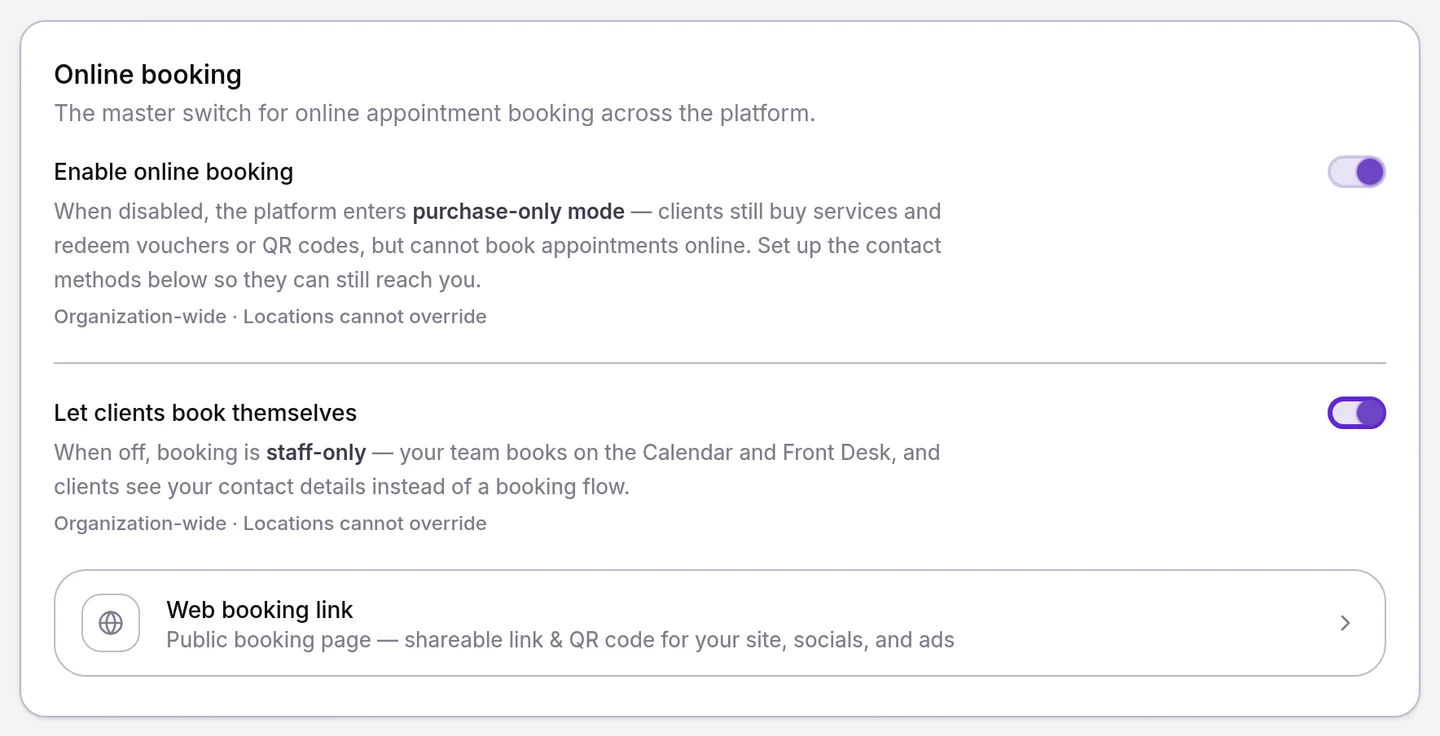
Both switches apply to every location. With Enable online booking off, Velarya runs in purchase-only mode: patients buy treatments in the app and contact you to book, and Calendar and Front Desk leave the sidebar. How online booking works explains what patients see in each mode.
Set how far ahead patients can book
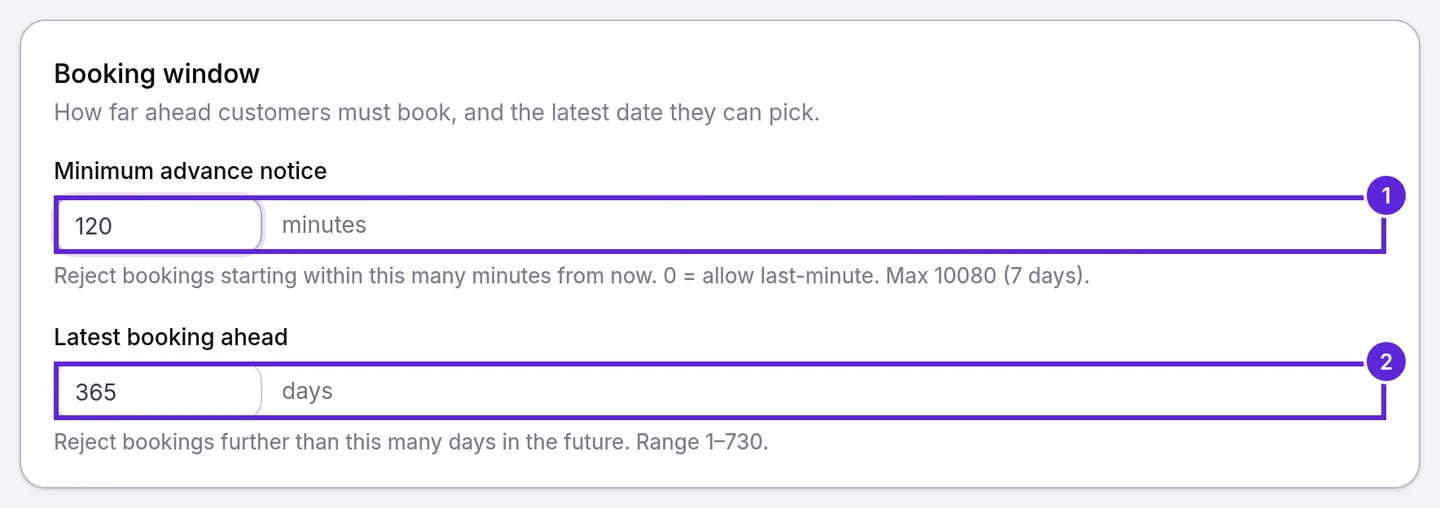
The Booking window card, further down the same page, sets the soonest and the furthest time a patient can book. Velarya offers patients the open times inside it.
- Enter the notice you need in Minimum advance notice, in minutes from 0 to 10080 (7 days). It starts at 0, which lets patients book any open time later today. 120 keeps the next two hours free of new online bookings.
- Enter how far ahead patients can book in Latest booking ahead, in days from 1 to 730. It starts at 365.
- Select Save in the Unsaved changes bar at the top of the page. The bar closes and the new window applies to every location that follows the organization.
Give one location its own booking window
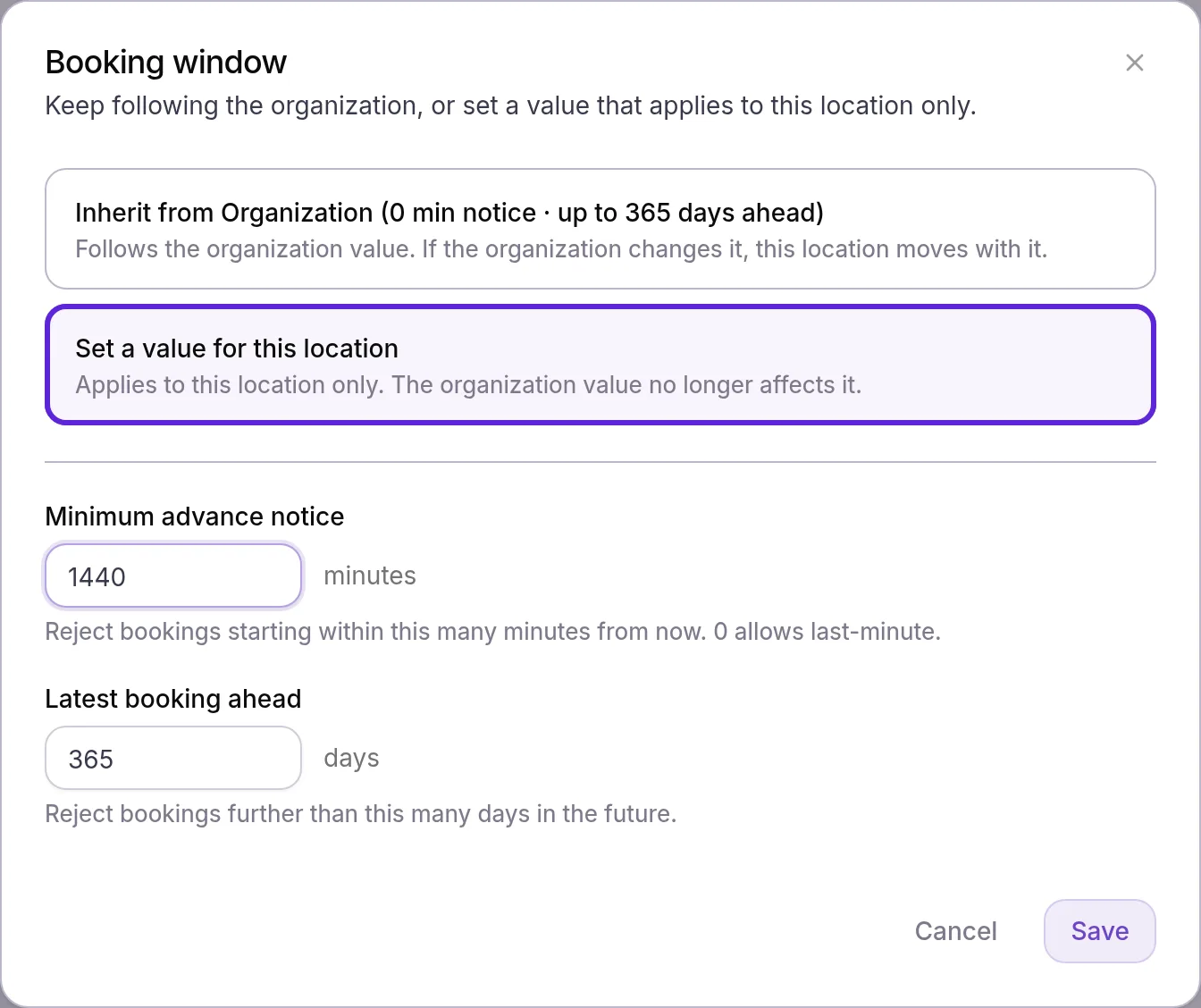
A location can keep its own Minimum advance notice and Latest booking ahead, for example a busier site that needs a day’s notice.
- Choose the location from the menu at the bottom of the left sidebar, select Manage, then Booking under Client Experience.
- Select the Booking window row. It shows Inherited while the location follows the organization.
- Choose Set a value for this location, then enter the notice and the window for this location.
- Select Save. The row shows Overridden. Each value you entered now applies to this location only; a field you left unchanged keeps following the organization.
To follow the organization again or clear every override at a location, see Set up deposits and cancellation fees.
A treatment can also have its own booking window in its booking policy (Organization settings > Service Catalog > the service > Edit booking policy); a treatment’s own window applies at every location.
Share your web booking link
Your web booking page is where patients without the app book online. Web booking link gives you its address and a QR code.
- Select Web booking link under the switches. Configure Web Booking opens.
- Select Copy next to Shareable URL. The button reads Copied, and the link is ready to paste on your website, social profiles or ads.
- Select Download PNG under QR code to save the QR code for flyers or your front desk.
- Select Preview booking page to open the page in a new tab as patients see it, then Done.
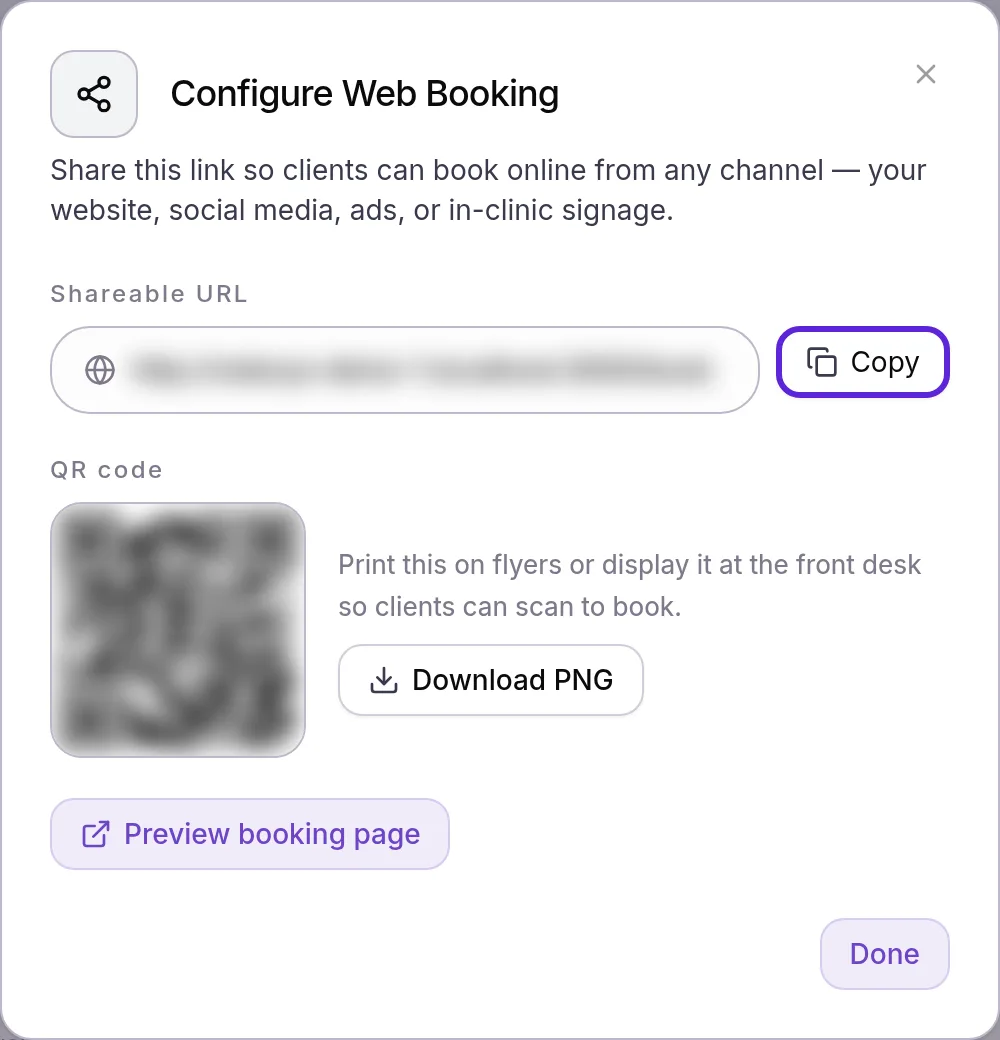
The link is your practice’s own Velarya address followed by /book. It follows your Clinic Subdomain in Organization settings > Business & App, so if you change the subdomain, copy the new link and download a new QR code.
Keep booking staff-only
Staff-only booking keeps your team in charge of the schedule: your team books on the Calendar, and patients see buttons to call or message your location.
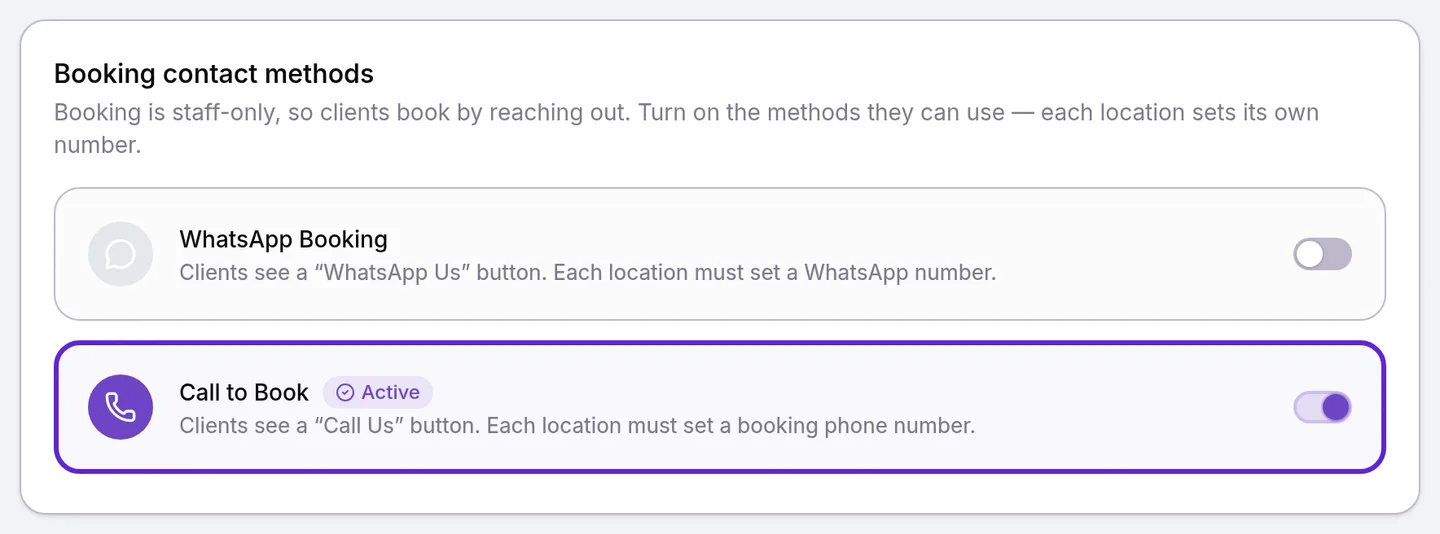
- Turn off Let clients book themselves. The Booking contact methods card appears.
- Turn on WhatsApp Booking, Call to Book, or both. Each saves the moment you flip it.
- At each location, open Manage > Booking.
- Under Contact to book, enter the Booking phone and WhatsApp number, with the country code.
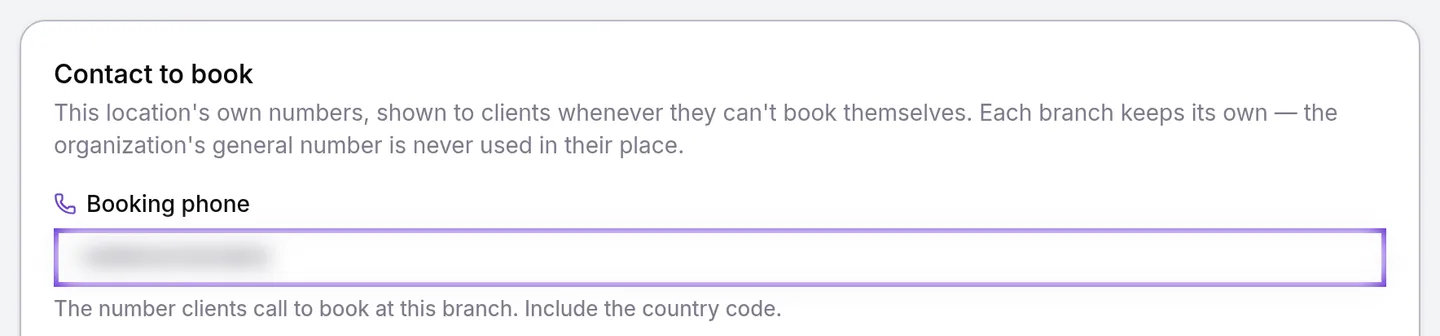
- Select Save in the Unsaved changes bar. The bar closes, and the Call us and WhatsApp buttons patients see at that location use those numbers.
Each location uses its own numbers. Booking phone is the location’s Phone Number from General Info, so changing it updates the number patients see for that location. Changing it takes Location details, hours, holidays at edit, which Admins and Location Managers hold.
What do patients see?
Patients see online booking as soon as both switches are on and your practice has finished its setup.
- In the patient app, patients start a booking from the Home, Shop or Calendar tab, pick treatments, a provider and a time, then pay or confirm.
- On your web booking page, patients choose a location if you have several, then treatments, a provider and a time, and sign in with a code texted to their phone.
- When booking is staff-only, the app’s Calendar tab shows “Contact us to book your next appointment” to a patient with no upcoming visits, and a treatment’s sheet says “Contact us to schedule your session”, each with Call us and WhatsApp buttons for the contact methods you turned on. The web booking page shows the same buttons. Patients can still buy treatments in the app and book the visit with you.
How does online booking behave?
Velarya applies these online booking rules to every patient booking, and warns staff instead of blocking them.
| Situation | What Velarya does |
|---|---|
| A time inside Minimum advance notice or beyond Latest booking ahead | Leaves it out of the times patients see. If the notice passes while a patient reviews, the app says “This time is too soon to book online. Please choose a later time.” |
| Your team books inside the notice or beyond the window | Saves the booking and warns, for example “This is beyond the clinic’s 365-day booking window.” |
| A booking with treatments that have different booking windows | Applies the strictest: the longest notice and the shortest window |
| A patient’s own online booking waits for payment | Holds the time for 20 minutes, then cancels the booking and frees the time if it is still unpaid. A booking your team makes stays on the Calendar until checkout |
| Let clients book themselves is off | Shows patients Call us and WhatsApp buttons for the contact methods you turned on, in place of the booking steps. Bookings already made stay as they are |
| Your practice is still setting up | Patients see “Online booking is almost ready” with the contact methods you turned on, until a location has saved operating hours, a service exists, and a provider has working hours and services |
If something goes wrong
A banner says your practice “can’t take client bookings yet” (or “client bookings or payments”), followed by “Still missing: …”. Velarya opens self-booking once a location has saved operating hours, a service exists, and at least one provider has working hours and services assigned. Select Continue setup in the banner to go to the next missing step. For connected payments, see Connect your payment account.
The Web booking link row is missing. It shows while Enable online booking and Let clients book themselves are both on. Turn on Let clients book themselves.
“1 location hasn’t configured booking contact details.” Patients book through you, and a location has no number for a contact method you turned on. Choose that location from the menu at the bottom of the left sidebar, open Manage > Booking, and fill in Contact to book.
A treatment is missing from the web booking page, or the app says “This service cannot be booked online”. The service has Bookable online by patients cleared. Select it again in Organization settings > Service Catalog, as Create a service patients can book shows. Or the treatment is turned off for that location in Manage > Services, or it is inactive.
Patients see “No one who performs this service is working on this date” or “Not bookable at this location”. No provider who performs the treatment is working that day, or the location has no room or device of the type the treatment needs. Set your hours and staff schedules covers working hours and service assignments, and Set up rooms and equipment covers rooms.
The organization Booking page is read-only for you. Changing it takes Booking rules, deposits, cancellation, waitlist at edit for the whole practice. Location Managers set their own location’s window in Manage > Booking.
Frequently asked questions
Was this guide helpful?
Last verified