
Adjust a patient's points or wallet credit
Updated Last verified against the product
In short
To adjust a patient's points or wallet credit in Velarya, open their profile in Clients and select Adjust next to Rewards or Wallet. Choose to add or remove, enter the amount and a reason, then select Update Rewards or Update Balance. The profile shows the new balance at once, and the patient app shows it when the patient refreshes.
- Who can do this
- Admins and roles with Wallet, points & credits set to Adjust
- Applies to
- Your whole practice, every location
- Plans
- Basic, Scale, Branded and Connected
- Time
- 2 minutes
Before you begin
- The patient has a profile in Clients.
- To charge a wallet top-up to a card, the patient has a card saved on their profile.
Add or remove a patient’s points
The Adjust Reward Points dialog on a patient’s profile adds Velarya points to their balance or takes points off it. Use it to thank a patient for a long wait or to correct points given by mistake.
- Open the patient’s profile from Clients in the left sidebar. How patient profiles work shows what else is on the profile.
- Select Adjust next to Rewards in the totals at the top of the profile. The Adjust Reward Points dialog opens.
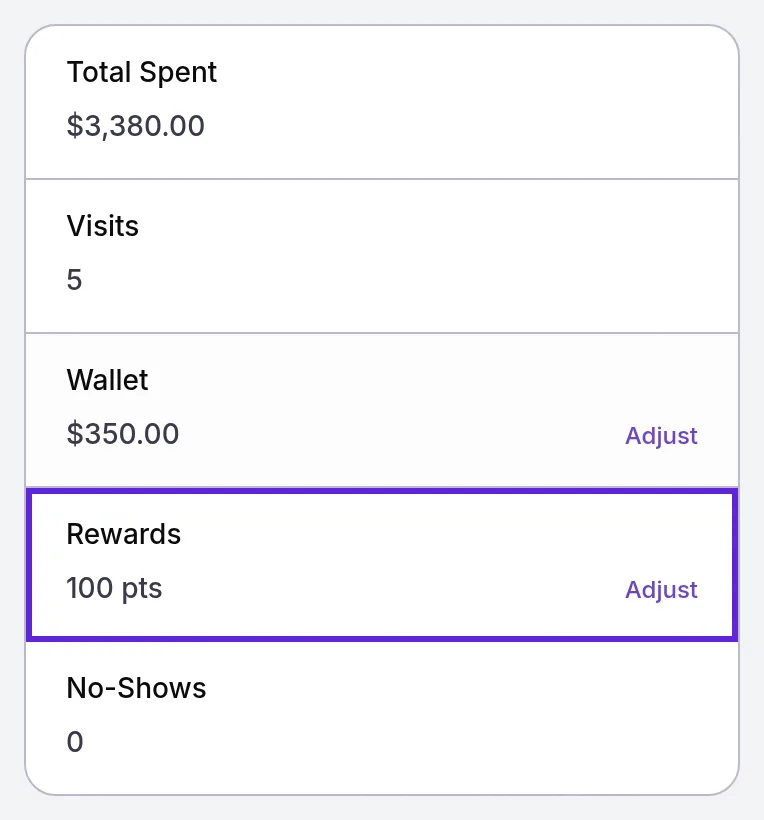
- Choose Manually Add Reward Points in Points Action to add points, or Manually Redeem Points to take points off.
- Enter a whole number of points in Points Value.
- Enter the reason in Internal Reference, such as “Goodwill for a delayed appointment”.
- Select Update Rewards. The dialog closes, “Rewards updated successfully” appears, and Rewards shows the new balance.
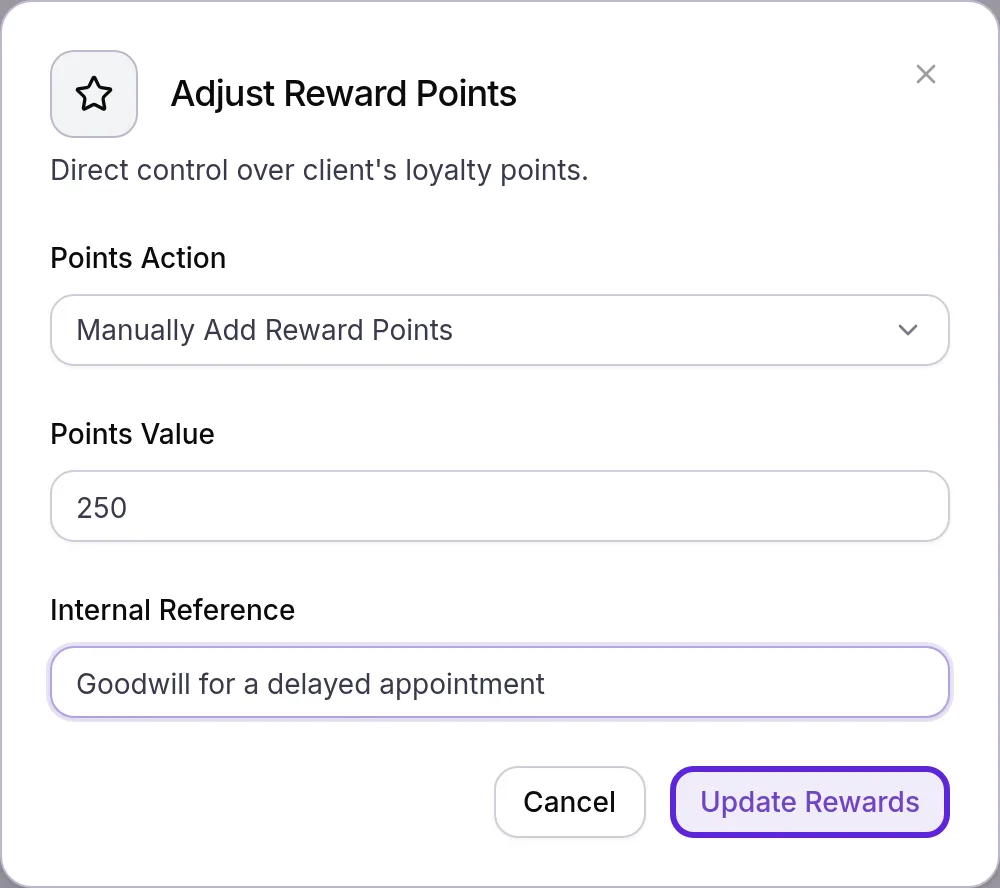
Points you add are worth the same as points a patient earns: 100 points turn into $1.00 of wallet credit when the patient redeems them.
| Balance before | Points Action | Points Value | Balance after | Worth in wallet credit |
|---|---|---|---|---|
| 100 points | Manually Add Reward Points | 250 | 350 points | $3.50 |
| 1,200 points | Manually Redeem Points | 200 | 1,000 points | $10.00 |
| 150 points | Manually Redeem Points | 300 | 150 points: Velarya refuses the change | $1.50 |
Add or deduct wallet credit
The Adjust Wallet Balance dialog adds dollars to a patient’s Velarya wallet or takes dollars out of it. To apply credit to a sale at your front desk, see Redeem a voucher at checkout.
- Select Adjust next to Wallet on the patient’s profile. The Adjust Wallet Balance dialog opens.
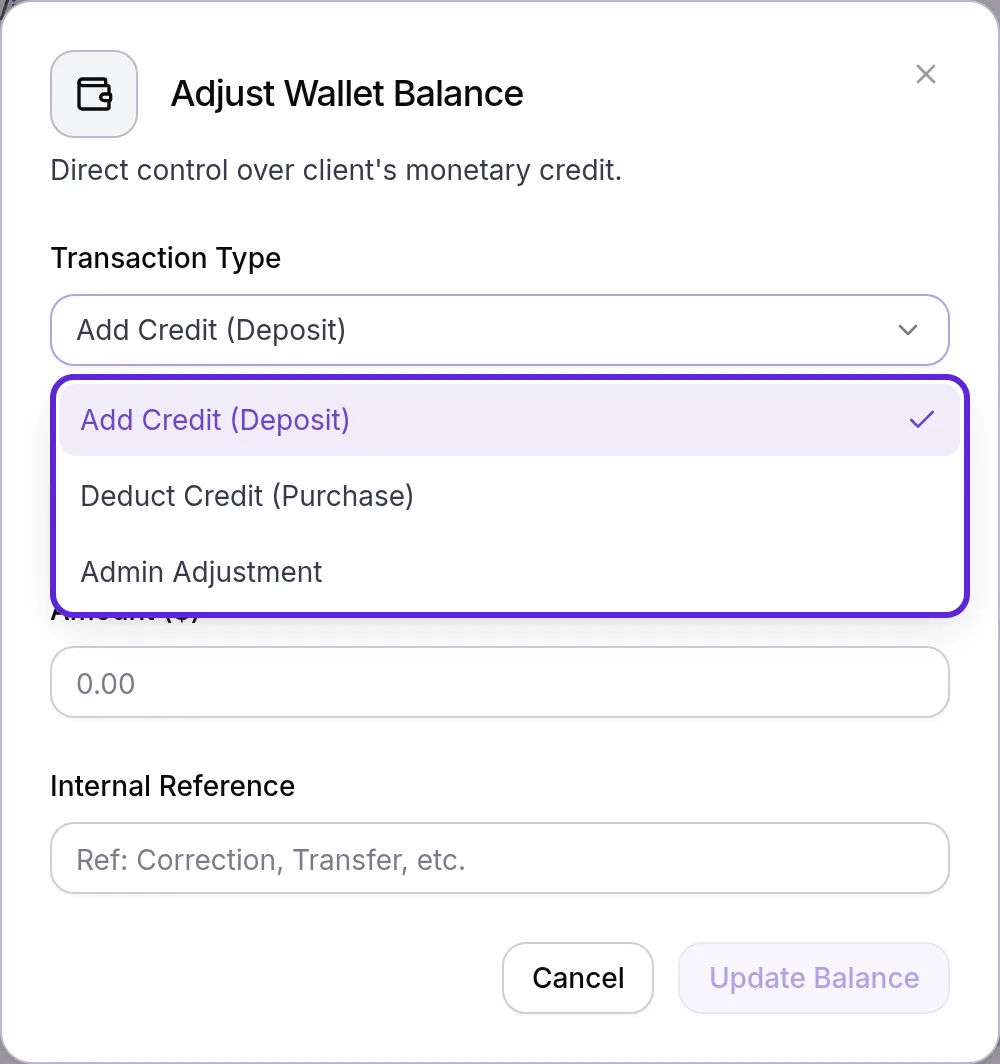
- Choose a Transaction Type:
- Add Credit (Deposit): adds credit to the wallet.
- Deduct Credit (Purchase): takes credit out for something the patient bought. History reads “You debited this customer…”.
- Admin Adjustment: takes credit out to correct a balance. History reads “Admin deducted…”.
- Choose a Source when you add credit: Manual (Cash/Other) adds the credit without charging a card, and a saved card, shown by its brand and last four digits, is charged the amount first.
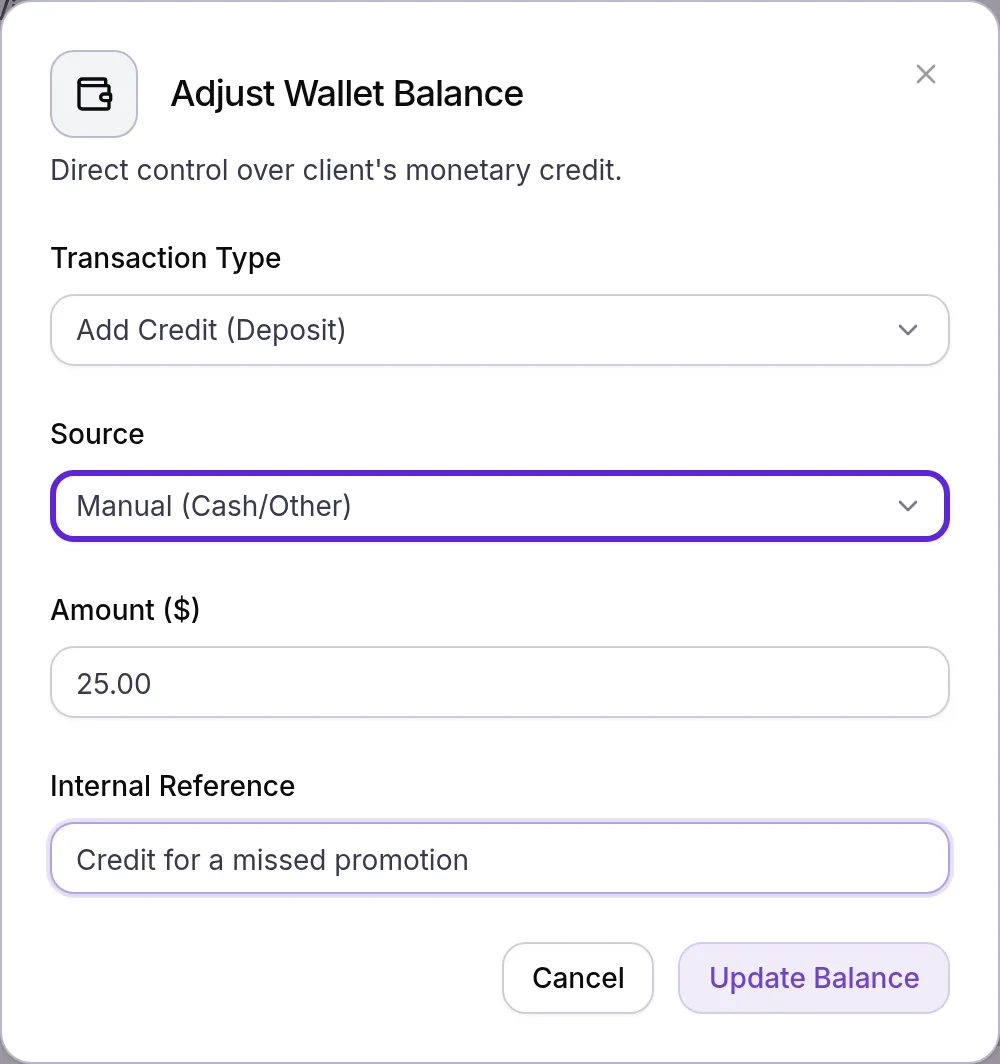
- Enter the amount in Amount ($), to the cent.
- Enter the reason in Internal Reference.
- Select Update Balance. “Balance updated successfully” appears, and Wallet shows the new balance.
| Wallet before | Transaction Type | Amount ($) | Wallet after |
|---|---|---|---|
| $350.00 | Add Credit (Deposit) | 25.00 | $375.00 |
| $375.00 | Admin Adjustment | 40.00 | $335.00 |
| $20.00 | Deduct Credit (Purchase) | 30.00 | $20.00: Velarya refuses the change |
What do patients see?
Patients see an adjustment in the patient app when they go to Home or the Rewards tab, or pull down to refresh.
- A points adjustment changes the total on the points card on Home and on the Rewards tab, with its rewards value in dollars. View Activity lists the change under Points & Rewards, such as +250 pts.
- A wallet adjustment changes the Available balance on the Rewards tab and the wallet balance they can use when they pay for a booking. View Activity lists the change under Transactions, such as +$25.00, and a top-up charged to their card also shows there as its payment.
The Internal Reference stays with your team. For how patients earn, redeem and spend, see How points work.
Where is each adjustment recorded?
Velarya records every points and wallet adjustment on the patient’s record, with its date and amount.
- Points adjustments appear in the Point Ledger at the bottom of Organization settings > Rewards Program, newest first, under the location the staff member was working in when they made them. Each is its own Manual Credit or Manual Deduction row with the signed points and the reason your staff member entered. The ledger opens on the location you are working in, and its location menu switches to another location you work at, or to All locations for admins. Patient names in it follow your role’s Client name visibility. For how the ledger works, see Set up points earning.
- Wallet adjustments appear on the patient’s History tab, in lines such as “You credited this customer $25.00 in store credit.”, “You debited this customer $30.00 from store credit.” and “Admin deducted $40.00 from this customer’s wallet.”
To see which staff member made an adjustment, open Organization settings > Audit Log, which lists each one with the name of the person who made it. The Audit Log opens for Admins and for roles with HIPAA audit trail viewer turned on.
How do points and wallet adjustments behave?
Velarya applies each points or wallet adjustment to the patient’s one balance at once, and refuses any change that would take a balance below zero.
| Situation | What Velarya does |
|---|---|
| You add points | Adds them to the balance the patient redeems in the app, worth $0.01 each |
| You choose Manually Redeem Points | Takes the points off the balance; the patient’s wallet stays the same |
| You remove more points than the patient holds | Refuses the change, so a points balance never goes below 0 |
| You deduct more credit than the wallet holds | Refuses the change, so a wallet never goes below $0.00 |
| You add credit from a saved card | Charges the card first, records the payment as a sale in Transactions, and adds the credit once the charge succeeds |
| Your practice has several locations | Applies the change to the patient’s one balance, which every location sees |
| Your practice issues ZATCA e-invoices | Adds the credit as Promotional credit (no payment taken) and applies it as a discount when the patient spends it |
| Two profiles of one patient are merged | Adds their points and wallet credit together, with the history of both, as Merge duplicate patients shows |
If something goes wrong
The Adjust links don’t appear next to Wallet or Rewards. Your role holds Wallet, points & credits at View at the location you are working in. Ask an Admin to give you a role with Wallet, points & credits set to Adjust; see Loyalty roles and permissions.
Wallet and Rewards aren’t on the profile at all. Your role has no Wallet, points & credits permission at the location you are working in. Ask an Admin to give you a role with it set to View or Adjust there.
Update Rewards or Update Balance stays greyed out. Enter a number in Points Value or Amount ($) first.
“Insufficient points for this deduction.” The patient has fewer points than you entered. Check the balance next to Rewards and remove that many points or fewer.
“Insufficient wallet balance for this deduction.” The wallet holds less than the amount you entered. Check the balance next to Wallet and deduct that amount or less.
A card top-up fails. The message names the reason: “Card declined.”, “Card expired.”, “Insufficient funds.”, “Incorrect CVC.” or “Processing error. Try again.” The patient isn’t charged and no credit is added. Choose another saved card, or ask the patient for a new one.
A patient’s card isn’t in the Source list. The Source list shows every card saved on the patient’s profile. To charge a new card, add it under Stored Methods on their Memberships & Wallet tab, then select Adjust again.
Frequently asked questions
Was this guide helpful?
Last verified
What changed
- : Where each adjustment is recorded: a points adjustment appears in the Point Ledger under the location the staff member was working in, and the ledger's location menu and name visibility are described.