
Sell a membership to a patient
Updated Last verified against the product
In short
To sell a membership in Velarya, open the patient in Clients, select the pencil on their Club Membership card, choose the plan and select Assign Membership. Send the patient the payment link Velarya creates: the membership starts the moment they pay by card. Patients can also join Public plans on their own in your app.
- Who can do this
- Admins and roles with Member lifecycle (pause/resume/cancel/change-tier) set to Manage
- Applies to
- Each location separately
- Plans
- Basic, Scale, Branded and Connected
- Time
- 5 minutes
Before you begin
- The plan is saved with its Status set to Active: Create a membership plan.
- Card payments are set up in Organization settings > Payments, because patients pay for memberships by card.
- The patient's profile holds their email address or mobile number, which they use to open the payment link.
Assign a membership from the patient’s profile
Assigning a plan from the Club Membership card enrolls a patient in a Velarya membership and creates its first payment as a link.
- Open Clients, select the patient, and select the Memberships & Wallet tab.
- In the Club Membership card, select the pencil. Assign Membership opens with the patient filled in under Client.
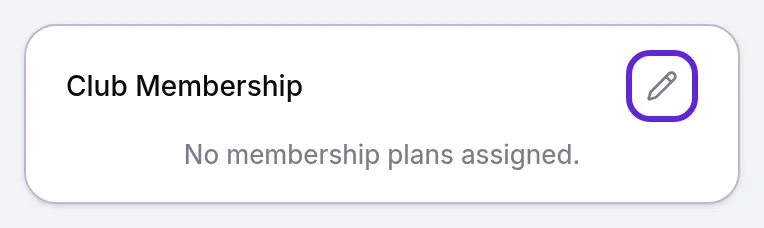
- If you work at more than one location, choose the Purchase Branch: the location selling the membership. It lists the locations you work at and starts on the one you are working in.
- Choose the plan in Membership Tier, which lists the Active plans that branch sells.
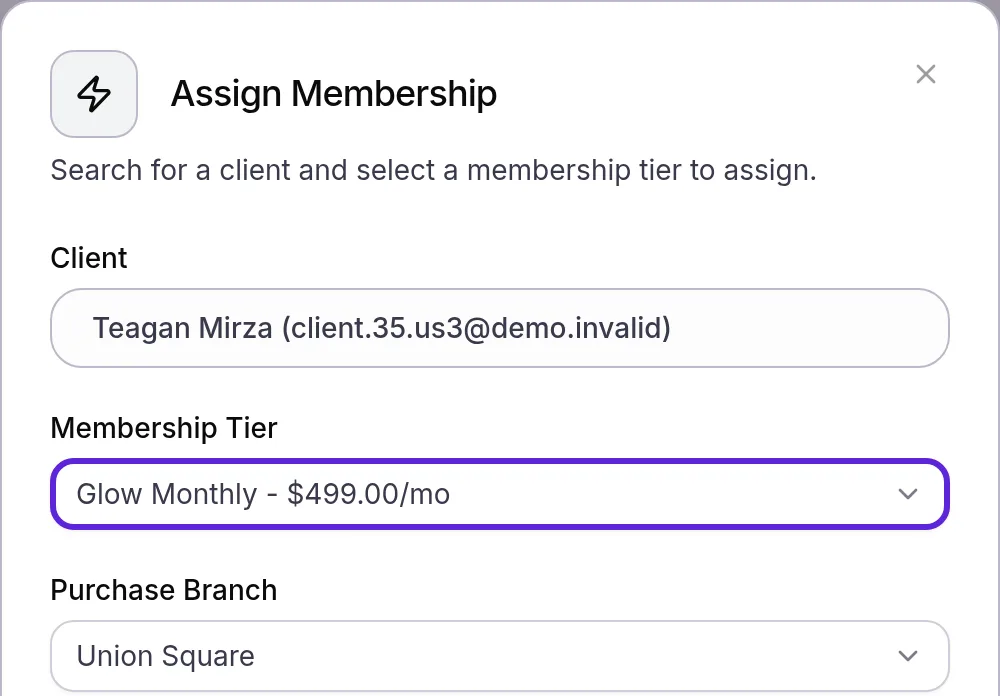
- Select Assign Membership. For a paid plan, a Payment link ready! message appears for about 10 seconds.
- Select Copy Link in that message and send the link to the patient by text or email. “Payment link copied!” confirms the copy, and Preview opens the payment page the patient will see.
A plan with a $0 Billing Amount and no Setup Fee needs no link: “Membership assigned successfully” appears and the membership starts at once. While Cross-location voucher redemption is off, a membership’s vouchers work only at its Purchase Branch.
Can you charge a card the patient has on file?
Yes. Velarya records a paid plan’s first payment as a sale in Transactions, where your team can charge a card listed under Stored Methods on the patient’s profile instead of sending the link.
Open Transactions, select the patient’s sale named after the plan, such as “Glow Monthly Membership”, and select Collect payment. Choose Card on file and the card, select Charge followed by the card’s last four digits and the amount, then select it again when it reads Confirm charge. The membership starts as soon as the charge goes through.
A membership sale is paid by Card on file, Card or Reader, and Velarya keeps that card for renewals. Collecting a payment needs Transactions / orders set to Edit.
When does the membership start?
A Velarya membership starts the moment its first payment goes through, not when you select Assign Membership. Until then, nothing is charged, and the Club Membership card shows the plan with an Awaiting payment badge and Copy membership payment link. Assigning a different plan before the patient pays voids the earlier link, which then reads Invoice Voided.
Once the patient pays, the card shows an Active badge, Auto-renewing under Term status, and Next billing one billing period after the day they paid.
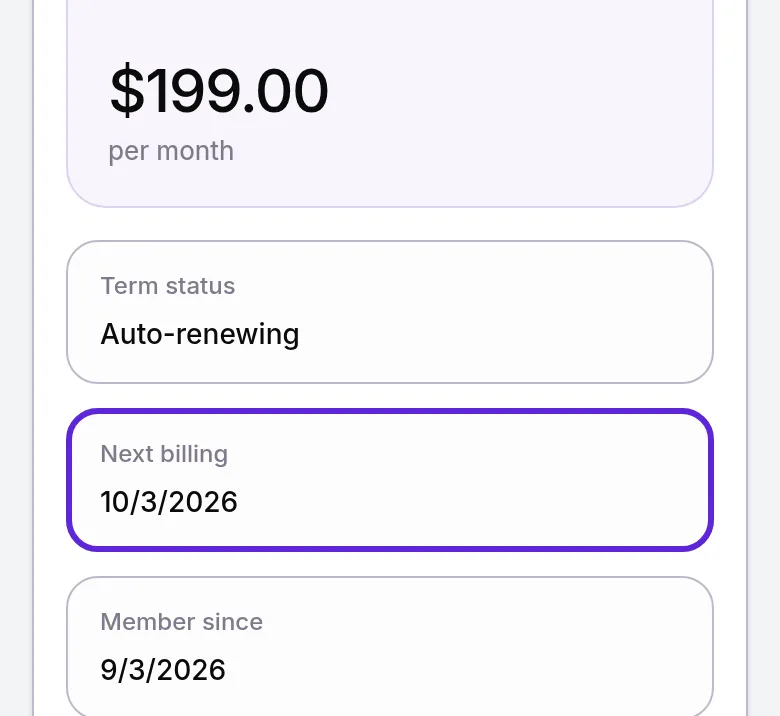
Each row below is a different patient, assigned a plan on October 1.
| Plan | Patient pays on | First payment | Next billing |
|---|---|---|---|
| $199 a month | October 1 | $199.00 | November 1 |
| $499 a month with a $50 Setup Fee | October 4 | $549.00 | November 4 |
| $399 every 3 months | October 6 | $399.00 | January 6 |
| $3,990 a year | October 10 | $3,990.00 | October 10 the next year |
These dates use a Billing Day of Day of signup. A service fee your practice passes on to patients is added as its own line.
When the membership starts, Velarya adds the plan’s first credit, vouchers and join bonus and sends the member a welcome message. Your practice’s admins get one “A client bought a membership” notice naming the plan, by email or text as each chose for Service order completed under My Notifications.
What do patients see?
A patient who opens your payment link signs in on a secure Velarya payment page with the email address on their profile, or with Use Phone instead and their Mobile Number, then enters the 6-digit code Velarya sends and selects Verify Access. The page lists the plan, any Setup Fee and the Amount Due. Pay Now with Card opens the card form, and the page reads Payment Successful once the payment goes through.
The new member then finds their plan under Memberships in your app. Loyalty notifications patients receive lists their welcome message.
Patients can also join an Active, Public plan on their own in your app, where the booking review shows non-members what a visit would save them. How memberships work covers joining in the app, billing and cancelling.
Which plans can your team sell?
Velarya lets staff assign any Active plan that the Purchase Branch sells, whatever its Visibility, while your app lists only Active, Public plans. Both settings are in the plan’s Basic Information card, as described in Create a membership plan.
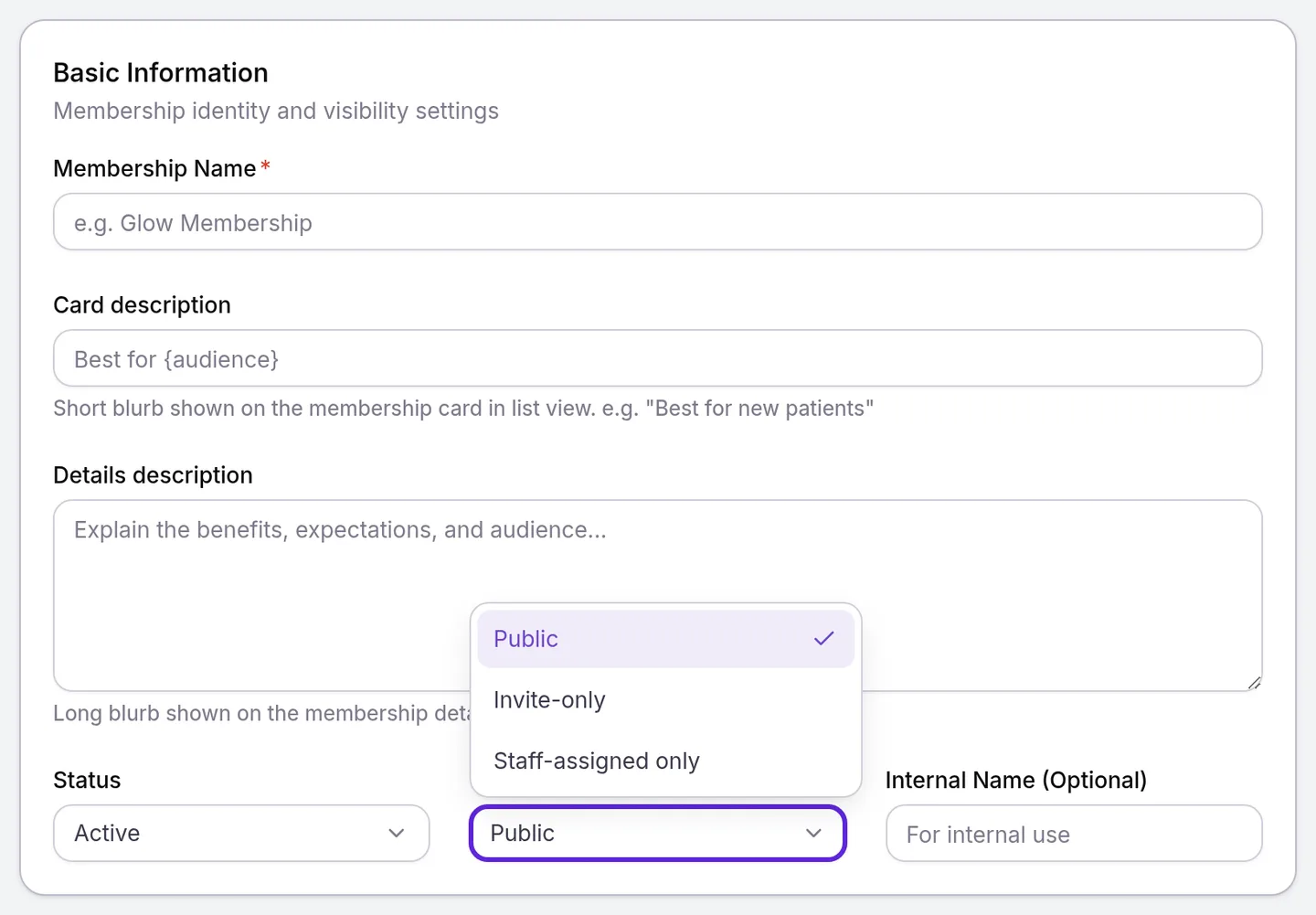
| Plan | In your app | In Assign Membership |
|---|---|---|
| Active, Public | Listed under Memberships for patients to join | Listed |
| Active, Invite-only | Opens only from a link your team shares with a patient | Listed |
| Active, Staff-assigned only | Never offered | Listed |
| Hidden (existing members only) or Inactive | Not listed; current members keep their plan | Not listed |
| Turned off at a location | Not listed at that location | Not listed for that Purchase Branch |
Each location sells every plan until you turn it off there, as How loyalty works across locations describes.
If something goes wrong
The Club Membership card has no pencil. Assigning a plan needs Member lifecycle (pause/resume/cancel/change-tier) set to Manage. Ask an Admin to update your role, as described in Loyalty roles and permissions.
The patient already has a membership. Each patient holds one membership at your practice, including one that is past due, so a member’s Club Membership card offers Modify plan instead of a new assignment. Change their plan there, as described in Change or cancel a membership.
Membership Tier reads “No active tiers found. Create a tier first.” No plan is ready to assign. Create one, set an existing plan’s Status to Active, or choose a Purchase Branch that sells one.
“This membership is not sold at this location.”, “Tier not found”, “Failed to assign membership” or “Something went wrong. Please try again.” The plan was turned off at the Purchase Branch or deleted after the dialog opened, or the request did not complete, and nothing was charged. Open Assign Membership again and choose from the list.
“This clinic hasn’t finished setting up card payments, so nothing was charged.” Finish card payment setup in Organization settings > Payments, as Connect your payment account shows, then assign the plan again.
The patient sees “Access Denied” on the link. They signed in with an email address or mobile number that is not on their profile. They select Log out and switch account and sign in with the details on their profile, which you can update first.
The card on file is declined in Collect payment. Velarya shows the bank’s reason, “Card charge did not succeed”, or a request for extra authentication, and charges nothing. Send the patient the payment link instead, so they can confirm the payment themselves.
Frequently asked questions
Was this guide helpful?
Last verified
What changed
- : The Purchase Branch lists only the locations the staff member works at.