
Create a membership plan
Updated Last verified against the product
In short
To create a membership plan in Velarya, open Organization settings > Memberships and select Add plan. Name the plan, set its Billing Amount and Billing Frequency, add at least one credit or voucher component, set member pricing and a member points rate, then select Save. An Active, Public plan appears in your app for patients to join.
- Who can do this
- Admins and roles with Membership plan definitions set to Edit
- Applies to
- Your whole practice, every location
- Plans
- Basic, Scale, Branded and Connected
- Time
- 15 minutes
Before you begin
- Your treatments have prices in Organization settings > Service Catalog, because vouchers and member pricing are built from them.
- Card payments are set up in Organization settings > Payments, because patients join and renew by card.
- Your Earning Rule is set, because a member's points rate starts from it: Set up points earning.
Open Memberships and add a plan
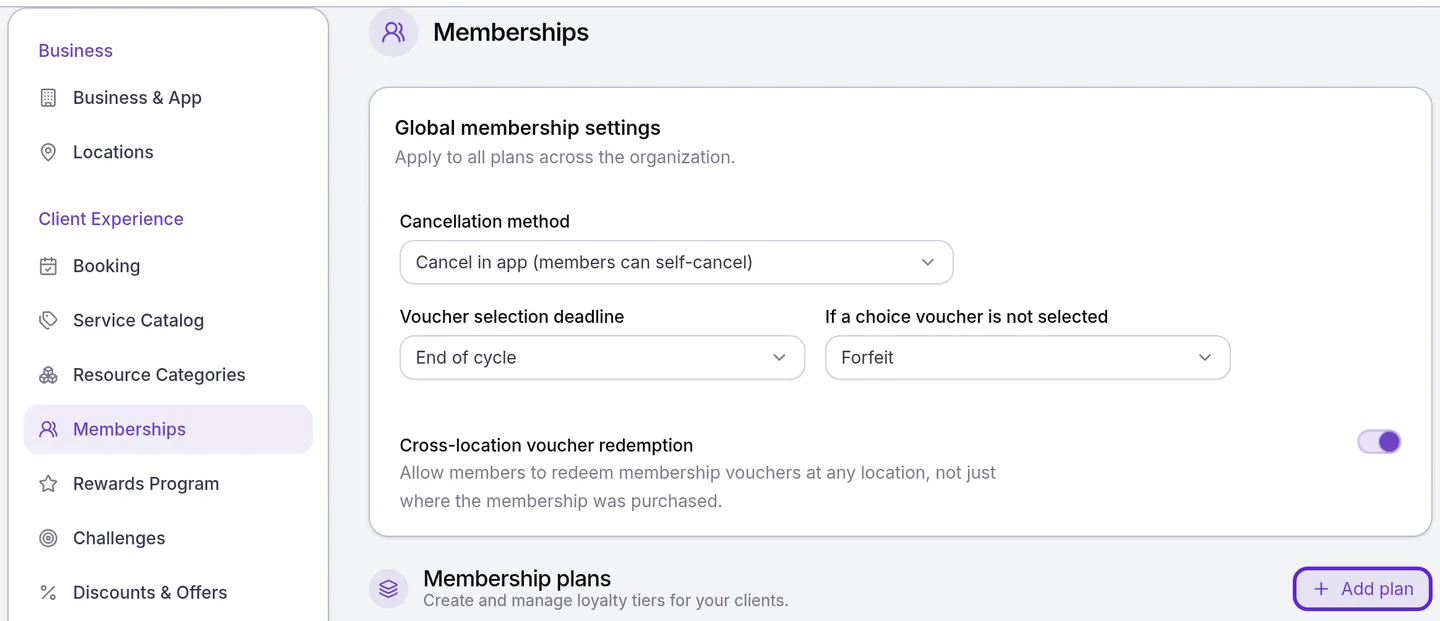
Membership plans live in Organization settings > Memberships, where each plan you build applies to your whole practice.
- Open the menu at the bottom of the left sidebar and select Organization settings.
- Under Client Experience, select Memberships.
- Under Membership plans, select Add plan. A blank plan opens, titled New tier.
Name the plan and set its price
The Basic Information and Pricing & Billing cards set what patients see first: the plan’s name, its price and how often Velarya charges it.
- Enter a Membership Name of up to 100 characters. Patients see it in your app.
- Add a Card description for the plan’s card in the app’s list, and a Details description for its detail screen.
- Leave Status at Active and Visibility at Public, so patients can find and join the plan in your app.
- Enter the Billing Amount ($): the price per billing period, from $0 to $10,000.
- Enter a Setup Fee ($) to charge once with the first payment, or leave it at 0.
- Choose a Billing Frequency: Monthly, Quarterly or Annually.
- Choose a Billing Day: Day of signup, a day from 1st of month to 28th of month, or Last day of month. With a fixed day, Velarya prorates the first charge so every later charge lands on that day.
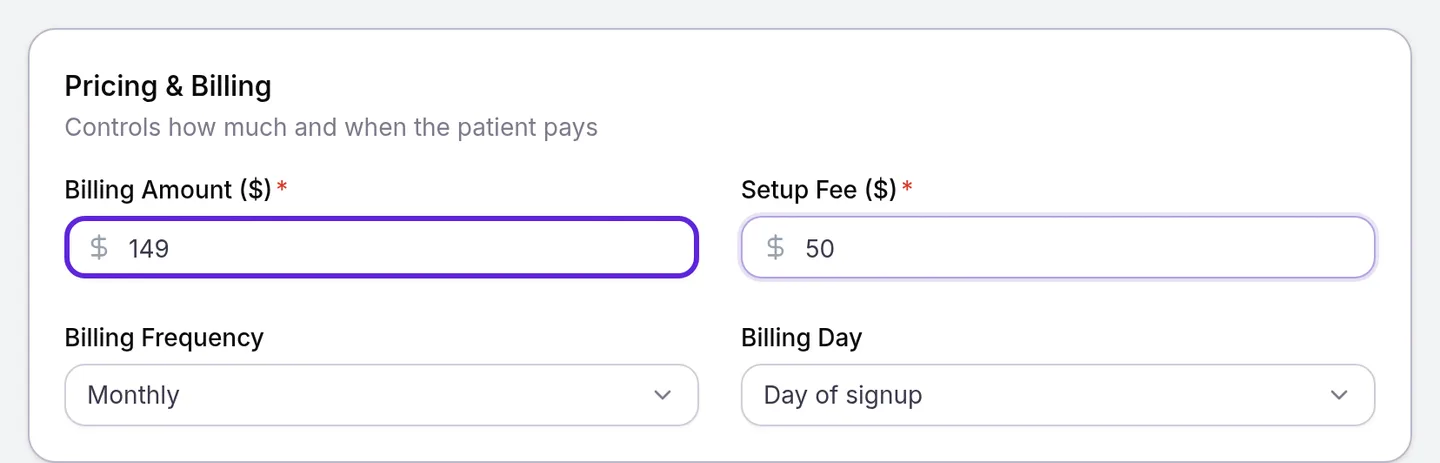
Velarya charges the patient’s card when they join and on every renewal after that, into your practice’s own payment account: see How payments work in Velarya.
| Plan | Patient pays when joining | Then |
|---|---|---|
| $149 Monthly, $50 Setup Fee | $199.00 | $149.00 every month |
| $399 Quarterly, no setup fee | $399.00 | $399.00 every 3 months |
| $1,500 Annually, no setup fee | $1,500.00 | $1,500.00 every year, charged upfront |
These amounts use Day of signup. A service fee your practice passes on to patients shows as its own line at checkout.
Add credits and vouchers
Membership Components are what a member receives on a cycle: wallet credit, vouchers for treatments, or both. Every plan needs at least one.
- Select Add Credits, enter a Credit Amount ($) in whole dollars, and choose its Cycle Duration (Months): 1 month, 3 months, 6 months or 12 months.
- Select Add Vouchers and choose treatments under Select Services, or whole categories under Or whole categories.
- Enter Claims Per Cycle: how many of those treatments a member receives each cycle.
- Choose the voucher’s Cycle Duration (Months).
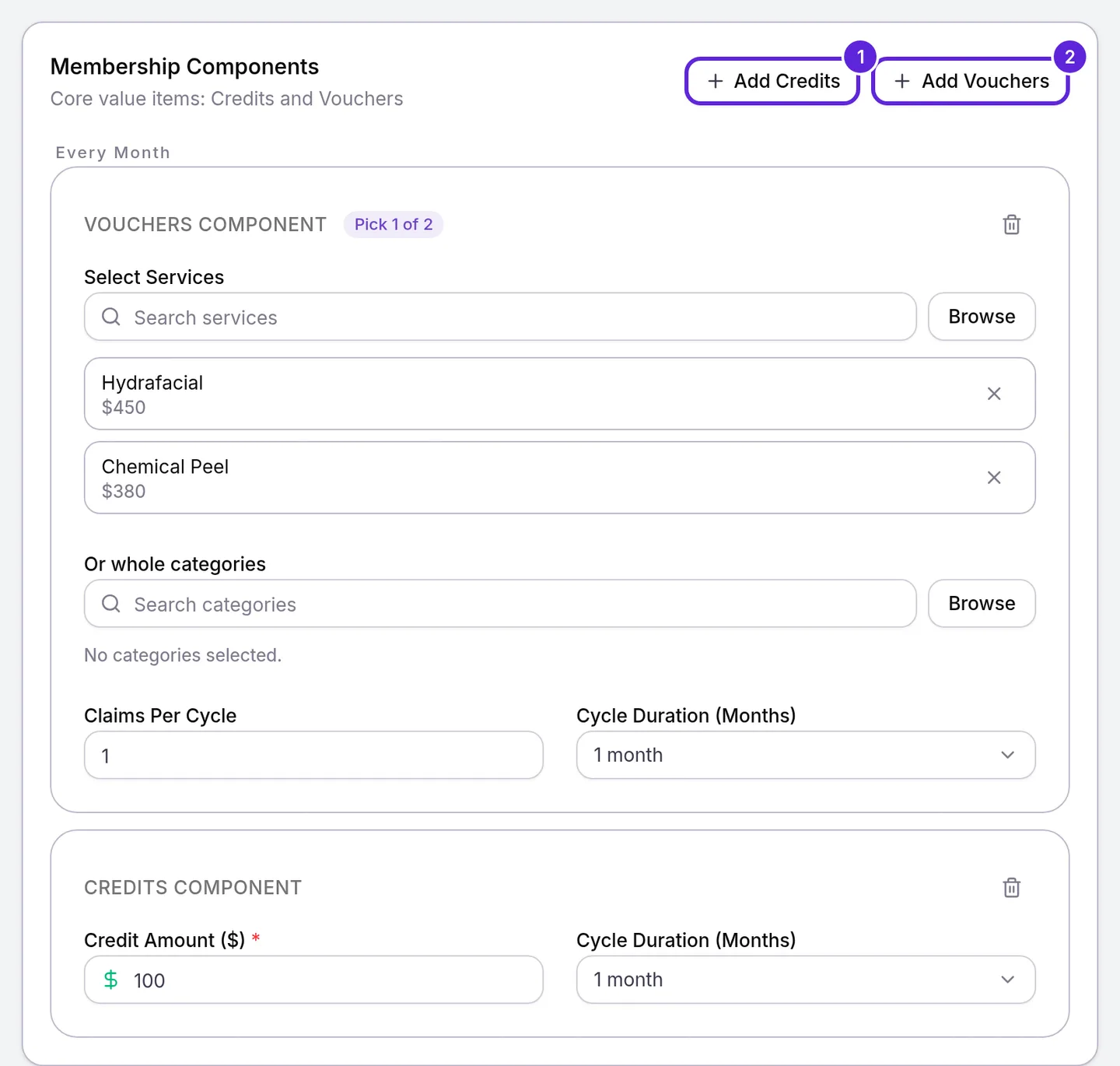
Velarya groups components under Every Month, Every 3 Months, Every 6 Months and Every 12 Months. A voucher with one service arrives on its own each cycle. A voucher with several services, or a category, is a choice: the builder shows Pick 1 of 2, and members pick their treatments in the app, as Let members choose their included treatments explains.
A plan holds one credit component per cycle length. Credit from different cycles adds up in the months where they meet, counted from the day the membership starts.
| Credit components | Months 1 to 5 | Month 6 |
|---|---|---|
| $100 every month | $100.00 each month | $100.00 |
| $100 every month + $200 every 6 months | $100.00 each month | $300.00 |
| $150 every 3 months | $150.00 in month 3 | $150.00 |
Add cancellation terms and a join bonus
The Commitment & Contract and Membership Join Bonus cards below the components are optional: a minimum term with an early cancellation fee, and a one-time gift for joining the plan.
- For a monthly or quarterly plan, turn on Require Commitment and choose a Commitment Length: 3 Months, 6 Months, 12 Months or Custom.
- Turn on Early Cancellation Penalty and choose a Penalty Type: Flat Fee with a Fee Amount ($), Remaining Term Value or Prorated Savings Clawback.
- Under Pause & Cancellation, leave Allow Pausing on so staff can pause a member’s plan, and set the Limit per year (2 by default) and Max Duration (Months) (3 by default).
- Turn on Enable join bonus and choose a Gift type: Whole-shop discount (% off), Category discount (% off), Free service or Points.
- Enter the gift:
- Whole-shop discount (% off) or Category discount (% off): a Discount percentage from 1 to 100 and an Expiry from Same day to 1 month, plus the Category for a category discount.
- Free service: the Service the member gets.
- Points: a Points amount.
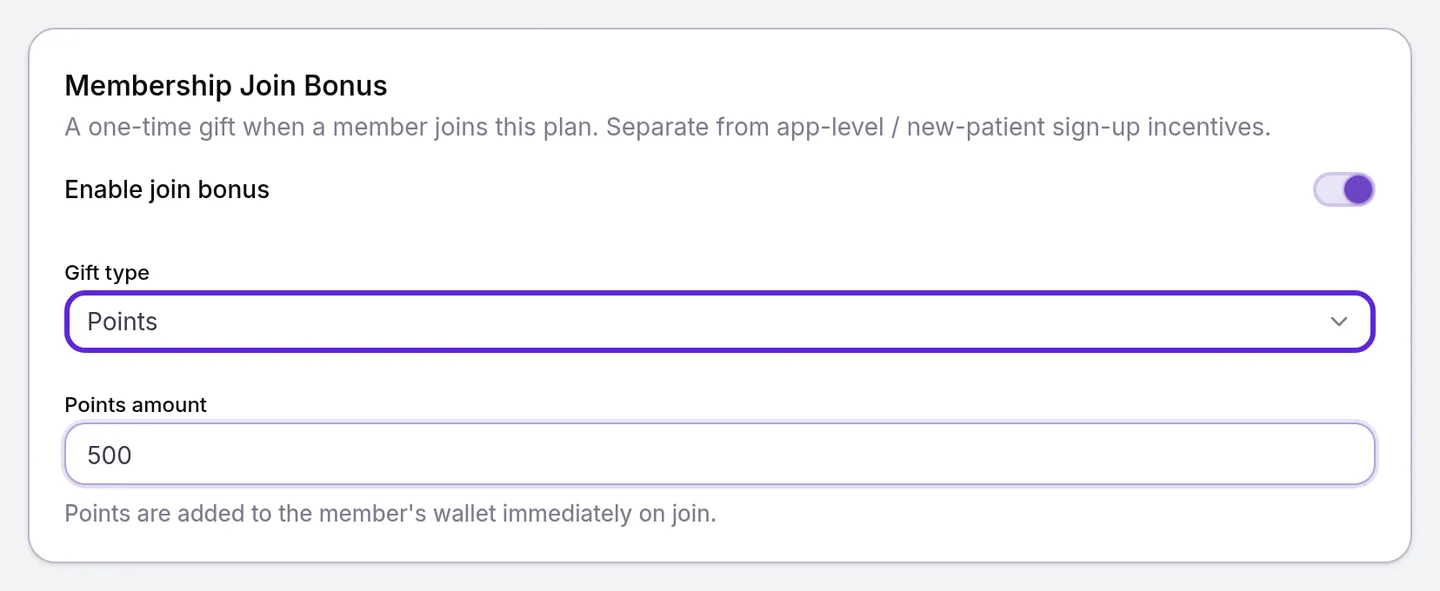
Remaining Term Value charges the plan price for each billing period left in the commitment, and Prorated Savings Clawback charges back the member-price savings from the commitment, prorated to the part left unfinished. On an Annually plan the paid year is the commitment, so the builder shows a note instead of commitment settings.
Velarya gives the join bonus once, the moment the membership starts. Points and a free service arrive right away, and a discount lasts for its Expiry. The join bonus is separate from the Sign-Up Bonus that new patients get for joining your app, described in Set up points earning.
Set member pricing and the points rate
The Member Benefits and Member Pricing cards set the points rate members earn and the standing discount they get on services, on top of their credits and vouchers.
- In Member Benefits, enter a Member points earning rate: the points a member earns per $1 of treatment spend.
- Leave Member Pricing on, so members pay the prices you set below.
- Under Category Discounts (percentage only), choose All services and enter a Discount for all services, or choose Specific categories, add the categories and set a Discount for each one.
- Under Service & Add-on Discounts, add services and enter a percentage off, or switch to a fixed price and enter the member’s new price. For a service with variations, open Per variation to price each one.
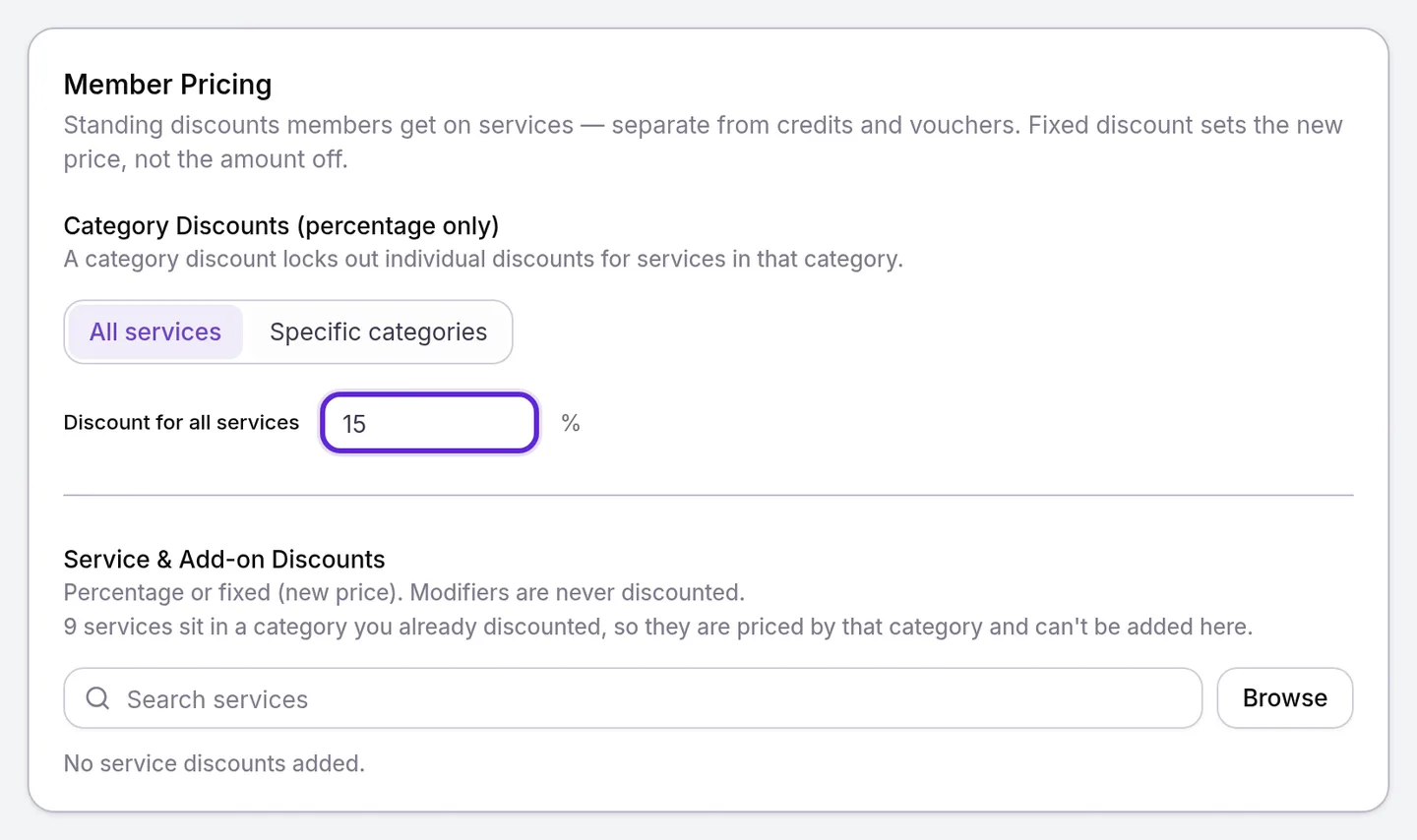
A fixed price is the price the member pays, not an amount off, and it must be below the regular price. A category discount covers every service in that category, so those services leave the Service & Add-on Discounts list and take the category’s price. Add-ons can be discounted; modifiers always stay at full price.
Each row below is a different plan’s pricing for one treatment.
| Treatment and regular price | Member pricing on the plan | Member pays |
|---|---|---|
| Hydrafacial, $450 | 15% for All services | $382.50 |
| Chemical Peel, $380 | Fixed price of $300 under Service & Add-on Discounts | $300.00 |
| Neuromodulator, $950 | 10% on its category under Specific categories | $855.00 |
Free Consultations, in Member Benefits, gives members the Consultation service you choose at $0: as often as they like with Unlimited, or up to the number of Consultations you set Every (months) with Limited.
Save the plan
Saving a membership plan puts it on sale in your app when its Status is Active and its Visibility is Public.
- Select Save in the Unsaved changes bar at the top of the page. Velarya returns you to Memberships, where the plan appears under Membership plans.

A saved plan is on sale at every location. To keep it off sale at one, select Manage in the left sidebar, choose the location at the top of Location Settings, open Memberships and choose Disable for this location in the plan’s menu.
What do patients see?
An Active, Public membership plan appears under Memberships in your app as a card with its name, Card description, benefit chips such as a credit amount or Member pricing, and its price per month, 3 months or year. Tapping it opens the plan’s Details description, its Member-Only Benefits, what arrives Every Month, any commitment (“3 months commitment is required”) and the Sign Up Bonus! box for a join bonus. Become a Member takes them to checkout.
To see what happens after a patient joins, from billing to cancellation, read How memberships work.
How does a plan behave after you save it?
A saved membership plan follows these rules when you edit it later and when members use it.
| Situation | What Velarya does |
|---|---|
| You change the Billing Amount of a plan with members | Asks before saving how members who would pay more move to the new price, and moves members who would pay less down at their next renewal, as Change a membership price describes |
| You change Billing Frequency while members are on the plan | Keeps the current frequency and says how many members are billed on it; offer the new frequency as a new plan |
| Status is Hidden (existing members only) | Takes the plan out of your app’s list; members already on it keep it |
| Visibility is Staff-assigned only | Keeps the plan out of your app; staff assign it from the patient’s profile |
| The Member points earning rate is below your Earning Rule | Saves the Earning Rule’s rate, so members never earn less than non-members |
| A member pays for a treatment | Awards points at the plan’s Member points earning rate or your Earning Rule, whichever is higher |
For how points are counted on each visit, see How points work.
If something goes wrong
“Enter a membership name” or “Maximum 100 characters”. Enter a Membership Name of 1 to 100 characters.
“Enter a billing amount” or “Cannot exceed $10,000”. Enter a Billing Amount ($) from 0 to 10,000.
“Add at least one credit or voucher component”. Select Add Credits or Add Vouchers and fill it in. A voucher needs at least one service or category, or it shows “Select at least one service or category”.
Add Credits and Add Vouchers are greyed out. The builder shows “Finish configuring the current component before adding another.” Enter the open component’s Credit Amount ($), or choose its services, then add the next one.
“Fix 1 invalid membership discount before saving.” A service under Service & Add-on Discounts has a fixed price at or above its regular price, shown as “Member price must be below the $380.00 regular price”, or a percentage over 100. Enter a lower value, then save again.
“1 member is billed on this plan’s current frequency. Create a new plan to offer a different billing frequency.” A plan with members keeps its Billing Frequency. Set it back, save your other changes, and create a new plan for the new frequency.
“Cannot delete tier with active subscribers”. Velarya keeps a plan that still has members. Set its Status to Hidden (existing members only) to stop new sign-ups instead.
Memberships isn’t in my Organization settings menu. The page needs Membership plan definitions at View, and saving a plan needs Edit. Ask an Admin to update your role; see Loyalty roles and permissions.
Frequently asked questions
Was this guide helpful?
Last verified