
Set up the waitlist
Updated Last verified against the product
In short
Velarya's waitlist lets patients ask to hear about openings on a fully booked day. Turn on Waitlist enabled in Organization settings > Booking and select Save. When a time frees up, Velarya tells the matching patients in the order they joined, 3 at a time by default, and they book the opening themselves.
- Who can do this
- Admins and roles with Booking rules, deposits, cancellation, waitlist set to Edit for the whole practice (a location's own settings need Edit there); staff with Waitlist set to Manage and Transactions / orders set to View add patients, and Calendar & appointments set to Manage to book them.
- Applies to
- Your whole practice, every location
- Plans
- Basic, Scale, Branded and Connected
- Time
- 5 minutes
Before you begin
- Online booking is on, with patients able to book themselves: Set up online booking.
Turn on the waitlist
The Velarya waitlist is a list of patients who want a time that is fully booked. When a matching time frees up, Velarya notifies them and they book it themselves. You turn it on for your whole practice on the Booking page.
- Open the menu at the bottom of the left sidebar and select Organization settings.
- Under Client Experience, select Booking.
- Scroll to the Waitlist card and turn on Waitlist enabled. Notify fan-out and Re-notify interval appear below it.
- Enter Notify fan-out: how many patients Velarya tells about each opening at once, from 1 to 10. It starts at 3.
- Enter Re-notify interval: how many minutes Velarya waits before the next round of notifications while an opening is still free, from 5 to 1440. It starts at 30.
- Select Save in the Unsaved changes bar at the top of the page. The bar closes, and patients can join the waitlist from their next booking.
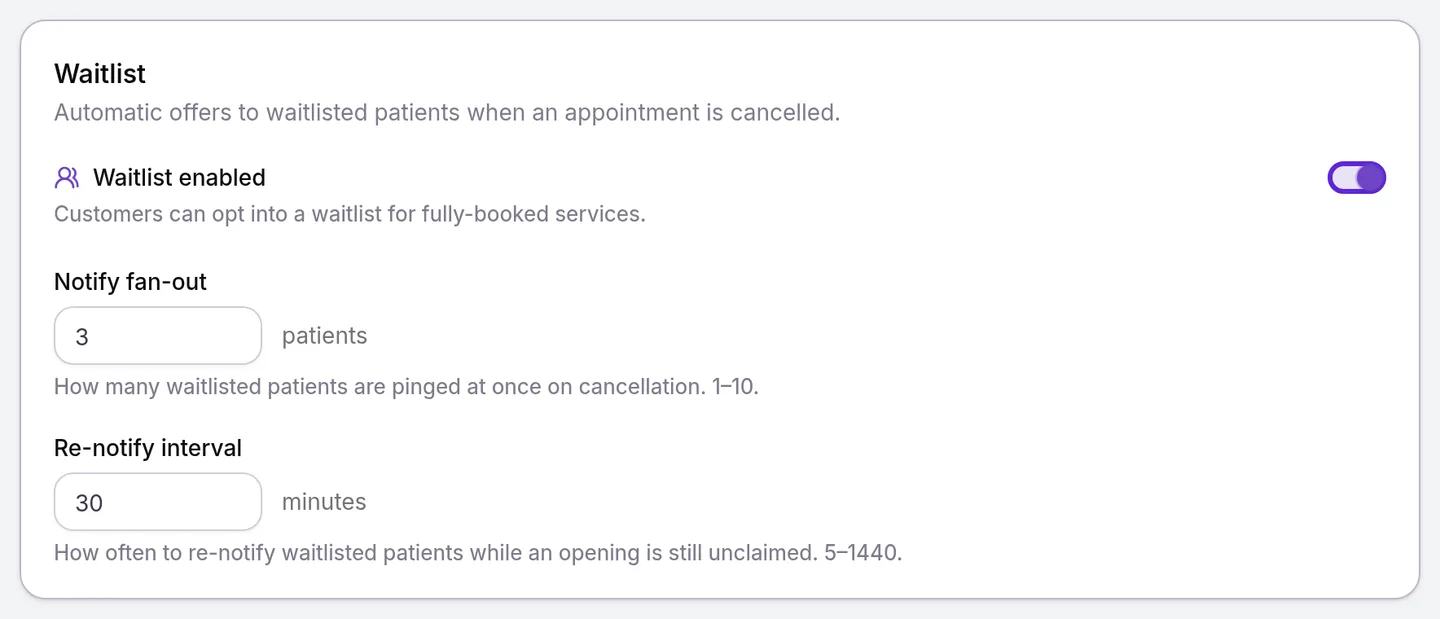
The Waitlist card is available while Enable online booking is on at the top of the page.
Change the waitlist for one location or one service
The waitlist settings apply at every location until a location overrides its Waitlist row, as Set up deposits and cancellation fees shows for any booking row.
For one service, open it in Organization settings > Service Catalog, select Edit booking policy under Booking Policy, change Waitlist enabled or Notify fan-out in its Waitlist card, and select Save in the Unsaved changes bar. A service setting wins over the location’s, and the location’s over the organization’s.
How do patients join the waitlist?
Patients join the waitlist from the booking flow, at the moment they find no time they want. The entry keeps everything they chose: the service with its options and add-ons, the location, and their provider or Any professional.
- In the patient app, a fully booked date shows “There is no availability left on this date” and Notify me if something opens up. On Be the first to know, under Which date are you interested in?, the patient picks Exact date, +/- 1 day or +/- 2 days and taps Notify me if something opens up. You are on the waitlist confirms it.
- On your web booking page, Notify me if something opens up adds the patient for the date they chose.
Patients see their entries under Waitlist on the app’s Calendar tab; View on an entry opens My waitlists, which lists each one with Check availability and Leave, and Edit opens Reach me first via (Push, Text or Email) and Save preferences.
Add a patient who calls
When a patient phones for a time you cannot give them, your team adds them to the same waitlist from Transactions.
- Open Transactions, select the search box, choose Status under Add filter, and select Waitlist.
- Select Add to waitlist.
- Type the patient’s name or phone number under Client, then choose them in Select a client.
- Choose the Location (when you have more than one), the Service and the Professional: a provider who performs the service, or Any professional (shared queue).
- Pick the Requested date and the Flexibility: Exact date, ±1 day or ±2 days.
- Select Add to waitlist. “Added to the waitlist” appears, and the patient joins the list.
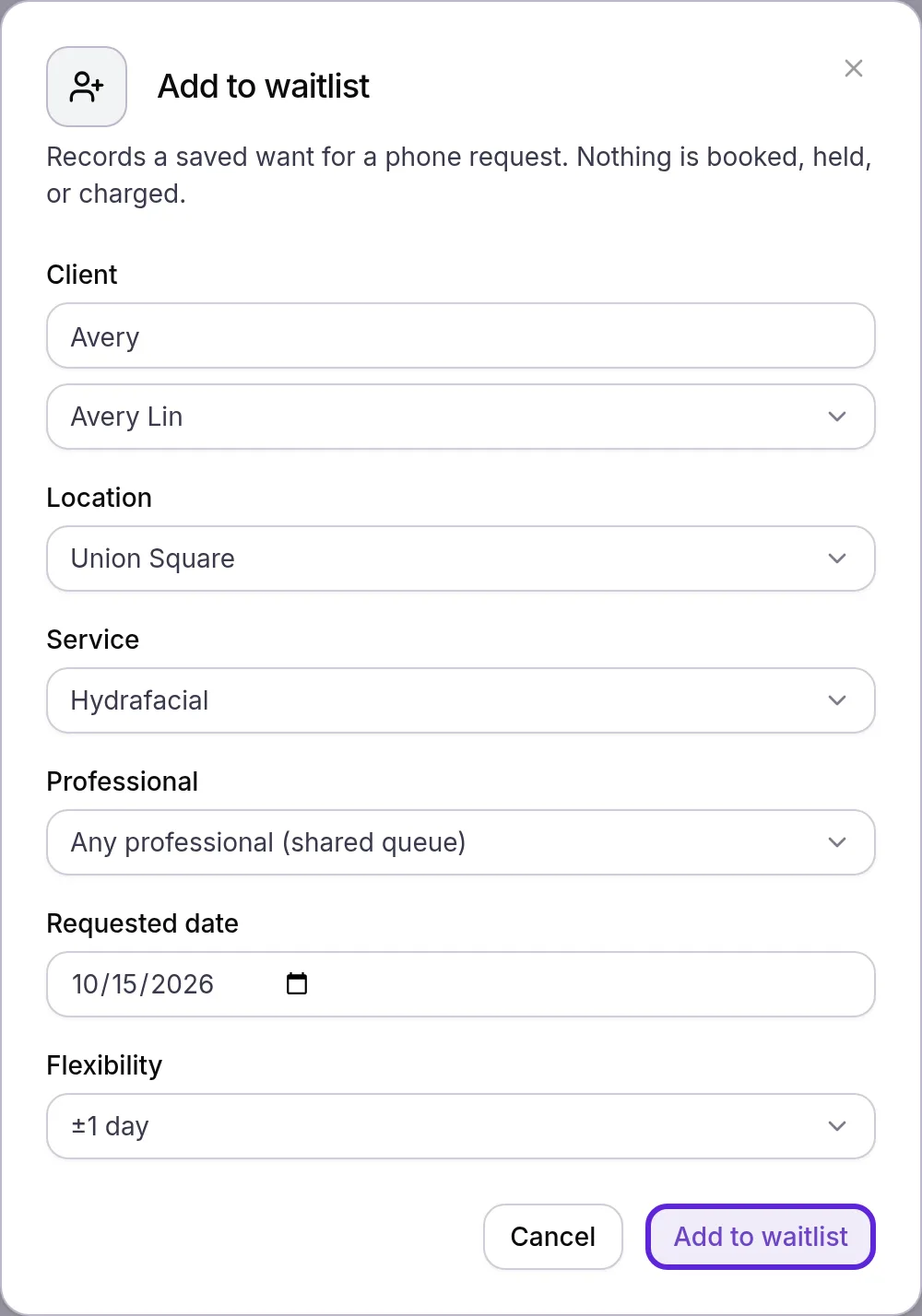
Nothing is booked, held or charged: the entry is a saved request, matched against openings like any patient’s own. Velarya reaches a caller by email, by text once SMS is turned on in the patient’s profile, and by push when they use the patient app.
Book a patient from the waitlist
The waitlist on Transactions groups patients under Any professional (shared) and under each provider, with how many are waiting, in the order they joined. Each row shows Waiting or Notified, the service, the provider, the location, the date they want with its flexibility, when they joined and the channels that reach them.
- Select Book on the patient’s row. The New appointment drawer opens with the patient, the service and their requested date filled in.
- Add the options and add-ons shown in brackets on their row, choose the provider named on the row (or any provider for Any professional) and a time, then select Book appointment. The patient leaves the waitlist.

The New appointment drawer works as in Book an appointment for a patient. To take a patient off the list, select the trash icon on their row; “Removed from waitlist” appears. On the Front Desk, a Waitlist: button with a count opens this list when patients wait for a time today.
What happens when a time opens up?
Velarya runs the waitlist on its own: each time an opening appears, it finds the waiting patients who fit it and notifies them in the order they joined.
| Situation | What Velarya does |
|---|---|
| An opening appears | Counts a cancellation by staff or patient, a no-show, an appointment moved to another time or provider, and new working hours saved for a provider |
| Deciding who could take it | Looks at patients waiting at that location whose date range includes the day: the provider’s own list, plus Any professional entries for services that provider performs there |
| Checking the fit | Tells only patients whose whole booking, with its options and add-ons, fits the free time, and who have no appointment of their own then |
| How many hear first | Up to Notify fan-out patients for each service, earliest to join first |
| The opening is still free after the Re-notify interval | Sends the next round to the next patients in line, checked every 5 minutes |
| A patient was told recently | Skips them for other openings until the location’s Re-notify interval has passed |
| The patient books the opening | Takes their entry off the waitlist, so they hear about no further openings |
| Two patients go for the same time | The first to confirm the booking gets it; the others find the time taken and stay on the waitlist |
| You cancel an appointment | The Cancel appointment? dialog says how many waiting patients match; select Skip waitlist notification to tell no one |
| The last day of the patient’s range passes | Removes the entry from the waitlist |
| You turn the waitlist off | Keeps every entry but notifies no one; turning it back on keeps their original order |
To cancel with or without notifying the waitlist, see Cancel or reschedule an appointment.
What do patients see?
Velarya notifies waitlisted patients on every channel they have turned on, and the message never names the treatment on a lock screen.
| Channel | What it says |
|---|---|
| Push notification | A slot just opened up: “A slot you were waiting for is available. Open the app to book it.” Tapping it opens booking for that service, with the options and add-ons they chose, and their provider on the day that opened. |
| Text | “Velarya: A slot you were waiting for just opened up. Open the app to book it before it is gone.” |
| A slot just opened up, under your practice’s name: “A time you were waiting for just opened up. Open the app to book it before someone else does.” It leaves the treatment out. | |
| The app’s Notifications list | A slot just opened up, naming the service that freed up |
In My waitlists, a notified entry shows Book now, and the card on the Calendar tab reads “A spot just opened up”.
If something goes wrong
Patients don’t see “Notify me if something opens up”, or see “This clinic isn’t running a waitlist for this service right now.” The waitlist is off at that location or for that service (“The clinic has waitlist disabled for this service.” if it was switched off while they were joining). Check Waitlist enabled on the Booking page, on the location’s Booking page and on the service’s booking policy.
“Waitlist disabled for this service/location” when adding a patient. The same check applies to entries your team adds. Turn the waitlist on where the patient wants to book, then add them again.
“You are already on the waitlist for this service.” The patient already waits for the same service, options, provider, location and dates; your team sees “Already on the waitlist for this service”. Nothing needs doing: their place in line is kept.
“Client, service and requested date are required”. Add to waitlist needs a patient chosen in Select a client, a Service and a Requested date.
Waitlist is missing from the Status filter on Transactions. The filter lists Waitlist while online booking is on. Turn on Enable online booking on the Booking page.
A cancellation notified nobody. Check that the waitlist is on for that location and service, that someone waits for a date including that day, and that Skip waitlist notification was not selected. Patients are also passed over when the free time is too short for their booking, their chosen provider is not the one who freed up, or they have their own appointment then. Velarya also skips an appointment whose start time has already passed, and patients it told about another opening within the Re-notify interval. A patient with no channel turned on is marked Notified without a message; check their contact details and text-message setting in the patient’s profile.
Frequently asked questions
Was this guide helpful?
Last verified
What changed
- : What do patients see? now quotes the waitlist email, which arrives under your practice's name and leaves the treatment out.