
How check-in rewards work
Updated Last verified against the product
In short
Velarya check-in rewards add the points you set each time your front desk checks a patient in: by scanning their QR code, moving their appointment to Arrived, or checking in a booking or walk-in. Each appointment earns once, within your Frequency limit and Max check-ins per patient, counted across all your locations.
- Who can do this
- Admins and roles with Challenges (check-in/referral) set to Edit change the rules; staff whose role has Check-in & scanning turned on add the points
- Applies to
- Your whole practice, every location
- Plans
- Scale, Branded and Connected
- Time
- 4 minute read
What are check-in rewards?
Check-in rewards in Velarya give a patient points each time your front desk checks them in for a visit. They are your practice’s check-in challenge: you set them once, on the Check-In card in Organization settings > Challenges, and patients see them as a challenge in the patient app. Check-in points come on top of the points a visit earns for what the patient spends, and they turn into wallet credit at the same 100 points to $1.00, as How points work explains.
Which front desk actions add check-in points?
Velarya adds the check-in Reward whenever a staff member checks a patient in, whichever of these five ways they use:
- Scan QR code on Front Desk opens the Check-in scanner. Staff scan the code in the patient’s app, or find the patient under Manual lookup, and select Check in.
- Dragging the patient’s appointment card into Arrived on the Front Desk board.
- Mark Arrived in an appointment’s panel, on Front Desk or Calendar.
- Check In beside an upcoming booking in the Front Desk search.
- Promote to appointment for a walk-in linked to a patient.
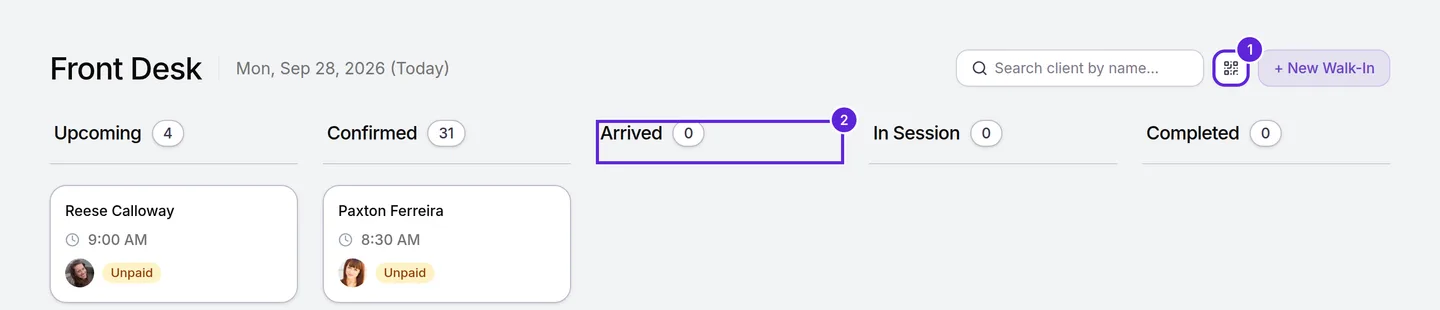
Every way records the check-in at the location where it happened, adds the points at once, and tells staff whether points were added and, when none were, why. The scanner also checks in a patient with no appointment that day, which adds the check-in points only. Adding points takes Check-in & scanning in the staff member’s role, which the Admin, Location Manager and Front Desk roles have by default.
What limits check-in points?
Check-in rewards follow the settings on the Check-In card and two fixed rules, and the limits count a patient’s check-ins at all your locations together.
| Rule | What Velarya does |
|---|---|
| The Check-In switch is off | Adds no points. An appointment still moves to Arrived |
| The appointment already earned its check-in | Adds nothing more: each appointment earns once, however many times staff check it in |
| Frequency limit | Adds no points when the patient’s last check-in was less than this many hours ago. It starts at 24 and takes 1 to 8,760 hours |
| Max check-ins per patient | Adds no points once the patient has this many check-ins in all. Empty means no cap |
| A check-in with no appointment | Adds points at most once per day, in your practice’s time zone |
| No Reward above 0 is saved | Adds no points and records no check-in. The challenge goes live once a Reward above 0 is saved |
A check-in that the switch, the one-award-per-appointment rule or a limit stops from adding points is not recorded as a check-in, so it neither restarts the Frequency limit nor counts toward Max check-ins per patient. A change you save on the card applies from the next check-in, and points patients already earned stay on their balance.
Here a practice gives 50 points per check-in, with a Frequency limit of 24 hours and Max check-ins per patient of 10:
| Check-in | Points | Why |
|---|---|---|
| Monday 9:00 AM, the QR code scanned for a facial | 50 | The first check-in |
| Monday 9:05 AM, the same appointment dragged into Arrived | 0 | That appointment already earned its check-in |
| Monday 4:00 PM, a second appointment at another location | 0 | 7 hours since the last check-in, inside the 24-hour Frequency limit |
| Tuesday 9:30 AM, the next visit | 50 | 24 and a half hours have passed |
| The patient’s eleventh check-in | 0 | They reached 10 check-ins, 500 points ($5.00) in all |
What do patients see?
Patients see check-in rewards on the Rewards tab of the patient app, under Challenges, once the Check-In switch is on and a Reward above 0 is saved.
- The challenge card names the points each check-in earns, or the total a patient can earn when you set a Max check-ins per patient, and shows their progress, such as “2 of 10 check-ins”. It reads Completed at the cap.
- Its Check In button, and the round QR button on Home, open Your check-in code for your front desk to scan.
- When staff check them in, the app confirms Checked in! with the points earned, and a Points added notification follows.
- Each check-in with points appears in their activity as Check-In.
What you can change
Every check-in setting applies to your whole practice.
| Setting | Where | Default | What it changes |
|---|---|---|---|
| Check-In switch | Organization settings > Challenges | Off | Whether check-ins add points. The first Save with a Reward above 0 turns it on; after that it switches at once |
| Reward | The Check-In card | 0 | The points each check-in adds, a whole number above 0 |
| Max check-ins per patient | The Check-In card | Empty, no cap | How many check-ins with points a patient can ever have, 1 or more |
| Frequency limit | The Check-In card | 24 hours | The shortest time between two check-ins with points for one patient |
| Check-in & scanning | Organization settings > Roles & Permissions | On for Admin, Location Manager and Front Desk | Which staff add check-in points |
Where to find check-in rewards
Velarya keeps the check-in rules in one place and every check-in in another.
- For the rules, open Organization settings from the menu at the bottom of the left sidebar, select Challenges under Client Experience, and find the Check-In card below Refer a Friend. Set up check-in rewards walks through each field.
- For the history, select Rewards > Check-Ins in the left sidebar. It lists every check-in recorded at the location you are working in, newest first, 50 to a page, with the patient, location, points and time, and Export downloads the whole list. Each award also appears in the Point Ledger at the foot of Rewards Program.
To check patients in with the scanner step by step, see Check in a patient with a QR code.
Frequently asked questions
Was this guide helpful?
Last verified
What changed
- : Check-In goes live once a Reward above 0 is saved, Max check-ins per patient takes 1 or more, and Rewards > Check-Ins pages through every check-in with an Export of the whole list.